DayCraft is a personal productivity web app that keeps your tasks and subtasks, repeating reminders, meetings, rich notes, saved links and shared team channels in one place, with built-in tools (stock watchlist, currency, units, Chinese lunar dates, solar terms, Canada and US holidays), an AI assistant, push notifications and a command-line client. It runs in any modern browser at daycraft.micstec.com and can be installed on a phone or computer like an app.
| Best for | Planning your day, never missing recurring events, keeping notes and links together, and posting quick updates, code snippets and files to a team channel |
| You need | A free DayCraft account: email and password, or Sign in with Google |
| Works on | Desktop and mobile browsers (Chrome, Edge, Safari, Firefox); installable as an app (PWA); push notifications on Android, desktop, and iPhone/iPad 16.4+ once installed to the Home Screen; a daycraft_cli command-line client for Linux, macOS and Windows |
| Your data | Tasks, reminders, meetings, notes and favorites are private to your account. Channel posts are visible to that channel's members. Export everything as JSON, CSV or Excel from Settings → Data |
Get started
Create an account or sign in
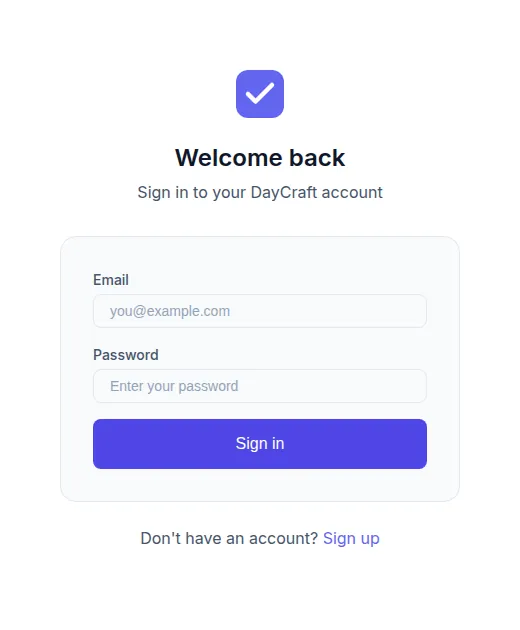
- Open daycraft.micstec.com. The Welcome back page appears.
- New here? Choose Sign up, then fill in Full Name (optional), Email, Password (at least 6 characters) and Confirm Password, and choose Create account. You are signed in straight away and land on the Dashboard; no confirmation email is sent.
- Returning? Enter Email and Password and choose Sign in, or use the Sign in with Google button under it. A Google sign-in joins the DayCraft account that has the same email address, or creates a new one.
Your first ten minutes
- Open Settings (bottom of the sidebar) and pick a Theme, your Timezone and a Default Reminder Time.
- Under Settings → Notifications, choose Enable next to Notifications on This Device and allow notifications when the browser asks. On iPhone or iPad, install DayCraft to the Home Screen first.
- Go to Todos → Add Task, give the task a Due Date & Time and tick Notify me. You will get a “Task due” alert at the lead time you chose.
- Go to Reminders → Add Reminder and create a repeating reminder, for example Water the plants, Daily at 08:00 and 19:00.
- Open Channels → + Create channel, name it, and send your first message. Invite a colleague from Members.
Find your way around
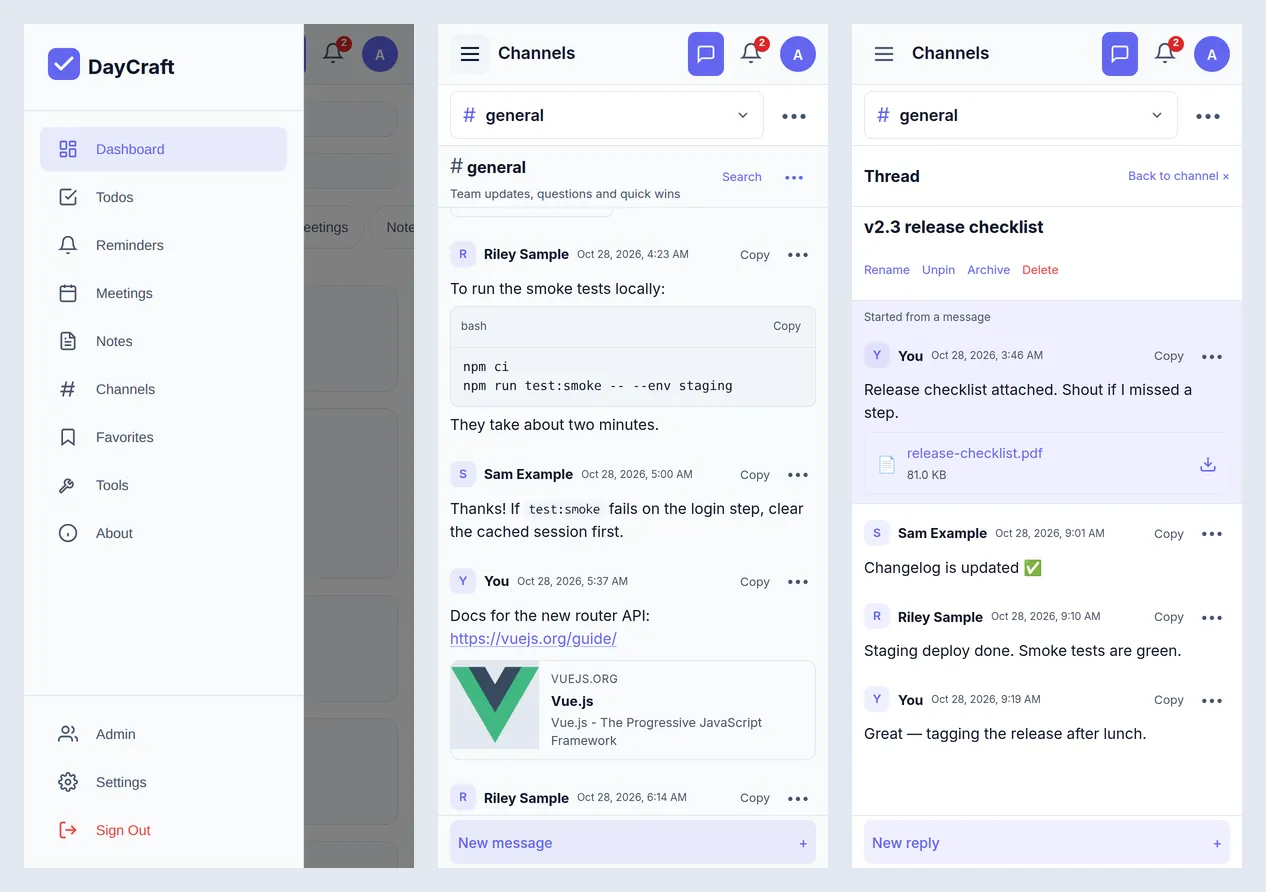
The sidebar lists Dashboard, Todos, Reminders, Meetings, Notes, Channels, Favorites, Tools and About, with Admin (administrators only), Settings and Sign Out at the bottom. On a phone, open it with the ☰ button. The header shows the page name and today's date, the AI Assistant button, the notification bell and your initial.
Most forms open in a floating window. Drag it by its title bar, resize it from any edge or corner, and use the Fullscreen button (or double-click the title bar) to enlarge it. On phones these windows always fill the screen.
Dashboard and search
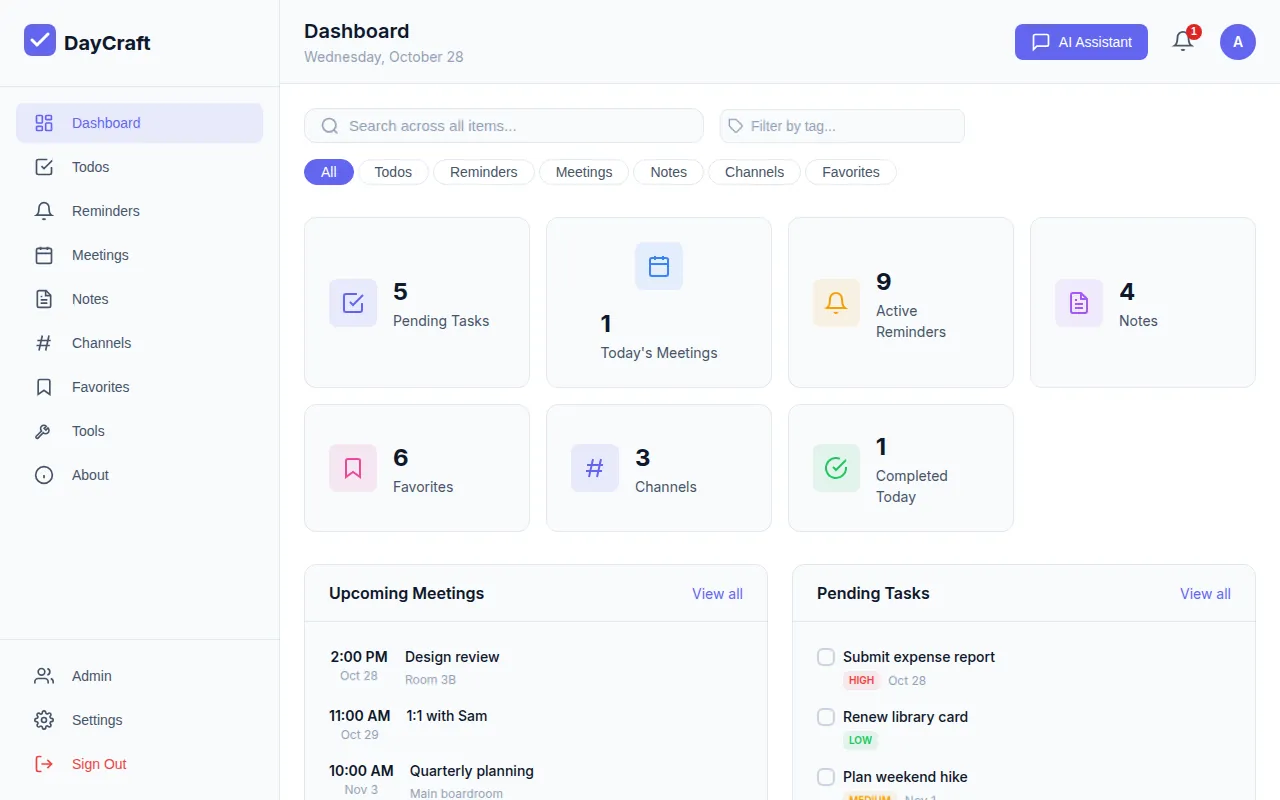
The Dashboard is your overview.
- Stat cards: Pending Tasks, Today's Meetings, Active Reminders, Notes, Favorites, Channels and Completed Today. Select a card to highlight its panel (on a phone it scrolls there).
- Panels: Upcoming Meetings, Pending Tasks (tick a box to complete the task), Active Reminders (with Dismiss), Recent Notes, Channels (most active first, with the latest message and its author) and Favorites (select one to open the link). Each has View all.
Search everything
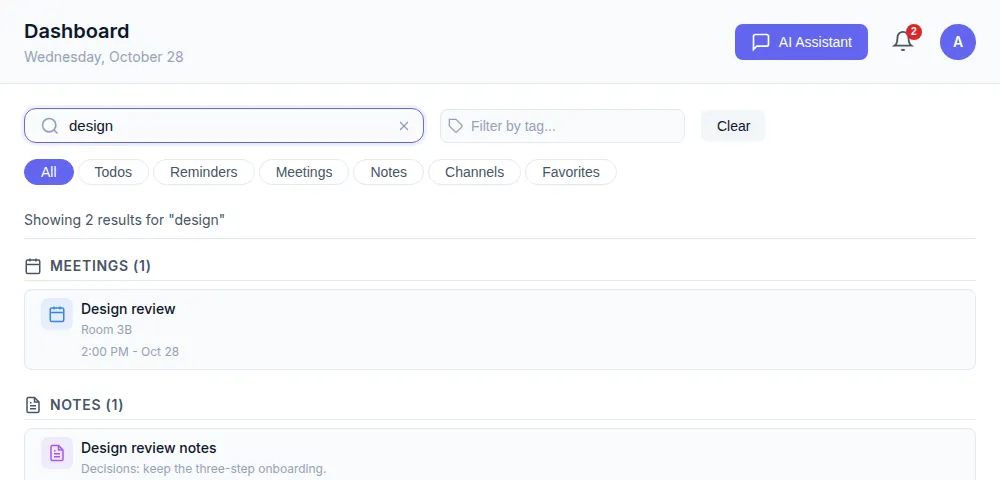
- Type in Search across all items... at the top of the Dashboard. Results replace the panels and are grouped as Todos, Reminders, Meetings, Notes, Channels and Favorites, under “Showing n results for …”.
- Narrow the results with the chips All, Todos, Reminders, Meetings, Notes, Channels or Favorites, or pick tags in Filter by tag... (tags come from todos, notes and favorites).
- Select a result to open it; DayCraft scrolls to the item and highlights it. Choose Clear to return to the Dashboard.
Every word you type must match somewhere in the item; put a phrase in quotes ("design review") to match it exactly. Channel results search the text of messages, discussions and replies, and the names of attached pictures and files, across every channel you belong to.
Tasks (Todos)
Add a task
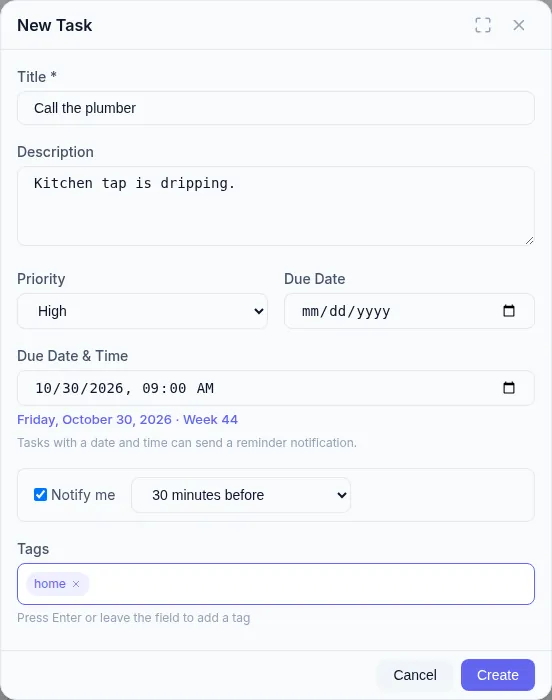
- Open Todos and choose Add Task. The New Task window opens.
- Enter a Title (What needs to be done?) and, if you like, a Description.
- Choose a Priority: Low, Medium or High.
- Set a Due Date, or a Due Date & Time if you want an alert. Under the date DayCraft shows the weekday and ISO week, for example Friday, October 30, 2026 · Week 44.
- With a date and time set, tick Notify me and choose At time, 5, 10, 15 or 30 minutes before, 1 hour before or 1 day before. The starting value is your Default Reminder Time.
- Under Tags, type a tag and press Enter (or leave the field) to add it as a chip; Backspace in the empty field removes the last one. Tags are stored in lower case.
- Choose Create. Edit a task later with its pencil icon and Update.
Break a task into subtasks
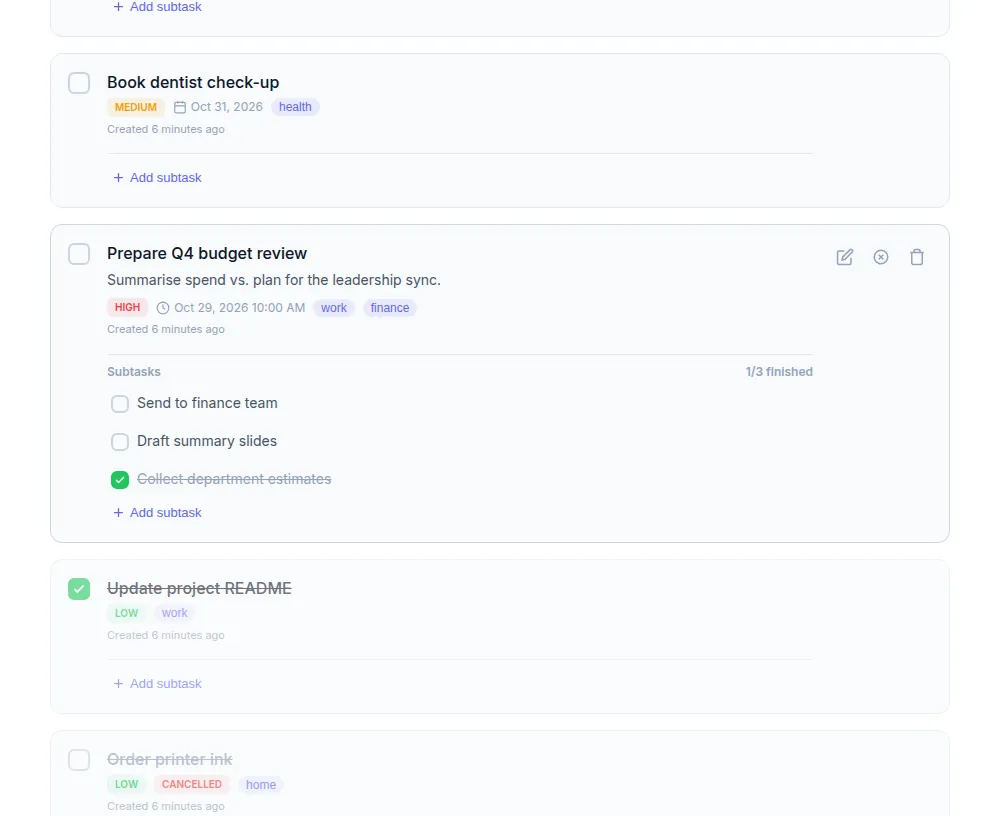
- On a task card choose Add subtask, type a Subtask title and choose Add.
- Tick subtasks as you finish them. The card shows Subtasks with a count such as 1/3 finished.
- When every subtask is finished, the parent task completes automatically. Unticking a subtask or adding a new one reopens it.
- Remove a subtask with its delete icon. Deleting a parent task also deletes its subtasks.
Complete, cancel and find tasks
| Action | How |
|---|---|
| Complete / reopen | Tick the round checkbox (Mark task finished / Mark task pending) |
| Cancel | The ⊗ icon (Cancel task) → Cancel Task. It moves to Cancelled; tick its checkbox to restore it to pending |
| Delete | The bin icon → Delete. This cannot be undone |
| Filter by status | Tabs All, Pending, Completed, Cancelled, each with a count |
| Search | Search tasks... matches titles and descriptions |
| Filter by tag | Pick from Filter by tag..., or select a tag on any card. “n of m tasks” and Clear all appear while filters are on |
Each card also shows when it was created and last updated.
Reminders
Reminders are for things that happen at a time, once or on a schedule, such as bills, birthdays or a daily routine.
Create a reminder
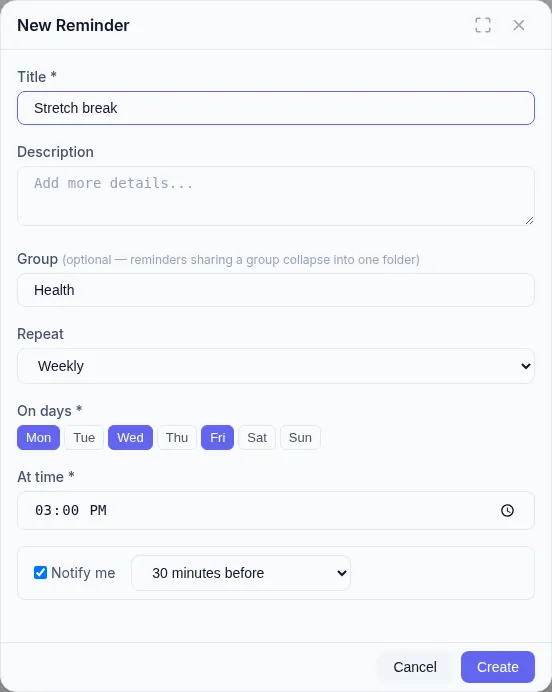
Open Reminders and choose Add Reminder.
Enter a Title (What to remember?) and an optional Description.
Optionally type a Group, such as Birthdays or Bills. Existing group names are suggested. Reminders with the same group collapse into one folder.
Choose how it Repeats and fill in the schedule:
Repeat What you set Don't repeat Reminder Date and Reminder Time (the date shows its weekday and week number) Daily One or more Times; use + Add time for more and × to remove one Weekly On days: any of Mon–Sun, plus At time Monthly On days of month: any of 1–31, plus At time. Days a month doesn't have (such as 31 in February) are skipped automatically Yearly In months: one or more months, a Day of month and At time Leave Notify me ticked and pick the lead time (At time up to 1 day before).
Choose Create. A repeating reminder shows a badge such as Weekly · Mon, Tue, Wed, Thu, Fri · 09:30, and after it fires DayCraft moves it to the next occurrence.
Groups, tabs and actions
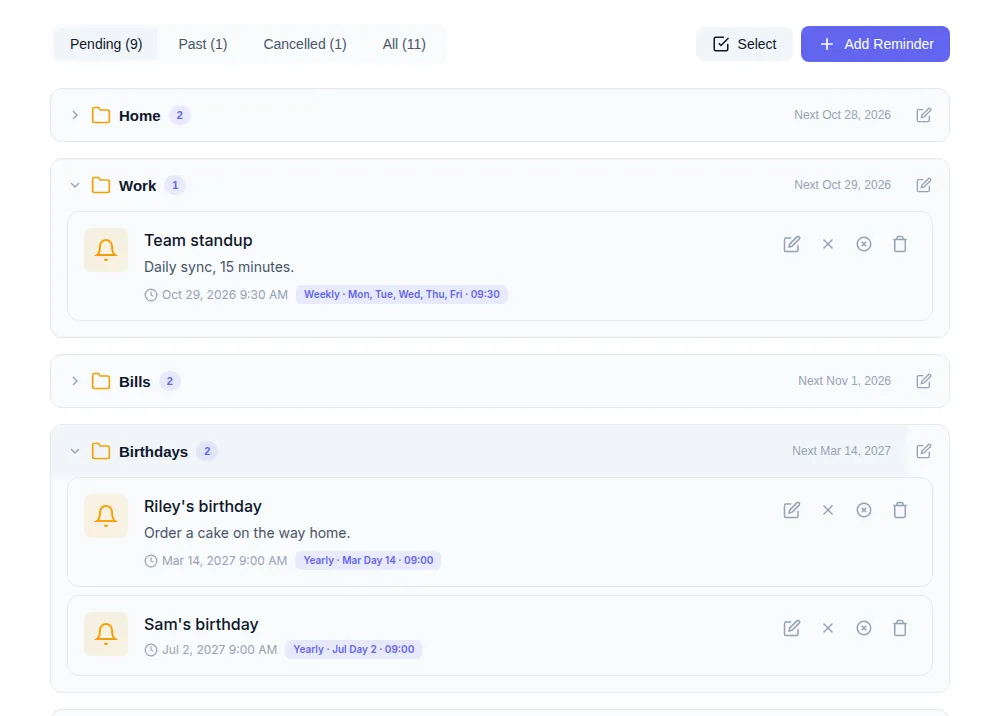
- Tabs: Pending (upcoming, the default), Past (time has passed or dismissed), Cancelled and All, each with a count.
- Group folders are collapsed; select one to open it. Each shows how many reminders it holds and the next date (Next Oct 29, 2026). Use the pencil (Rename group) to rename a group; using another group's name merges the two.
- Card actions: Edit, Dismiss reminder (marks it handled; it shows Dismissed), Restore reminder (undo a dismiss), Cancel reminder (moves it to Cancelled) and Delete.
- Reorganize several at once: choose Select, tick reminders (or a whole group with its checkbox), then use Select all, Clear, Remove from group or Move to group… (pick an existing group or type a new name) and choose Done when finished.
Meetings
- Open Meetings and choose Schedule Meeting.
- Enter the Title (Meeting title), an optional agenda in Description, and the Start Time and End Time.
- Optionally add a Location (room or office), a Meeting Link (for example a Zoom or Teams URL) and Attendees as email addresses separated by commas.
- Choose Schedule.
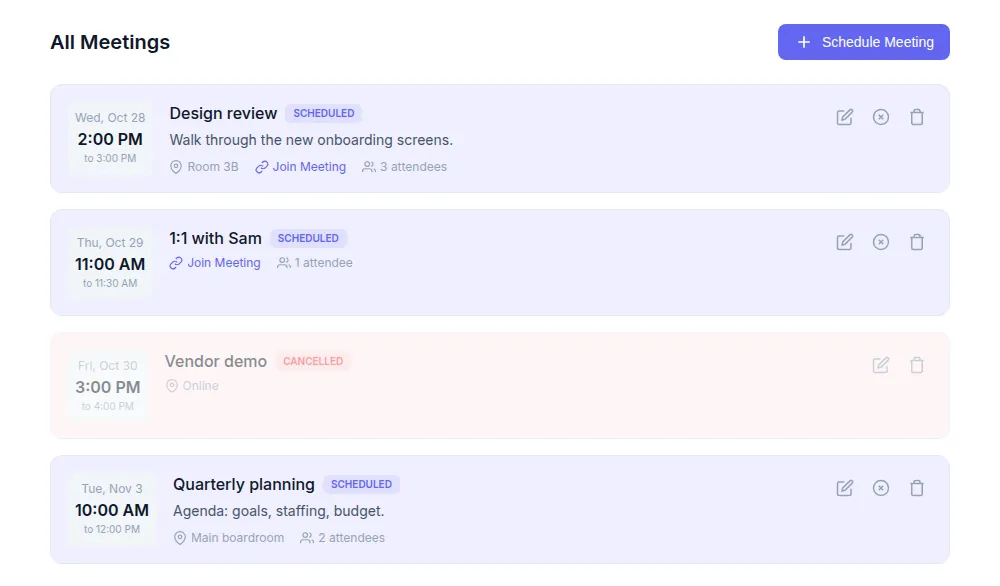
All Meetings lists each meeting with its date and time, a status badge, the location, a Join Meeting link and the number of attendees. Use the pencil to edit, ⊗ to cancel (immediately, no confirmation; the meeting stays in the list marked cancelled), or the bin to delete. Upcoming, non-cancelled meetings appear on the Dashboard, and today's count in Today's Meetings.
Meetings are a calendar record: they do not send notifications. Create a reminder if you want an alert before one.
Notes
Write a note
- Open Notes and choose New Note.
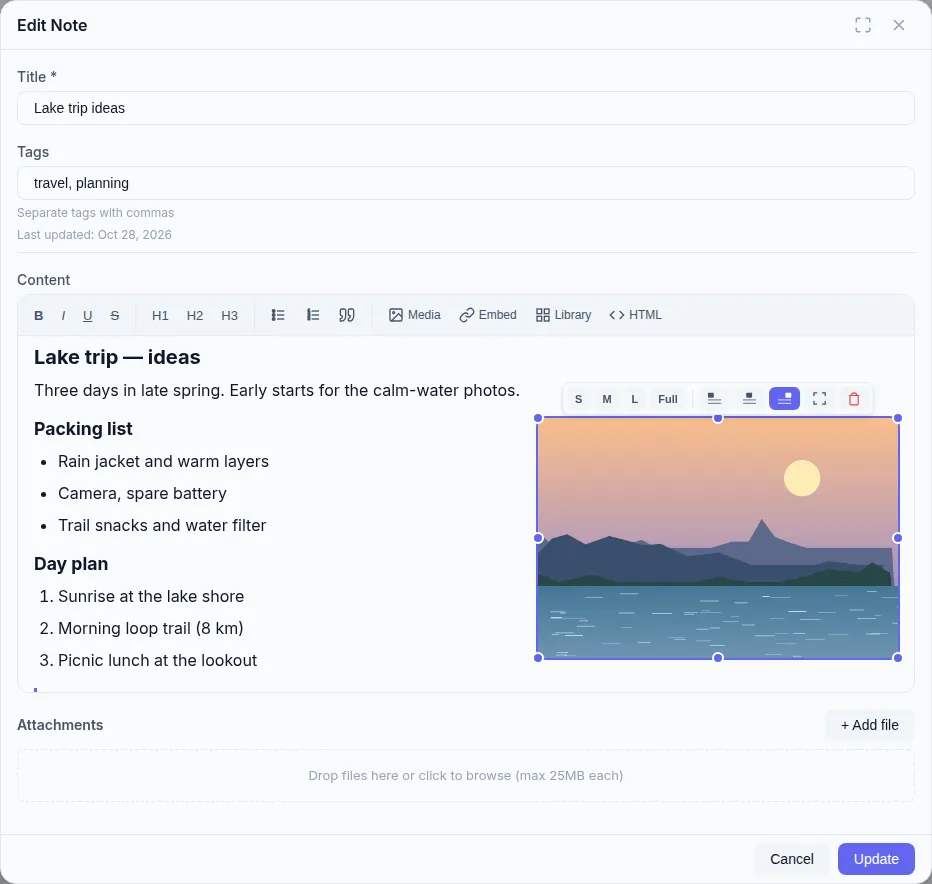
- Enter a Title (Note title) and Tags separated by commas (work, ideas, personal).
- Write in Content. The toolbar has B (bold), I (italic), U (underline), S (strikethrough), H1–H3 headings, bullet and numbered lists, and a quote block.
- Add media (see below) and file Attachments if needed.
- Choose Save (Update when editing). Use HTML to edit the note's HTML source directly and Rich to return.
Pictures, video and files in notes
| Toolbar button | What it does |
|---|---|
| Media | Opens Upload Media: tap or drop images, video or audio. Progress, Retry and Clear completed are shown; choose Done when finished |
| Embed | Opens Embed External Media for a URL: YouTube videos, image links (jpg, png, gif, webp), video links (mp4, webm) or audio links (mp3, wav). DayCraft shows what it detected; choose Embed |
| Library | Opens Media Library to reuse a picture, video or audio file you uploaded before |
| Paste / drop | Paste or drop an image straight into the text |
Select a picture in the editor to resize it: S, M, L or Full width, drag a handle, choose left or right alignment (text wraps around it) or centre, open a full-size preview, or delete it. Video and audio can be resized the same way.
Under Attachments, choose + Add file or drop files on the box (max 25MB each). Attached files can be downloaded from the note and removed while editing.
Read, find and pin notes
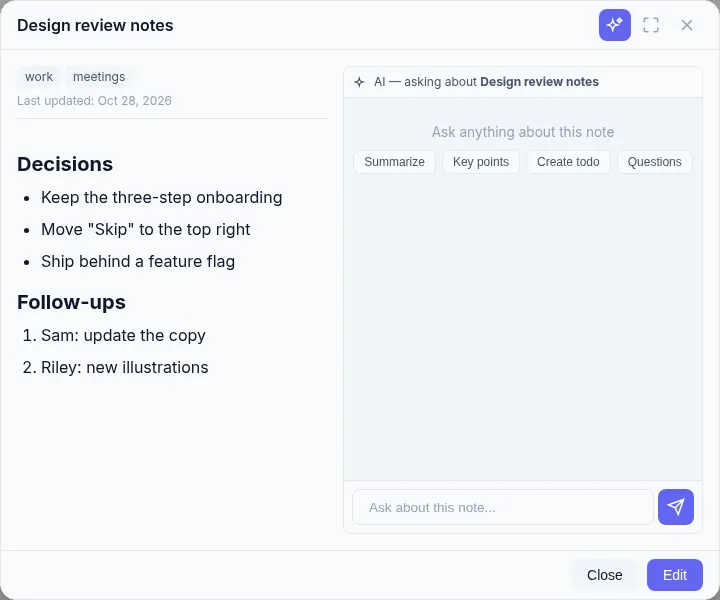
- Select a note's title or View to open it in its own window with tags, Last updated, the formatted content and attachments. You can open several notes side by side. Edit switches to the editor.
- In the viewer, the sparkle button (Chat with AI about this note) opens a side panel with Summarize, Key points, Create todo and Questions shortcuts, or ask your own question in Ask about this note....
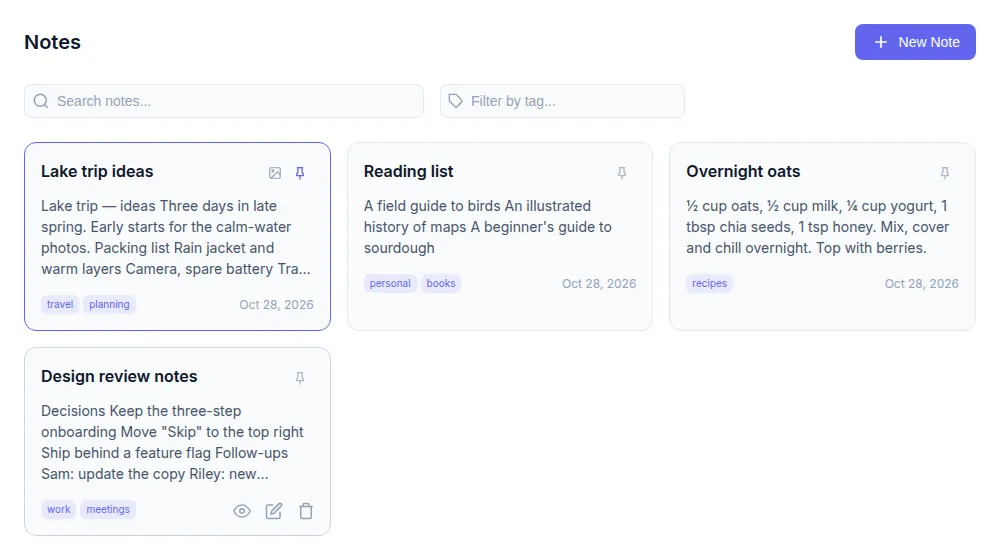
- Pin note keeps a note at the top; pinned notes are outlined. A picture icon marks notes with media.
- Find notes with Search notes... and Filter by tag... (choose a tag, All tags, or “Search for …” to search the typed text). “n of m notes” and Clear all appear while filtering.
Favorites
Favorites is a bookmark manager for links you want to keep.
- Open Favorites and choose Add URL. The Add Favorite window opens.
- Enter the URL (
https://example.com), a Title (Website title), a short Description and Tags separated by commas (work, reference, tools). - Choose a Status: Active, Broken Link, Invalid or Archived, then Add.
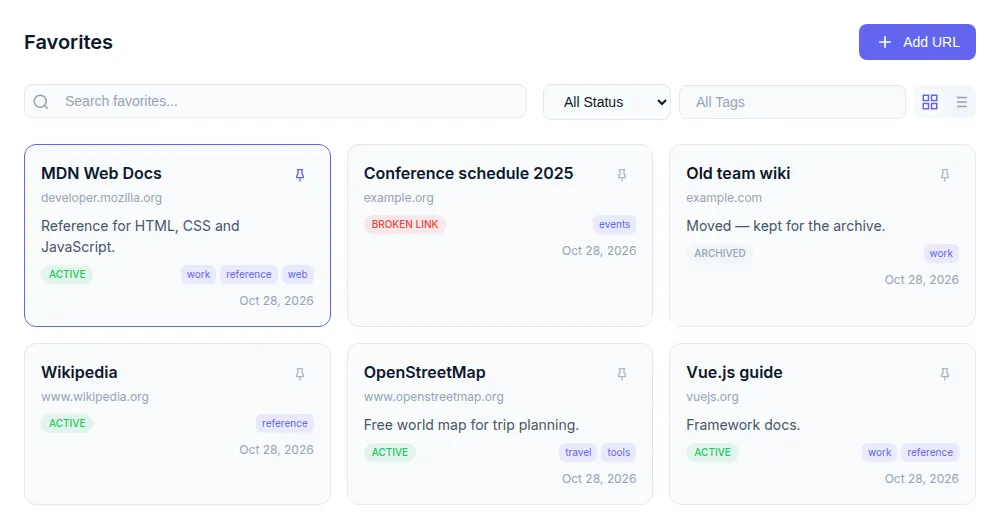
Each card shows the title, the site's domain, a status badge, up to three tags and the date. Use the pin to keep a favorite at the top, and the icons to Open URL, View (details with one-click status buttons, Created and Updated dates), Edit or Delete. Find links with Search favorites..., the All Status filter and the All Tags list, and switch between Grid view and List view.
Channels
Channels are message feeds. Keep one to yourself as a scratchpad, share it with people you invite, or make it public so anyone with a DayCraft account can join.
Create a channel
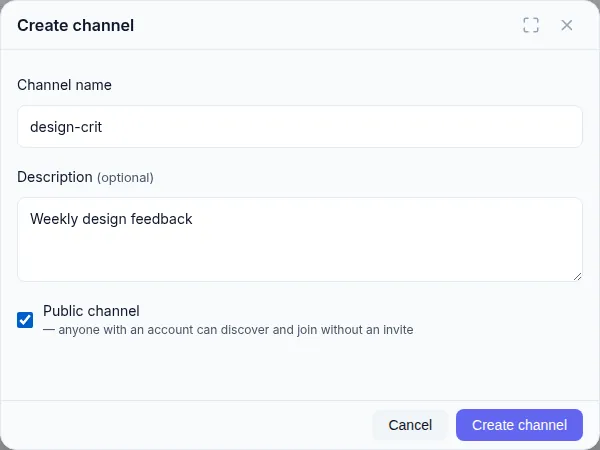
- Open Channels and choose + Create channel (on a phone, ••• → Create channel).
- Enter a Channel name (up to 80 characters, unique among your channels) and an optional Description (What's this channel for?).
- Tick Public channel if anyone with an account should be able to discover and join it without an invite.
- Choose Create channel.
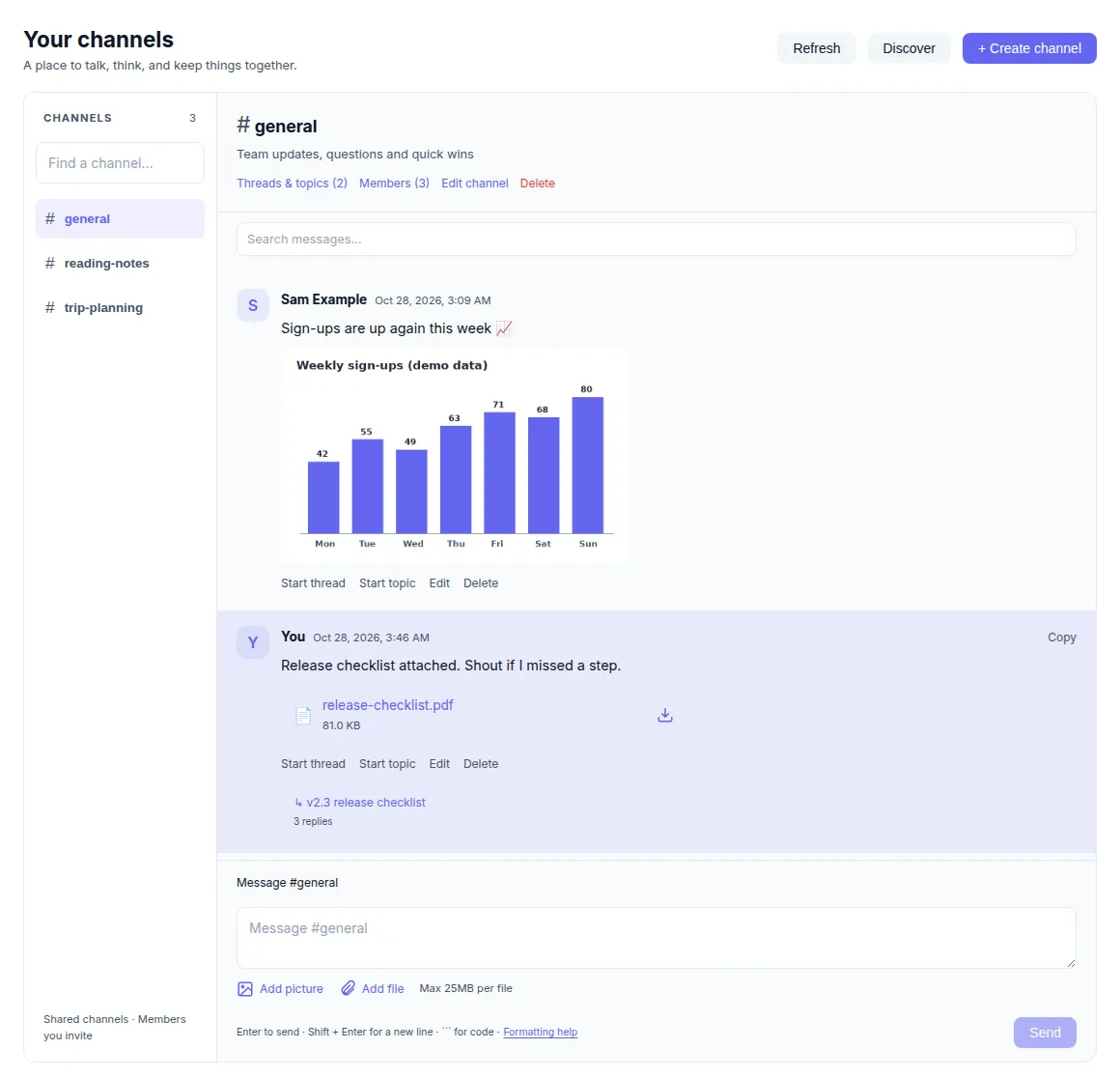
The CHANNELS list on the left shows the channels you belong to; type in Find a channel… to filter it. On a phone, the channel picker at the top does the same. The open channel's header has Threads & topics, Members, and, for the owner, Edit channel and Delete (members see Leave).
Send messages, pictures and files
- Type in Message #channel and press Enter (or choose Send). Shift+Enter starts a new line.
- Choose Add picture or Add file, or paste or drop them into the message box. A message can carry up to 8 pictures and 8 files, 25 MB each, with or without text. Pictures show as a gallery (select one for full size); files show as cards with name and size that download when selected.
- Posts show the author's name (your own say You), the time and (edited) if changed. Copy copies a message's text. On a phone, tap New message to open the composer and Hide composer to close it; an unsent draft shows Continue draft.
- Use a message's Edit to change its text or add and remove attachments, or Delete to remove it.
Open channels refresh automatically every few seconds; Refresh reloads them immediately. Drafts are kept per channel while the page stays open.
Format messages: code, links and the Formatting help window
| To get | Type |
|---|---|
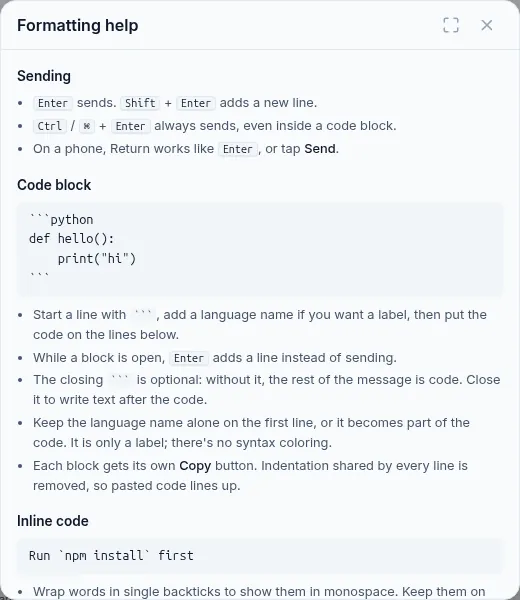
| A code block | Start a line with ```, optionally followed by a language name alone on that line (```python), then the code on the next lines. Close with ``` to write text after it; without a closing fence the rest of the message is code |
| Inline code | Wrap words in single backticks: `npm install` (one line only) |
| A clickable link | Paste an address starting with http:// or https://. The first link outside code gets a preview card with the page's title, description and image |
Code blocks render in a monospace box with the language as a label (no colouring) and their own Copy button; long lines scroll sideways, and indentation shared by every line is removed so pasted code lines up.
Keyboard rules: while a code block is open, Enter adds a line instead of sending. Ctrl+Enter (Windows, Linux) or ⌘+Enter (Mac) always sends, even inside a code block. On a phone, Return works like Enter, or tap Send.
Choose Formatting help next to the hint under the message box (Enter to send · Shift + Enter for a new line · ``` for code) to open a window with these rules and examples; on a desktop it can stay open while you type.
Threads and topics
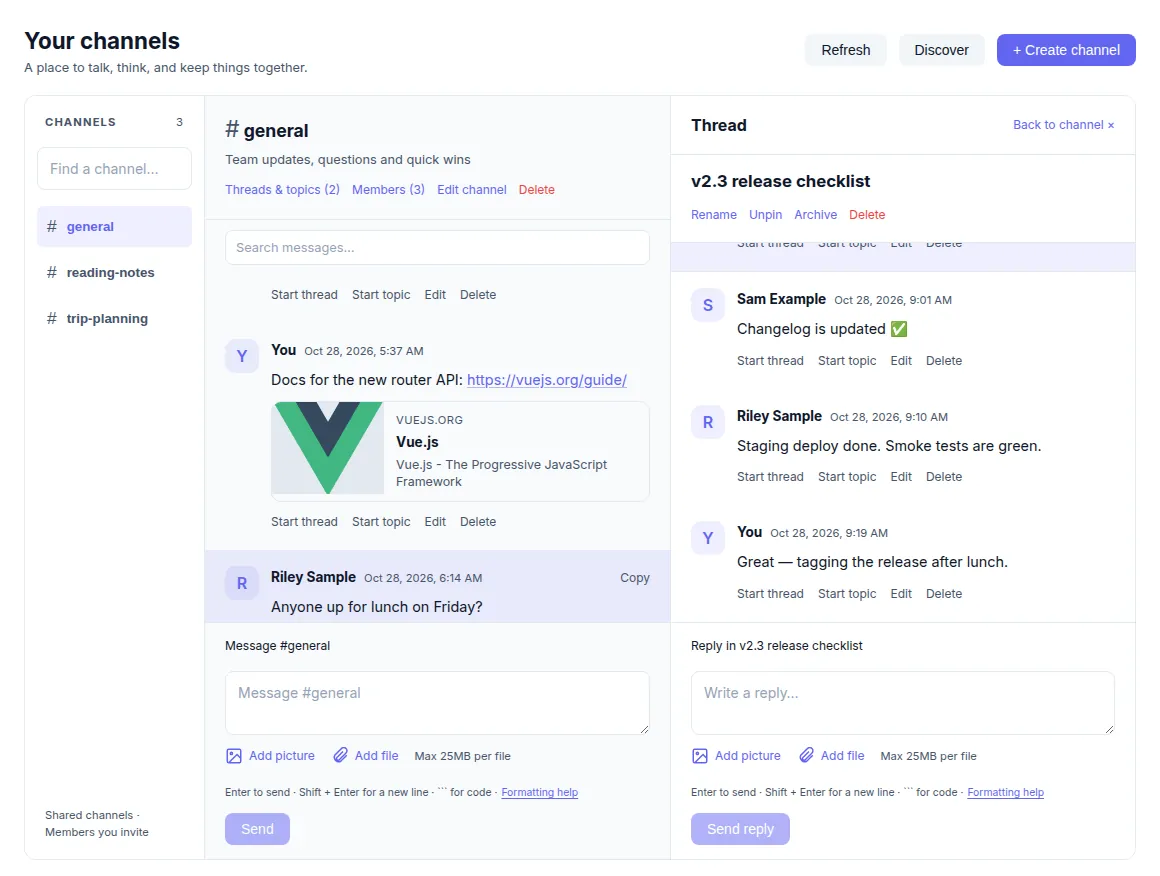
Any message, including a reply inside a discussion, can start its own named conversation.
- On a message choose Start thread or Start topic (on a phone, open its ••• menu first).
- Enter a Thread name or Topic name and choose Start thread / Start topic. The original message stays where it is and shows a link such as ↳ v2.3 release checklist · 3 replies (topics use ◇).
- Reply in Write a reply… and choose Send reply. Replies can have pictures and files too.
- In the discussion header use Rename, Pin / Unpin, Archive / Reopen or Delete. An archived discussion shows “This discussion is archived. Reopen it to add replies.”
- Threads & topics in the channel header lists every discussion with its reply count, including pinned, archived ones and ones whose original message was deleted.
Threads and topics work the same way; the type is a label that helps you tell quick follow-ups (threads) from longer subjects (topics). On a wide screen the discussion opens beside the feed; on smaller screens it replaces it, with Back to channel ×. The address bar keeps the open channel and discussion, so you can bookmark or share the link with members.
Share a channel and discover public ones
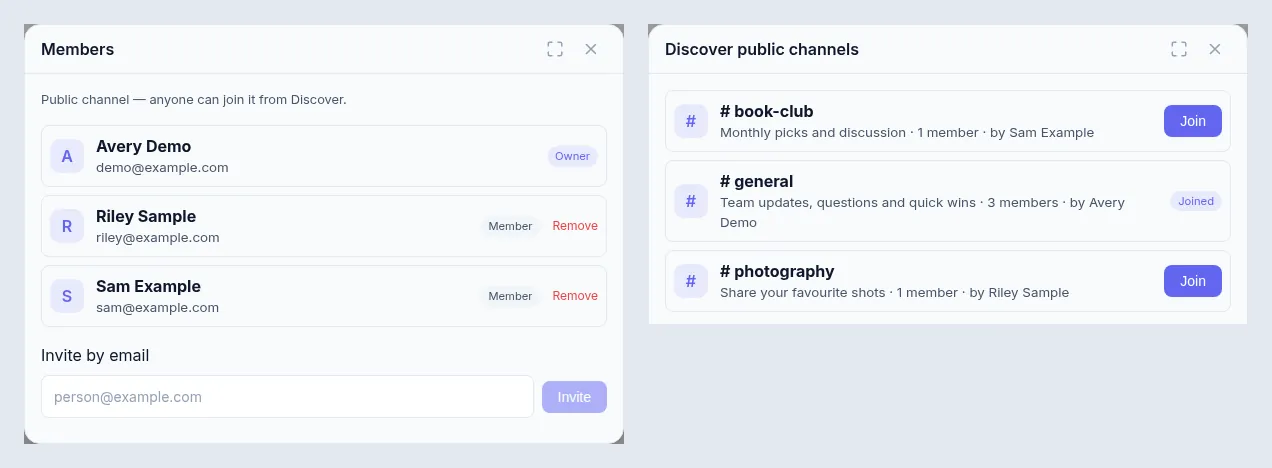
- Invite: open Members, type an address in Invite by email and choose Invite. The person must already have a DayCraft account. Everyone in the channel sees the same feed.
- Remove: the owner can Remove a member. Members see “Only the channel owner can invite or remove members.”
- Leave: members choose Leave in the channel header. The owner cannot leave; they delete the channel instead.
- Discover: choose Discover (phone: ••• → Discover channels) to list public channels with their description, member count and owner. Choose Join to add one; channels you are in say Joined.
| Who | Can do |
|---|---|
| Owner | Everything: rename, edit the description and public setting, delete the channel, invite and remove members, and edit or delete anyone's posts |
| Member | Post, reply, start and manage discussions, edit or delete their own posts (“You can only edit your own posts” otherwise), leave |
| Anyone signed in | See and join public channels from Discover |
Deleting: deleting a message keeps the discussions started from it; deleting a discussion keeps its original message; deleting a channel deletes all its messages, threads, topics and replies. Each asks for confirmation and cannot be undone.
Search: Search messages… in a channel filters the loaded feed by text and by picture and file names. To search every channel at once, including thread replies, use the Dashboard search.
Tools
Open Tools and choose a tab. The selected tab is kept in the address (for example /tools?tool=stocks).
Stocks
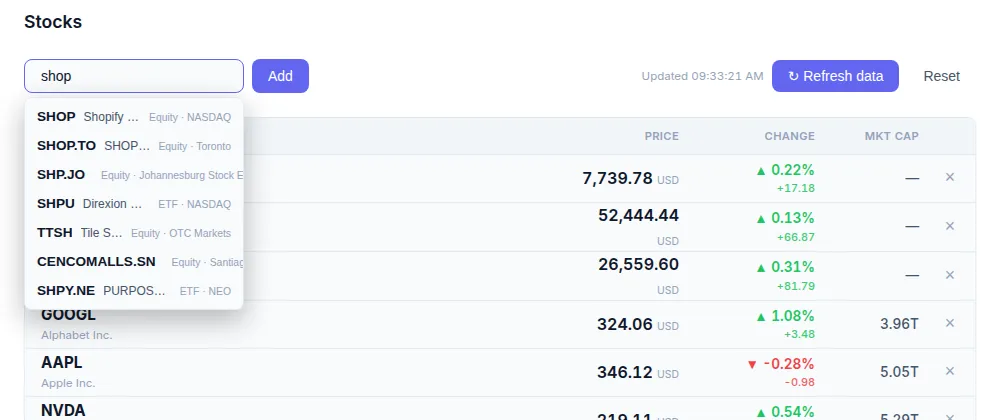
- Type a company name or symbol in Add ticker (e.g. AMZN, BTC-USD). Suggestions show the symbol, name, type and exchange; use ↑/↓ and Enter, or click one. Indices start with
^, such as^GSPC. - The watchlist shows Symbol, Price, Change (▲/▼ with percent and amount) and Mkt Cap. Remove a ticker with ×.
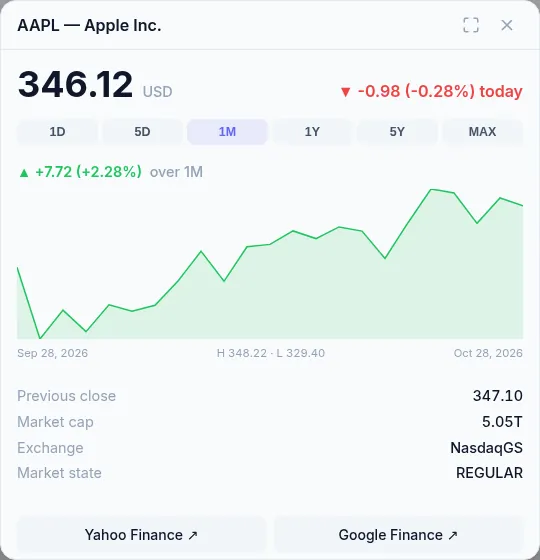
- Select a row to open its detail window: today's change, a price chart for 1D, 5D, 1M, 1Y, 5Y or MAX with high and low, Previous close, Market cap, Exchange, Market state, and links to Yahoo Finance ↗ and Google Finance ↗.
- ↻ Refresh data fetches the latest quotes; Reset restores the default list (S&P 500, Dow, Nasdaq, Alphabet, Apple, NVIDIA, Tesla, Microsoft, Meta, Intel, AMD) after a confirmation.
Quotes come from Yahoo Finance, are cached for 15 minutes and may be delayed. Your watchlist is saved to your account.
Currency, units and calendars
| Tab | What it does |
|---|---|
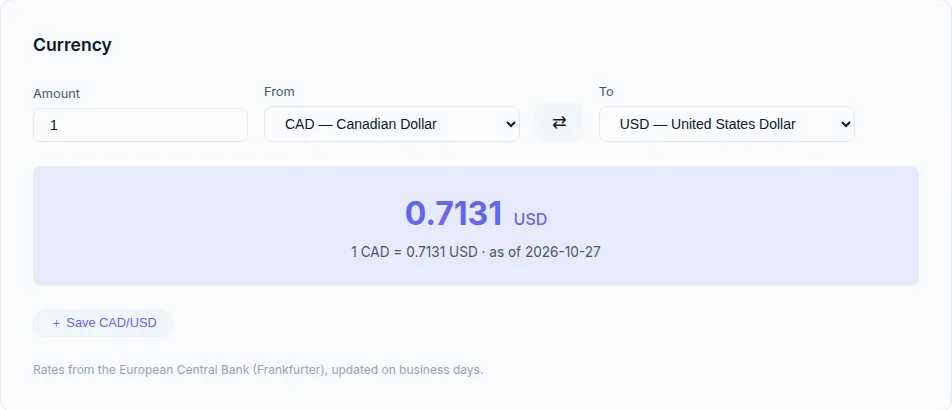
| Currency | Enter an Amount, choose From and To (⇄ swaps them). Shows the result and “1 CAD = … USD · as of date”. + Save keeps a pair as a one-click chip on your account. Rates are European Central Bank reference rates, updated on business days |
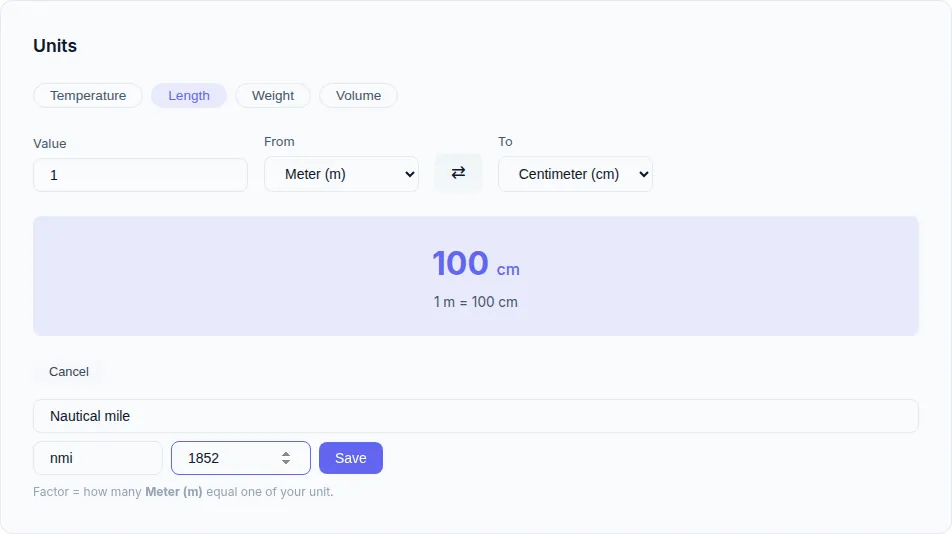
| Units | Temperature, Length, Weight and Volume. Enter a Value, pick From and To. For all but temperature, + Add unit adds your own unit (name, symbol and how many base units equal one), saved to your account |
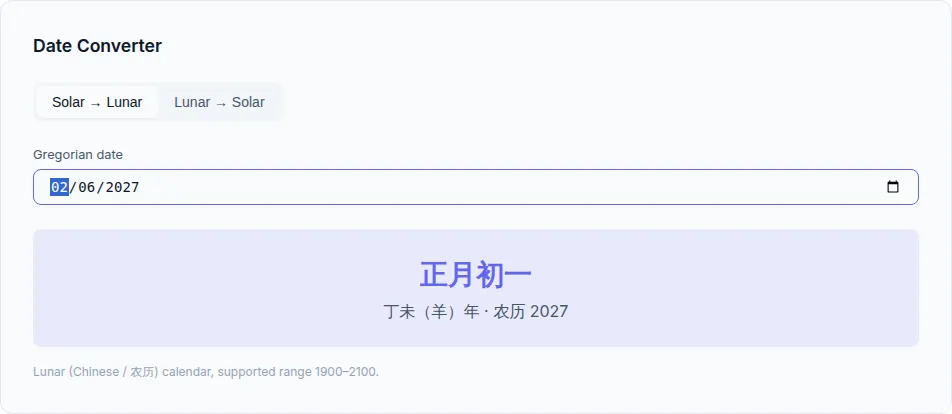
| Date Converter | Solar → Lunar turns a Gregorian date into the Chinese lunar date with its year name and zodiac; Lunar → Solar takes a lunar Year, Month, Day and 闰月 (leap) and returns the Gregorian date and weekday. Range 1900–2100 |
| Solar Terms | The 24 solar terms (节气) for a year (‹ ›, Current year), each with its Gregorian date, lunar date and season, plus the current and next term and days until it |
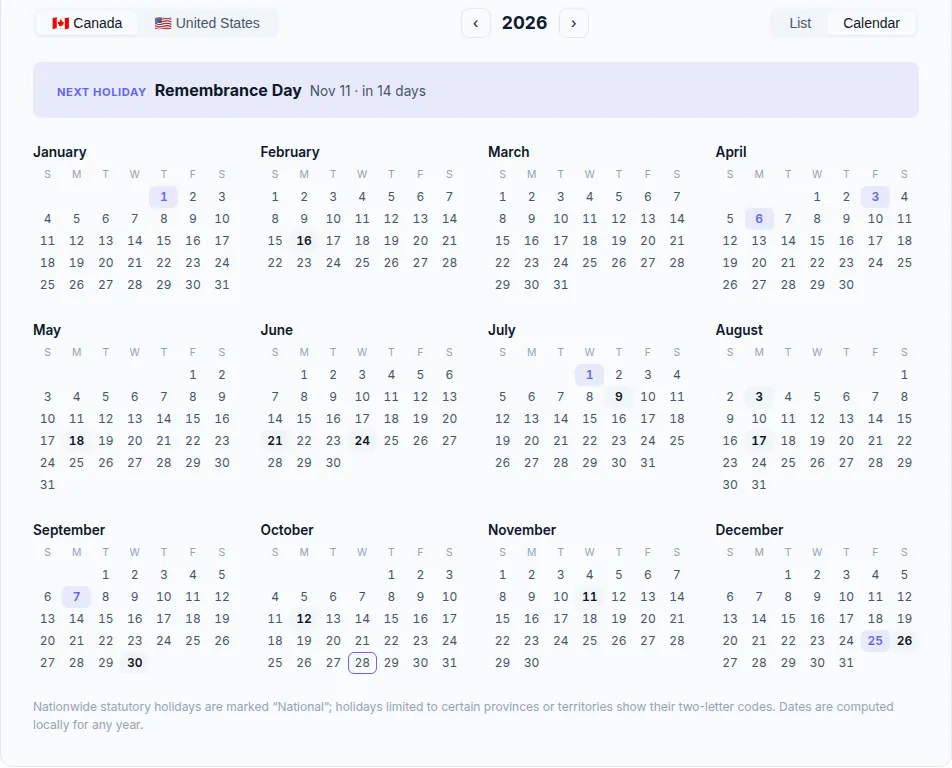
| Holidays | 🇨🇦 Canada or 🇺🇸 United States, any year, as a List or Calendar, with the Next holiday banner. Canadian holidays are marked National or with province/territory codes; US holidays are federal |
AI assistant
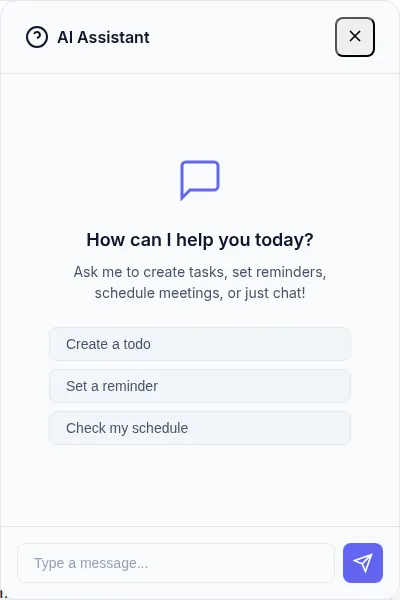
Choose AI Assistant in the header to open the chat panel. Type in Type a message... and press Enter, or start from Create a todo, Set a reminder or Check my schedule.
The assistant knows today's date, your Timezone, your task, reminder and meeting counts, upcoming meetings, up to 20 pending tasks and your active favorites. It can:
- create a task, reminder, meeting, note or favorite from plain language, for example “Remind me to call the dentist tomorrow at 3pm” or “Schedule a design review on Friday 2–3pm in Room 3B”;
- mark a pending task complete or change it (“I finished the expense report”);
- find a saved link (“What's my link for the team wiki?”) or summarise your day.
Items it creates are saved immediately, so check them afterwards; if one fails, the assistant says so. The conversation is cleared when you reload the page. The same AI is available inside a note's viewer window for questions about that note. If the server has no AI service configured, it replies “AI is not configured”.
Notifications
DayCraft has two layers that work together:
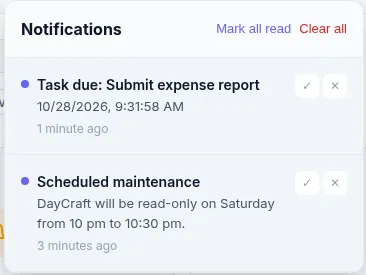
- In-app inbox: the bell in the header. A red badge counts unread items. The panel lists each notification with its time; select one to open the related task or reminder, ✓ marks it read, ✕ deletes it, and Mark all read / Clear all act on everything. “You're all caught up.” means it is empty.
- Push notifications: system alerts delivered to devices where you chose Enable, even when DayCraft is closed. They also update the app icon badge where supported, and selecting one opens DayCraft at the item.
| What notifies you | When |
|---|---|
| A task with Due Date & Time and Notify me | “Task due: title” at the due time minus the lead time, unless it is completed or cancelled |
| A reminder with Notify me | “Reminder: title” at the reminder time minus the lead time; repeating reminders then move to their next time |
| An administrator's broadcast | Immediately, to everyone |
DayCraft checks for due items every minute. Turning off Settings → Push Notifications stops task and reminder notifications for your account entirely (inbox and push).
Turn on push for a device: open Settings, choose Enable next to Notifications on This Device and allow the browser prompt. Repeat on each phone or computer. Disable turns it off for that device only. If the setting says Blocked in your browser settings, allow notifications for daycraft.micstec.com in the browser's site settings, then try again. On iPhone and iPad, push works only in the installed Home Screen app (iOS/iPadOS 16.4 or later).
Settings and data export
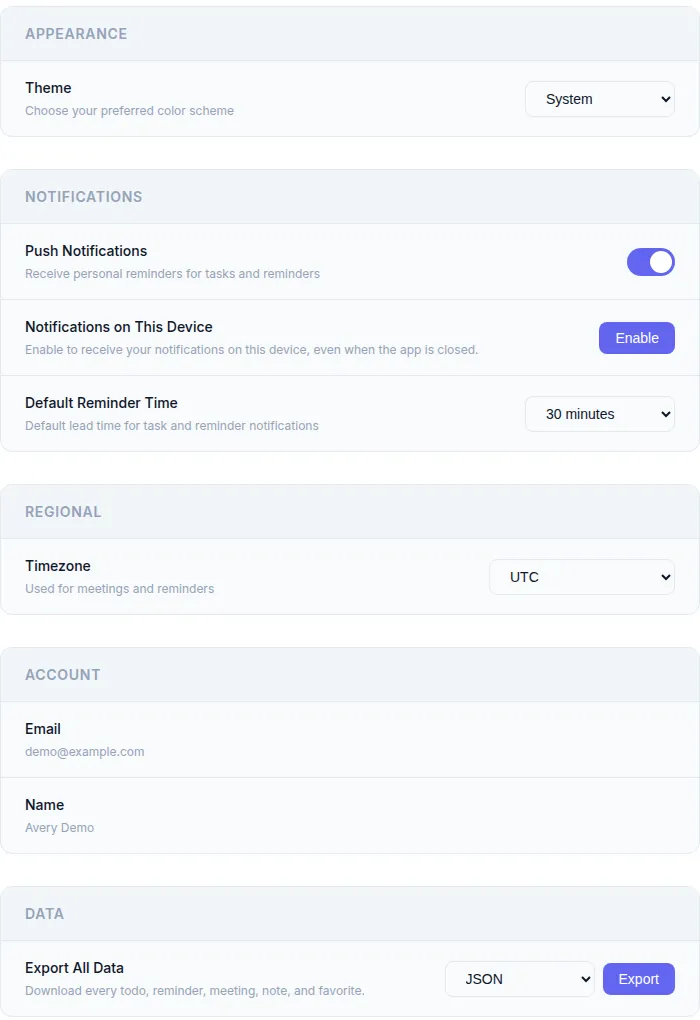
| Section | Setting | Options |
|---|---|---|
| Appearance | Theme | System, Light, Dark |
| Notifications | Push Notifications | On/off for task and reminder notifications on your account |
| Notifications on This Device | Enable / Disable push on this browser or installed app | |
| Default Reminder Time | 5 minutes, 10 minutes, 15 minutes, 30 minutes (default), 1 hour: the starting lead time for new tasks and reminders | |
| Regional | Timezone | Toronto, New York, Chicago, Denver, Los Angeles, Vancouver, London, Paris, Berlin, Tokyo, Shanghai, Singapore, Sydney, Auckland or UTC (new accounts start on UTC). The AI assistant uses it to interpret times such as “3pm” |
| Account | Email, Name | Shown for reference |
| Data | Export All Data | JSON, CSV or Excel (.xlsx), then Export |
Changes save as soon as you pick them. Times you type into forms use your device's clock.
Export: the file daycraft-export-<date-time> contains every todo (including subtasks), reminder, meeting, note and favorite. JSON keeps the full structure; CSV puts all five sections in one file under # todos (n)-style headings; Excel has one sheet per type. Channel messages and uploaded files are not included. The Excel option downloads its spreadsheet library from the internet when you export.
Install the app and stay up to date
DayCraft is a Progressive Web App, so it installs from the browser with no app store.
| Device | How to install |
|---|---|
| Android (Chrome) | Open the site, then ⋮ → Install app or Add to Home screen |
| iPhone / iPad (Safari) | Share → Add to Home Screen, then open DayCraft from the new icon. Needed for push notifications |
| Windows, macOS, Linux (Chrome, Edge) | Select the install icon at the right of the address bar, or use Install in the browser menu |
The installed app opens in its own window. Its screens load without a connection, and recently viewed data is cached; while offline DayCraft shows “You're offline. Some features may not work.” and blocks changes until you reconnect. About shows the Version, Build and PWA Status.
When a new version is published, a bar says “A new version of DayCraft is ready. Finish any unsent drafts, then reload.” Choose Reload latest version. If a device seems stuck on an old version, open daycraft.micstec.com/auth/update-app and choose Update and open Channels; your data and sign-in are kept.
Your session lasts 7 days and renews itself whenever you use DayCraft, so you stay signed in as long as you open it at least once a week. If it expires, a banner says “Your session has expired.”; choose Sign in again.
Administration
Administrators see Admin in the sidebar. On a new DayCraft installation, the first account created becomes the administrator.
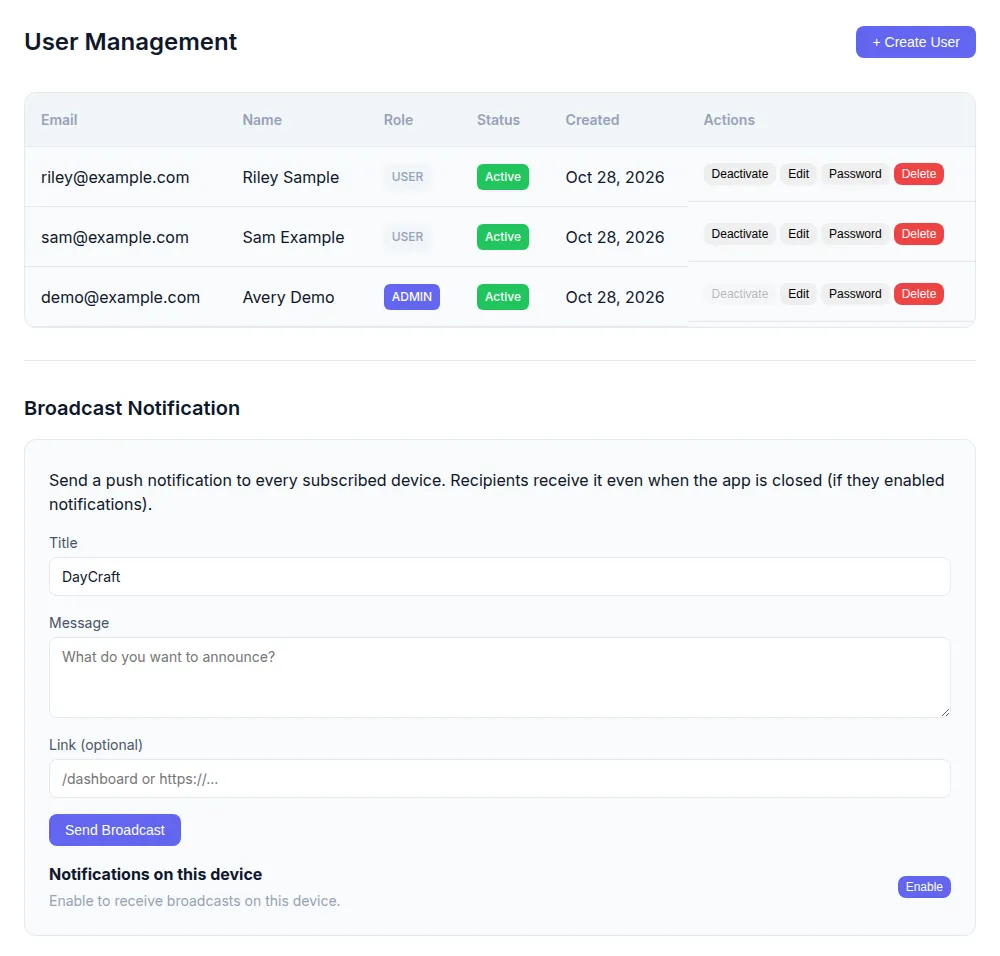
- User Management: a table of Email, Name, Role, Status and Created, with Deactivate / Activate, Edit (name, role, active), Password (set a new password of 6+ characters) and Delete (removes the user and all their data). + Create User adds an account with Email, Password, Full Name, Role (User or Admin) and Active. You cannot deactivate, delete or demote yourself. Deactivated users cannot sign in.
- Broadcast Notification: enter a Title (up to 80 characters), a Message (up to 400) and an optional Link (
/dashboardor a full URL), then Send Broadcast. Every device with push enabled gets it, the result shows “Sent to x/y device(s)”, and every user also gets it in the bell inbox. Notifications on this device enables broadcasts on your own device. - Settings → Debug Mode: shows on-screen troubleshooting panels in the note editor and uploader on this browser.
- Media Library: your uploaded note pictures, video and audio, with total size, Select All, and delete for one or many files.
Command-line client and API tokens
daycraft_cli works with the same account from a terminal: add and list items, post to channels (including code from a file or a pipe), search and export. It follows the same permissions as the web app.
Install and sign in
Install the standalone binary (Linux and macOS; no Node.js needed):
curl -fsSL https://tnas_d.micsapp.com/s/daycraft_cli/install-daycraft-cli.sh | bashThe installer picks the right build for your system and puts
daycraft_clion your PATH (add--userto install to~/.local/bin, or--uninstallto remove it). Running it again upgrades. On Windows, downloaddaycraft-win-x64.exefrom the same folder and put it on your PATH.Sign in with your email and password:
daycraft_cli login --url https://daycraft.micstec.com
daycraft_cli whoami          # shows the account and when the session expires
The CLI saves a profile in
~/.daycraft-cli/and renews its 7-day session automatically while you use it at least weekly. Keep several accounts with--name,profiles listanduse <profile>;logoutforgets one.For scripts or rarely used machines, create a long-lived API token instead:
daycraft_cli tokens create --name laptop            # never expires; saved into the profile
daycraft_cli tokens create --name ci --days 90 --no-save
daycraft_cli tokens list                            # name, expiry, last use
daycraft_cli tokens revoke <id>
Tokens start with
dc_and are shown only once; DayCraft stores only a hash. Use one with--token dc_…or theDAYCRAFT_TOKENenvironment variable. Tokens are managed from the CLI; there is no web page for them.
Accounts that only use Google sign-in have no password for the CLI (“This account uses Google sign-in”). Ask an administrator to set one with Admin → Password.
Everyday commands
| Area | Examples |
|---|---|
| Todos | todos list [--all] [--cancelled] · todos add "Buy milk" --priority high --due 2026-11-12 --at 2026-11-12T17:00:00Z --notify-before 30 · todos done <id> · undone · cancel · delete |
| Reminders | reminders list [--all] · reminders add "Take vitamins" --repeat daily --time 09:00 · reminders add "Call dentist" --at 2026-11-15T14:00:00Z --group Health · reminders update <id> --group Bills · dismiss · restore · cancel · delete |
| Meetings | meetings list · meetings add "1:1" --start <ISO> --end <ISO> --link <url> · meetings delete <id> |
| Notes | notes list [--pinned] · notes get <id> -o note.md · notes add "Trip ideas" --content-file trip.md --tags travel · notes update <id> … |
| Favorites | favorites list · favorites add https://example.com --title "Example" --pinned |
| Channels | channels list · discover · create "Team" --topic "…" --public · send Team "Standup in 10" · send Team --body "chart" --image chart.png · messages Team --limit 20 · show Team · invite Team [email protected] · discuss Team "Launch plan" --from <message> [--topic] · reply Team <thread> "done" · pin / archive · search "deploy" |
| Tools | tools date 2027-02-06 · tools date --lunar 2027-1-1 · tools currency 100 USD CAD · tools stocks AAPL ^GSPC · tools units 10 km mi |
| Search and export | search "trip ideas" · search design --type meetings · search --tag travel · export --format xlsx -o daycraft.xlsx |
| Admin | broadcast "Maintenance tonight" --title "DayCraft" --url / |
| Interactive | tui opens a text-mode menu for browsing and editing items without typing IDs |
Lists print an 8-character short ID for each item; any command that takes <id> accepts it. A channel can be named by its name, ID or short ID. Add --json for machine-readable output. Message bodies use the web app's formatting, so code is easiest from a file or a pipe:
printf '```python\nprint("hi")\n```\n' | daycraft_cli channels send general -
daycraft_cli channels send general --body-file snippet.md
Example output (made-up data):
$ daycraft_cli channels list
e765d6ac  general  (3 members, 2 discussions, public, owner)
           Team updates, questions and quick wins
338b5f4b  trip-planning  (2 members, 0 discussions, owner)
           Lake trip with Sam

$ daycraft_cli tools date 2027-02-06
2027-02-06  →  正月初一  ·  丁未(羊)年  ·  农历 2027
The CLI edits a note's plain text only (not rich formatting or attachments) and reads channels on demand rather than live.
Keyboard shortcuts and controls
| Where | Key or control | Action |
|---|---|---|
| Channel and reply box | Enter | Send |
| Shift+Enter | New line | |
| Ctrl+Enter / ⌘+Enter | Send, even inside an open code block | |
``` at the start of a line |
Start a code block (Enter then adds lines) | |
| Paste or drop | Attach pictures and files | |
| Tag fields (Todos) | Enter / Backspace | Add a tag / remove the last tag |
| Stock ticker box | ↑ ↓ Enter Esc | Move through, pick or close suggestions |
| Channel picker (phone) | ↑ ↓ Enter Esc | Choose a channel |
| AI and note chat | Enter | Send |
| Any floating window | Drag title bar / edges; double-click title | Move / resize; fullscreen |
| Dashboard stat cards | Enter or Space | Select the card |
Privacy and limits
- Your tasks, reminders, meetings, notes, favorites and settings are visible only to you (and to administrators managing accounts). Channel posts, pictures and files are visible to that channel's current members; public channels can be joined by anyone with an account.
- Uploaded files are stored on the DayCraft server and are served only to you or, for channel attachments, to the channel's members.
- Messages you send to the AI assistant, with the context listed above, are passed to the AI service. Don't paste passwords or other secrets.
- Link previews are fetched by the DayCraft server, not your browser; private network addresses are refused.
- Stock quotes come from Yahoo Finance and exchange rates from the European Central Bank; both may be delayed and are not financial advice.
| Limit | Value |
|---|---|
| Password | At least 6 characters |
| Any uploaded file (notes, channels) | 25 MB |
| Channel post | 20,000 characters, up to 8 pictures and 8 files |
| Channel name / description | 80 / 500 characters |
| Thread or topic name | 200 characters |
| Subtask title | 240 characters |
| Broadcast title / message | 80 / 400 characters |
| Lunar dates and solar terms | 1900–2100 |
| Session | 7 days, renewed while used |
Troubleshooting
| Problem | What to try |
|---|---|
| No alert for a task | Only tasks with a Due Date & Time and Notify me ticked send one. Check Settings → Push Notifications is on, and that the task isn't completed or cancelled |
| No system notification, but the bell has it | Push isn't enabled on this device: Settings → Notifications on This Device → Enable. If it says Blocked, allow notifications for the site in the browser. On iPhone/iPad, install to the Home Screen and enable it there |
| I expected an alert for a meeting | Meetings don't send alerts. Add a reminder for it |
| A repeating reminder is at an unexpected hour | Repeat times are scheduled on the DayCraft server's clock. If you are in a different time zone from the server, adjust the time; changing Settings → Timezone does not move alerts |
| A monthly reminder skipped a month | The chosen day doesn't exist in that month (for example the 31st) |
| “Choose a valid reminder date and time.” | A one-off reminder needs both Reminder Date and Reminder Time |
| “Passwords do not match” / “email already registered” | Retype the confirmation, or sign in (or use Google) with the existing account |
| “invalid credentials” / “This account uses Google sign-in” | Check the email and password, or use Sign in with Google |
| “account is not active” | An administrator has deactivated the account |
| “Your session has expired.” | Choose Sign in again |
| “You are offline…” when saving | Reconnect; changes can't be saved offline |
| Can't invite someone | They need an existing DayCraft account, and only the channel owner can invite |
| “You can only edit your own posts” | Only the author or the channel owner can edit or delete a post |
| A file won't upload | Files are limited to 25 MB each and 8 pictures plus 8 files per post |
| A picture shows “Picture unavailable” | The file was removed or can't be loaded; edit the post to replace it |
| A stock row says “Couldn't load quote” | The ticker is invalid or delisted; remove it with × |
| The AI says it isn't configured | The server's AI service is off; create items manually |
| The app looks out of date | Choose Reload latest version on the update bar, or open /auth/update-app |
| CLI: “session expired — run daycraft login” | Sign in again, or use an API token (tokens create) |
FAQ
Who can create an account? Anyone can register on the sign-in page with an email address, or sign in with Google.
Can I share tasks or notes? No. Tasks, reminders, meetings, notes and favorites are personal. Use a channel to share updates, pictures and files with others.
What's the difference between a task, a reminder and a meeting? A task is something to do and can be ticked off (with subtasks); a reminder is a timed alert that can repeat; a meeting is a calendar entry with a time span, location, link and attendees, without alerts.
Is chat in channels real time? Close to it: an open channel checks for new posts every few seconds while the tab is visible.
Can I get my data out? Yes: Settings → Data → Export All Data (JSON, CSV or Excel) or daycraft_cli export. Channel messages aren't included; copy them with Copy or daycraft_cli channels messages.
Does it work offline? The installed app opens and shows recently loaded data, but changes need a connection.