English (shown in the app as English Learning) is a study app for Chinese-speaking learners of English. You build your own word list with Chinese translations, IPA pronunciation, explanations in both languages and example sentences, hear any of it read aloud, and review it with spaced-repetition quizzes. AI tools fill in word details for you, suggest new words by topic (Dig), write reading passages with comprehension questions and a reading guide, set and mark writing tasks, and hold spoken or typed role-play conversations with a coach. This guide covers learnenglish.micstec.com.
| Best for | Daily vocabulary review, plus guided reading, writing and speaking practice with AI feedback |
| You need | A free account that an administrator has activated. A microphone is optional (voice input) |
| Works on | Any modern desktop or mobile browser; installable as an app. Desktop shows a sidebar, phones a bottom bar |
| Languages | Interface in English or Chinese (中文); light or dark mode. Study content is English with Simplified Chinese |
| Your data | Kept in your account on the app's server and visible only to you. AI features send the text or audio you submit to OpenAI; read-aloud sends text to Google's speech service |
| Cost | No price is shown in the app; access is granted by the administrator |
What you can do
| Menu | What it is for |
|---|---|
| Board | Your dashboard: word counts, mastery, accuracy, latest words and quizzes |
| Word | Your word list: search, analyse a sentence, listen to the whole list, open a word |
| Add | Add a word by hand or let Auto Generate fill in everything |
| Quiz | Multiple-choice spaced-repetition quizzes (English → Chinese, Chinese → English) and quiz history |
| Read | AI reading passages (or your own text) with 5, 10 or 15 questions and a reading guide |
| Write | Writing tasks in nine categories, marked out of 100 with detailed feedback |
| Talk | Conversation role-plays with per-message feedback and a final speaking review |
| Dig | Discover 5–20 new words by topic and level and add the ones you don't know |
| Me | Your profile, learning statistics and app version |
| Admin | Administrators only: activate users, create users, choose the AI model |
Get started
Create an account
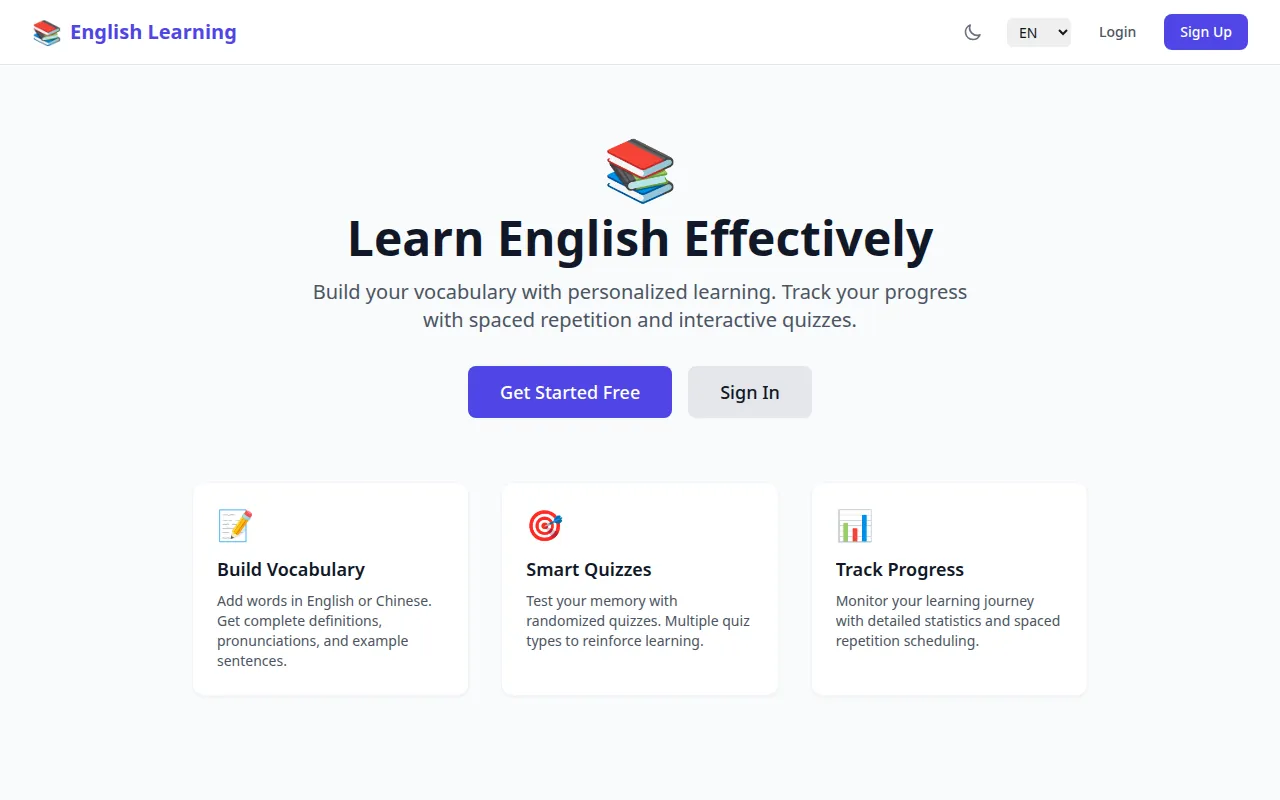
- Open learnenglish.micstec.com and choose Get Started Free or Sign Up.
- Enter a Display Name, Email, Password and Confirm Password. The password needs at least 6 characters and both copies must match.
- Choose Create Account. You see a green confirmation and are taken to Sign In after two seconds.
The confirmation mentions checking your email, but no email is sent — the app has no email verification. Instead, a new account stays inactive until an administrator activates it.
Sign in
- Choose Sign In (or Login at the top right), enter your Email and Password, and choose Sign In.
- If your account has not been activated yet, the form shows account not activated. Ask the administrator to activate it, then sign in again. If an account is deactivated, the next time the app loads you are returned to the sign-in page with an Account Inactive notice.
- After signing in you land on Board.
You stay signed in on that browser for seven days. The Remember me box has no extra effect. To sign out, choose the exit icon at the far right of the top bar.
Forgot password? opens a Reset Password page, but sending a reset link always ends with Password reset is not available. Please contact administrator. See Troubleshooting.
The top bar and navigation
| Control | What it does |
|---|---|
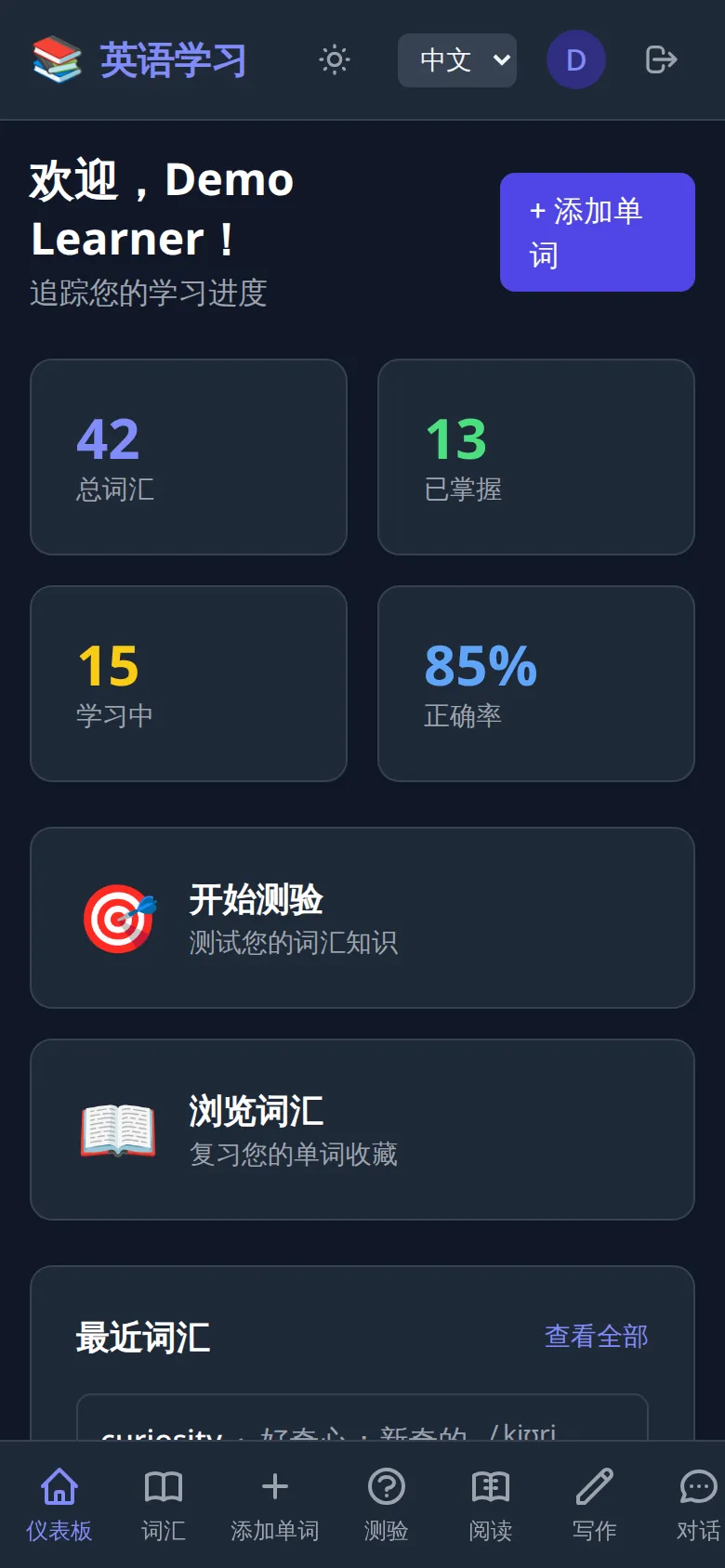
| Moon / sun icon | Switch between Dark Mode and Light Mode (remembered on this device; the first visit follows your system setting) |
| EN / 中文 menu | Switch the whole interface between English and Chinese (remembered on this device) |
| Board | Back to the dashboard (desktop) |
| Initial and name | Opens Me (your profile) |
| Exit icon | Sign out |
On a computer the menu is a sidebar on the left. On a phone it is a bar along the bottom; swipe it sideways to reach Dig, Me and Admin.
Board (dashboard)
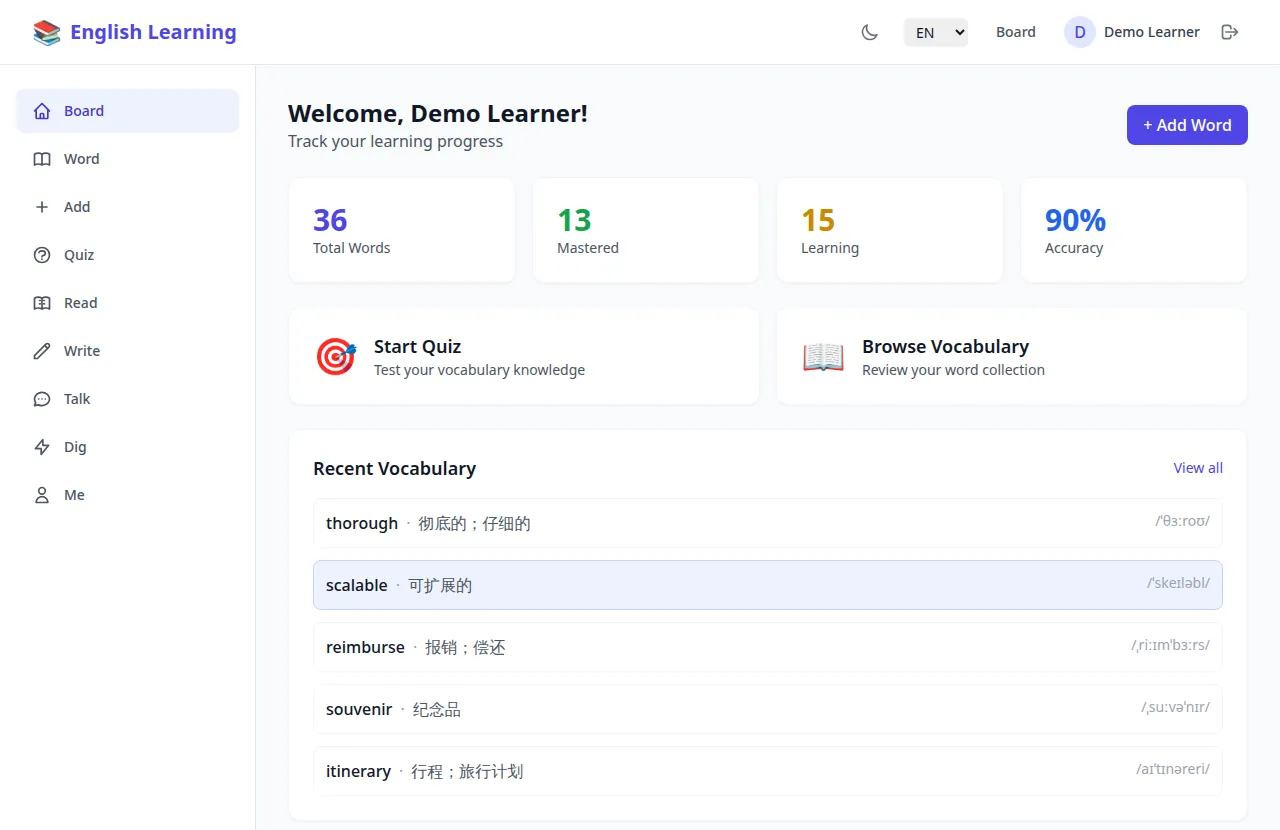
Board greets you by name and shows:
| Item | Meaning |
|---|---|
| Total Words | Words in your list |
| Mastered | Words at mastery level 4 or 5 (see How reviews are scheduled) |
| Learning | Words at level 1–3. Words never answered correctly (level 0) count only in the total |
| Accuracy | Correct answers ÷ all quiz answers you have given, as a percentage |
| Start Quiz / Browse Vocabulary | Shortcuts to Quiz and Word |
| Recent Vocabulary | Your five newest words with translation and IPA; View all opens the list |
| Recent Quizzes | Your last 10 quizzes with date and score, plus your Avg Score |
+ Add Word at the top right opens the add form.
Build your word list
Add a word yourself
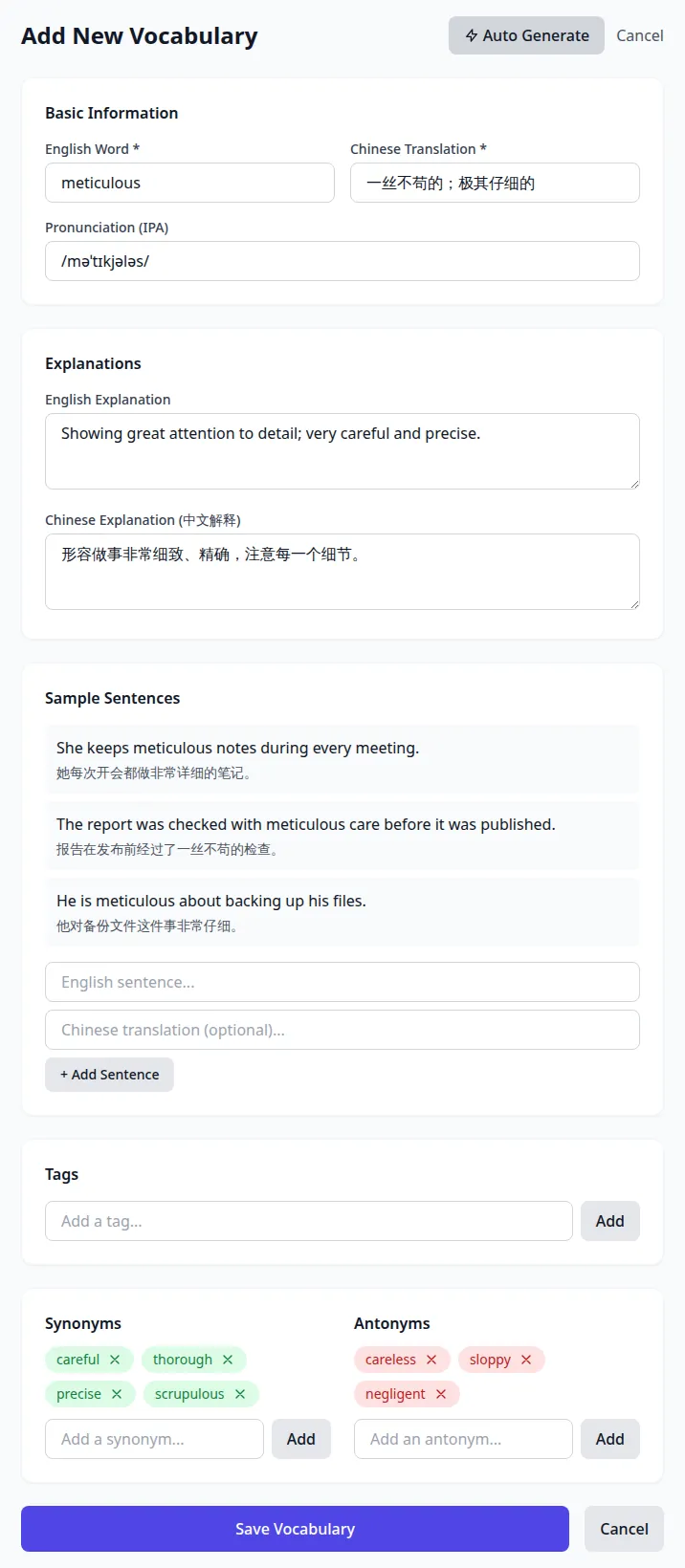
- Choose Add (or + Add Word). The form is Add New Vocabulary.
- Fill in English Word and Chinese Translation — both are required (marked *).
- Optionally add Pronunciation (IPA), an English Explanation and Chinese Explanation (中文解释).
- Under Sample Sentences, type an English sentence and an optional Chinese translation, then + Add Sentence. Repeat for more; the × removes one.
- Add Tags, Synonyms and Antonyms one at a time: type, then Add or press Enter. They are saved in lower case; × removes one.
- Choose Save Vocabulary. The new word's page opens.
Let AI fill it in (Auto Generate)
Type any one of these and choose Auto Generate at the top of the form:
| You type | AI fills in |
|---|---|
| An English word or phrase | Chinese translation, IPA, both explanations, three example sentences with translations, synonyms and antonyms |
| Only a Chinese word | The most suitable English word, plus everything above |
| Only an explanation (English or Chinese) | The English word that matches it, plus everything above |
Before calling the AI, the app checks your list. If the English word (or, without one, the Chinese translation) is already saved, the saved entry is loaded instead, a yellow This vocabulary already exists! box appears with View existing vocabulary →, and the save button becomes Already Exists. Generated example sentences are added to any you typed; generated synonyms and antonyms replace yours. Check everything, then Save Vocabulary.
The duplicate check runs only with Auto Generate. If you type every field yourself and save, the app does not stop you saving the same word twice.
Other ways to add words
- From a search with no results — on Word, a search that finds nothing offers Add "…"; it opens the add form with that word filled in (Chinese characters go into Chinese Translation).
- From a reading passage — select a word and right-click it (see Add words while you read).
- From Dig — pick several AI-suggested words at once (see Discover new words (Dig)).
There is no file import or export.
Browse, search and listen (Word)
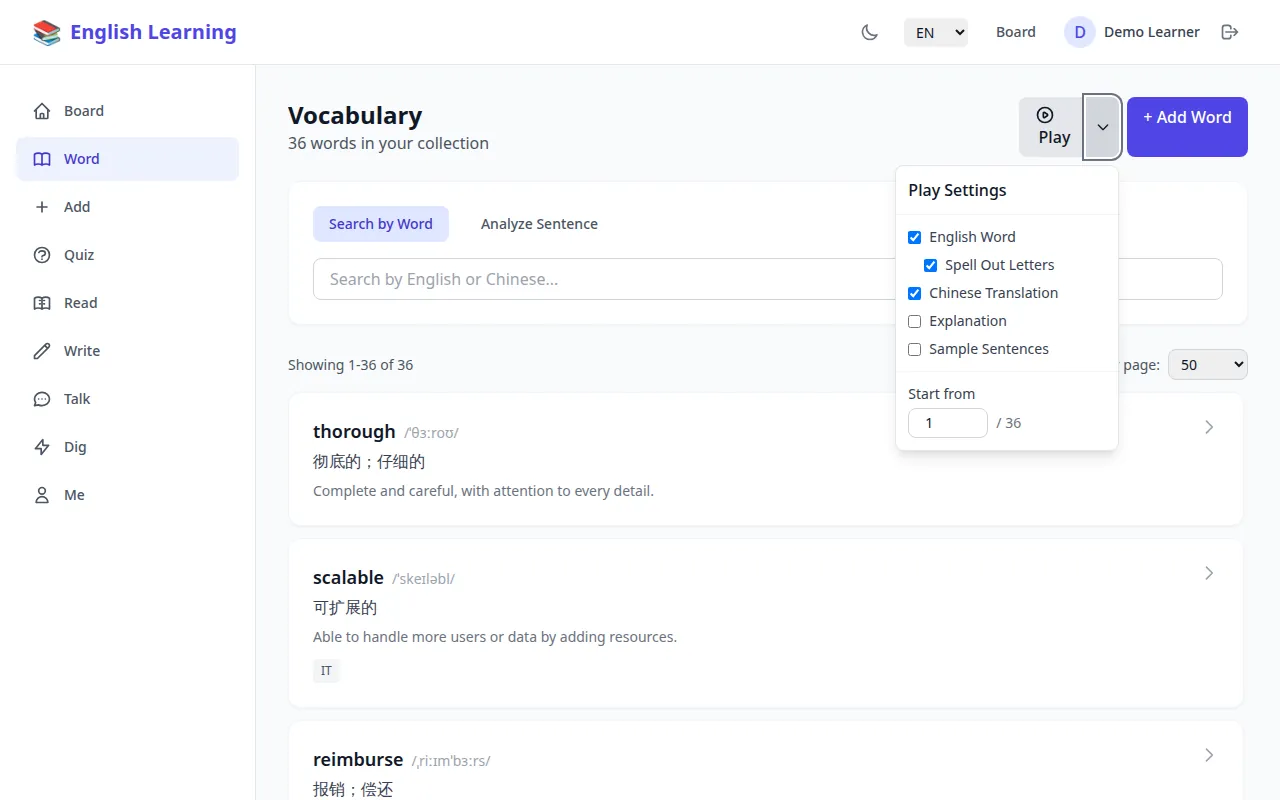
Word (titled Vocabulary) shows how many words you have and lists them newest first: word, IPA, Chinese translation, the start of the English explanation and any tags. Select a word to open it.
| Control | What it does |
|---|---|
| Search by Word | Filters as you type, matching the English word, Chinese translation or either explanation |
| Analyze Sentence | Finds saved words that appear in a sentence you paste (below) |
| Showing 1–50 of N / Per page | Pages of 20, 50, 100 or 200 words (remembered on this device); Prev, page numbers and Next move between pages |
| Play / Stop / Continue (N) | Reads the list aloud (below) |
| ▾ next to Play | Opens Play Settings |
| + Add Word | Opens the add form |
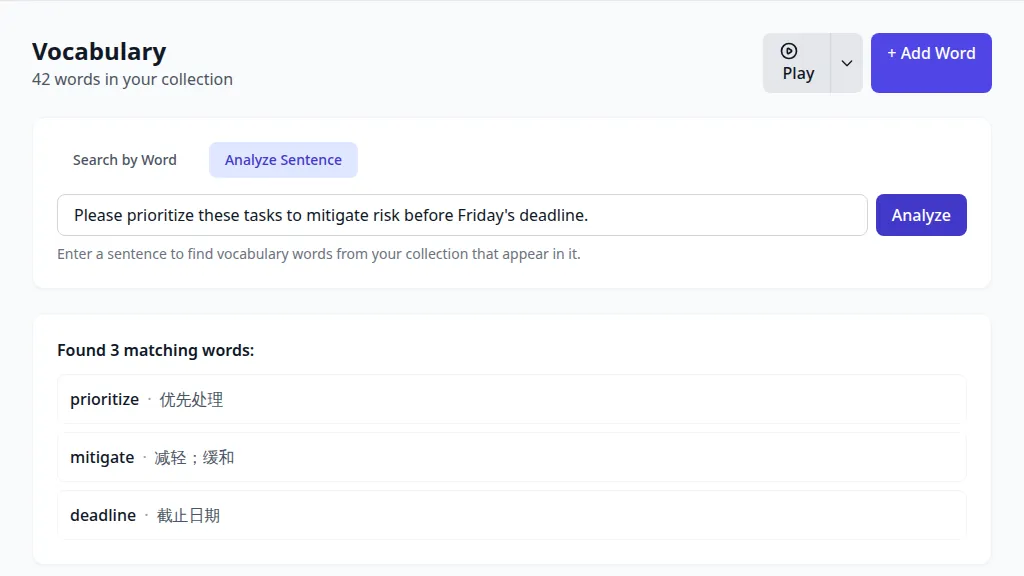
Analyze a sentence
- Choose Analyze Sentence, paste an English sentence and choose Analyze (or press Enter).
- Found N matching words lists your saved words that occur in the sentence. Select one to open it.
Matching ignores words of one or two letters and compares parts of words, so "deadline" matches "deadlines". Short common words can also match longer entries (for example "the" matches a saved phrase such as "under the weather").
Listen to your list (Play)
Play reads your words aloud one after another, with short pauses — useful while commuting or walking. It plays the list as currently filtered, so search first to play only matching words (for example a tag).
In Play Settings choose what is read for each word:
| Setting | Default | What is read |
|---|---|---|
| English Word | On | The word |
| Spell Out Letters | On | The word letter by letter (needs English Word) |
| Chinese Translation | On | The translation, in a Chinese voice |
| Explanation | Off | The English, then the Chinese explanation |
| Sample Sentences | Off | Each example sentence and its translation |
| Start from | 1 | Which word number to begin at, out of the current total |
A blue bar shows Playing X of Y and the current word; the × or Stop ends playback. The app remembers where you stopped on this device, so the button becomes Continue (N) next time; Reset Progress in Play Settings starts again from the top. Finishing the whole list clears the saved position. While playing, the app asks the device to keep the screen on.
A word's page
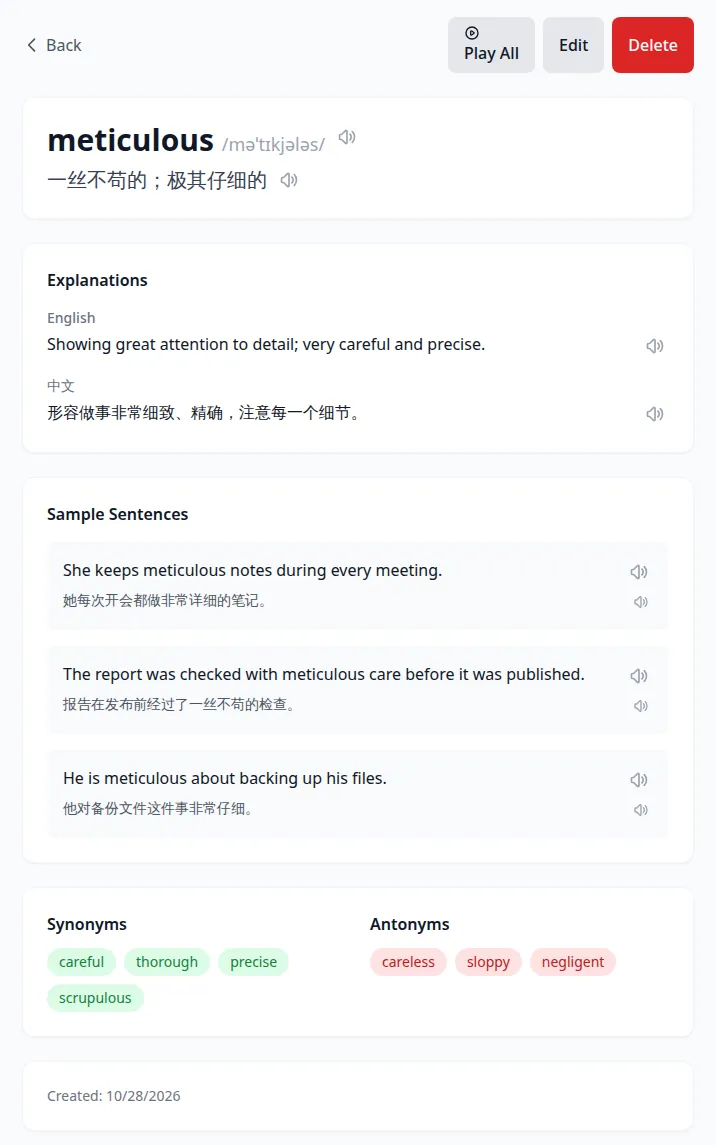
The word page shows the word, IPA and translation, Explanations (English and 中文), Sample Sentences, Synonyms, Antonyms, tags and the Created / Updated dates. Every line has a speaker icon to hear just that item.
| Button | What it does |
|---|---|
| Play All / Stop | Reads the word, its spelling, the translation, both explanations and every sentence with its translation |
| Generate | Appears only when an explanation or example sentences are missing. AI fills them in and opens edit mode so you can check and Save Changes |
| Edit | Change any field, then Save Changes or Cancel |
| Delete | Asks Are you sure you want to delete this vocabulary? and removes the word and its review progress |
| Back | Returns to the list |
Read-aloud uses Google's speech service through the app's server, up to 200 characters at a time. If that fails — or a text is longer — your device's own voice is used instead.
Take quizzes (spaced repetition)
Set up a quiz
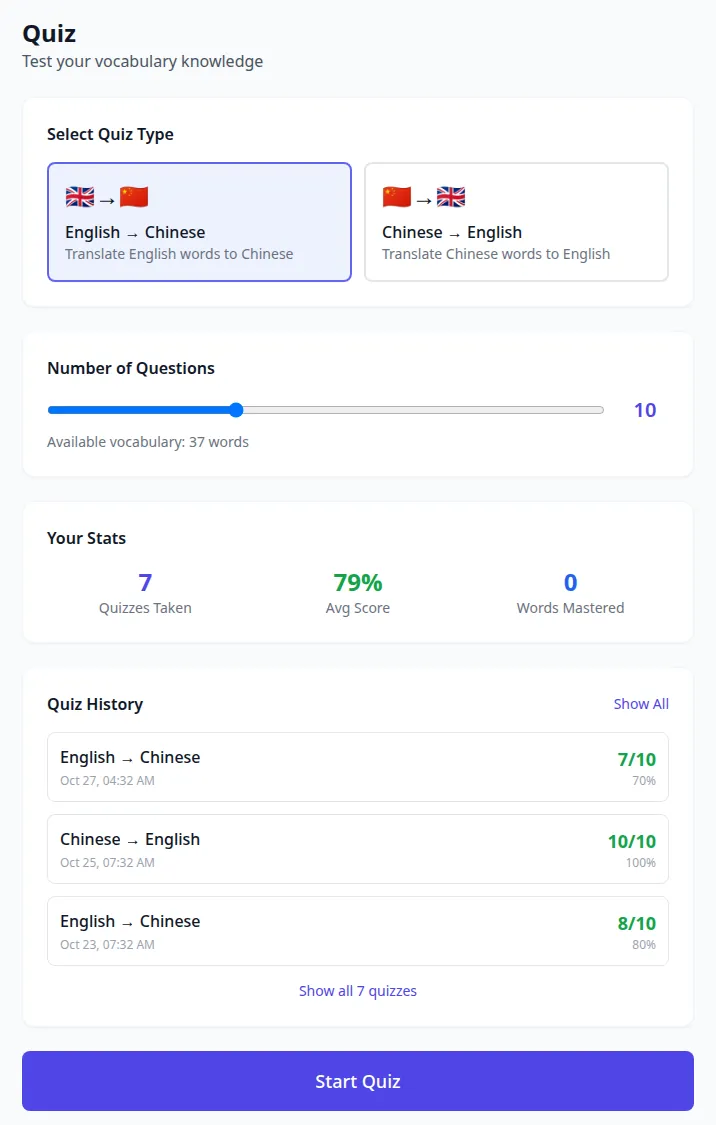
- Open Quiz. You need at least four words; otherwise you see Not Enough Vocabulary with Add more vocabulary →.
- Under Select Quiz Type, choose English → Chinese (pick the Chinese meaning) or Chinese → English (pick the English word).
- Set Number of Questions with the slider: from 5 up to 20, or up to the number of words you have if that is fewer. The default is 10. Available vocabulary shows your word count.
- Choose Start Quiz.
The page also shows Your Stats (Quizzes Taken, Avg Score, Words Mastered) and Quiz History: your last three quizzes with type, date and score. Show All or Show all N quizzes lists the rest; Hide collapses it. Select a past quiz to open its answer review — each word and its translation with ✓ or ✗, and for mistakes Your answer and Correct.
Answer the questions
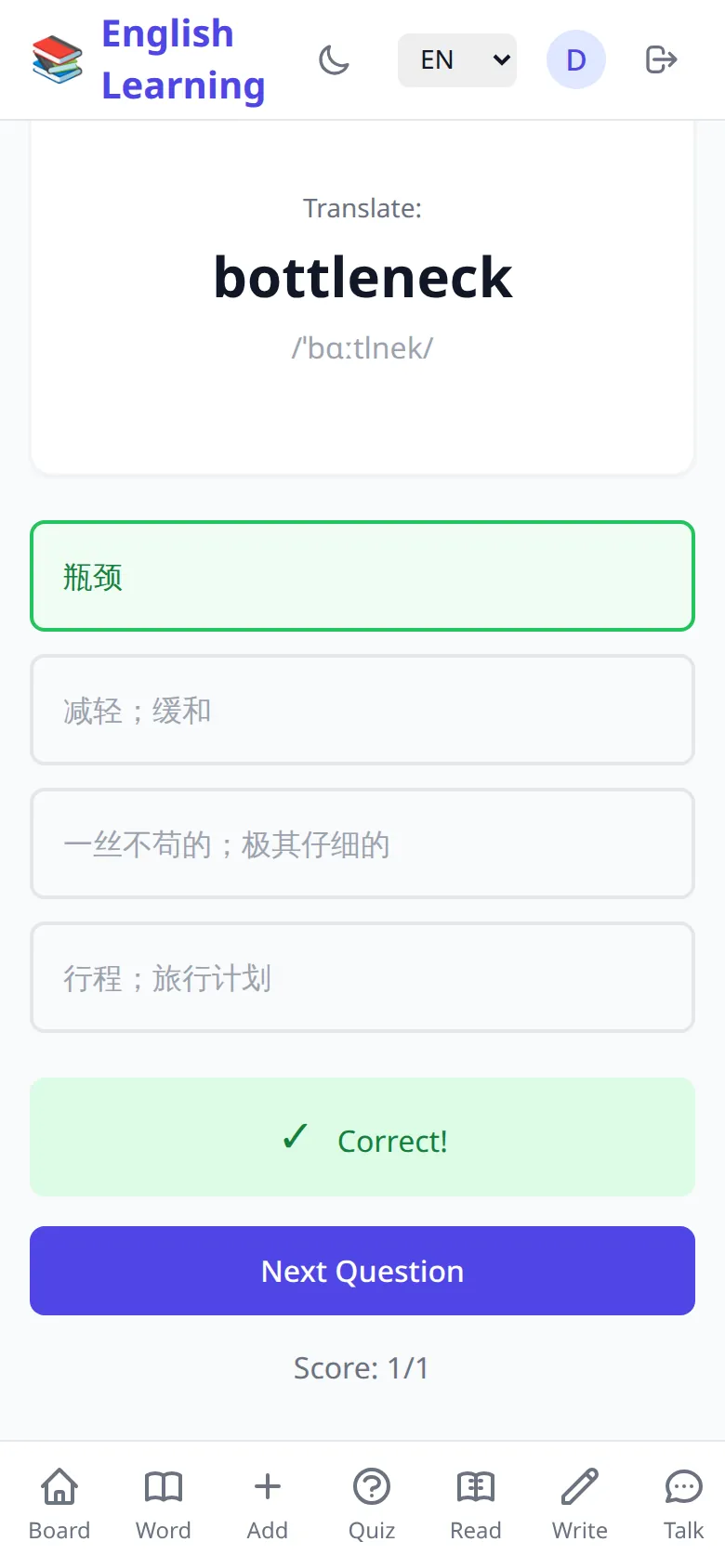
- Each screen shows Question X of Y, a progress bar and the quiz type. Translate: shows the word (with IPA for English → Chinese) and four choices. The wrong choices are other words from the same quiz.
- Tap an answer. The right choice turns green; a wrong pick turns red. A box says Correct! or Incorrect with Correct: and the right answer. The running Score is shown below.
- Choose Next Question, and after the last one See Results.
- Quiz Complete! shows your score and percentage and Review Answers (for mistakes: Your answer and Correct). Choose New Quiz or Board.
Each answer updates that word's progress straight away, even if you leave the quiz early. The quiz itself is added to your history only when you reach the results.
How reviews are scheduled
Every word has a mastery level from 0 (new) to 5. A correct answer raises it by one; a wrong answer lowers it by one (never below 0). The next review date is then set from the new level:
| New level | 0 | 1 | 2 | 3 | 4 | 5 |
|---|---|---|---|---|---|---|
| Next review in | 1 day | 2 days | 4 days | 7 days | 14 days | 30 days |
When you start a quiz, the app first takes words that are due — never quizzed, or past their review date — lowest level first, then tops up with other words from your list if there are not enough, and shuffles them. Levels 4–5 count as Mastered and 1–3 as Learning on Board and Me.
Discover new words (Dig)
- Open Dig and Select a Category: Random (default), IT & Tech, Movies, TV Shows, Music, Fiction, TOEFL, GRE, Medical, Science, Slang or Idioms.
- Select Difficulty: Normal (everyday words, about CEFR B1–B2), Medium (professional and academic, about B2–C1) or Hard (rare or specialised, about C1–C2).
- Set Number of Words — 5, 10, 15 or 20 (default 10) — and choose Generate Words.
- Pick the words you don't know: each card shows the word, IPA, translation, explanation, example sentences and synonyms. Tap cards to select them, or use Select All / Deselect All. The counter shows how many are selected; the back arrow returns to the categories.
- Choose Add N Selected Words. Words Added! confirms; choose View Vocabulary or Try Again.
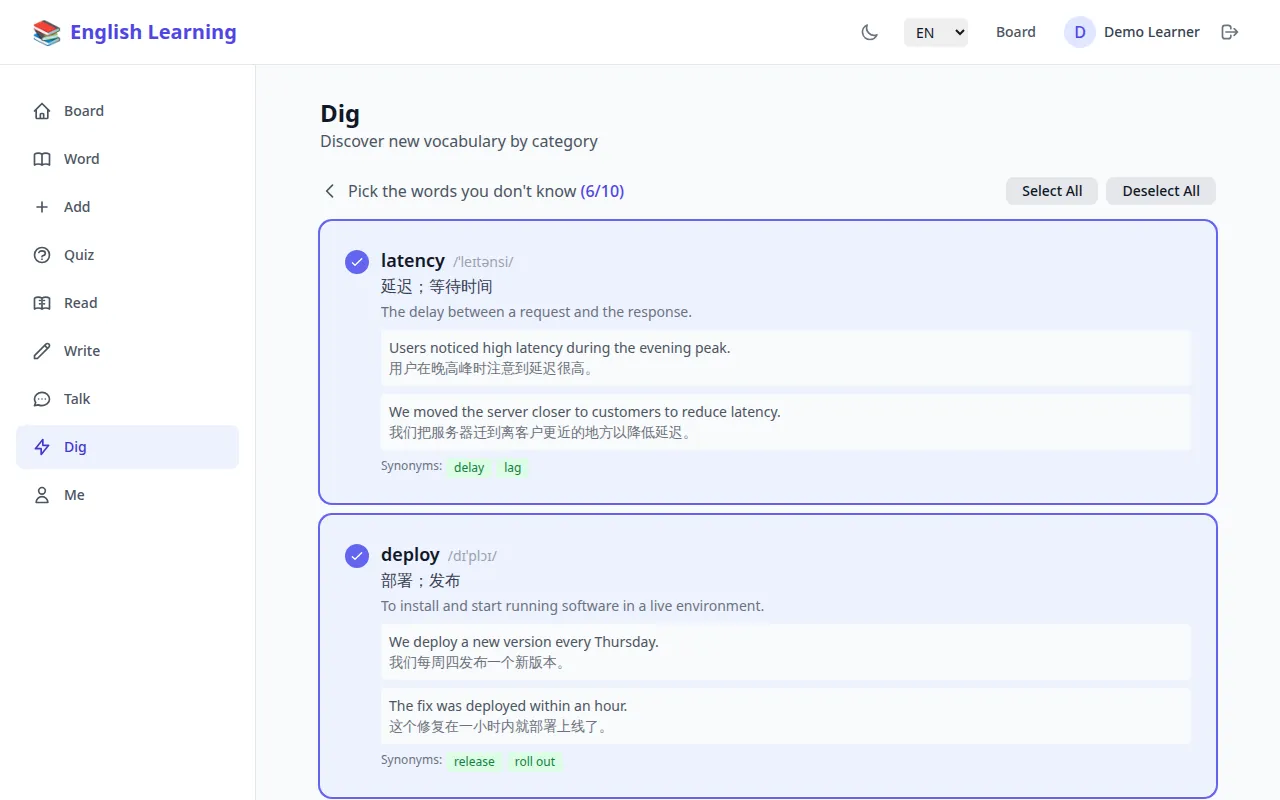
Each added word is tagged with its category (for example IT, toefl, idiom), so you can search for the tag later. Words already in your list are skipped when saving and reported as Saved N words. Skipped N (already exists). The headline count counts every word you selected, including skipped ones.
Practise reading (Read)
Choose a passage
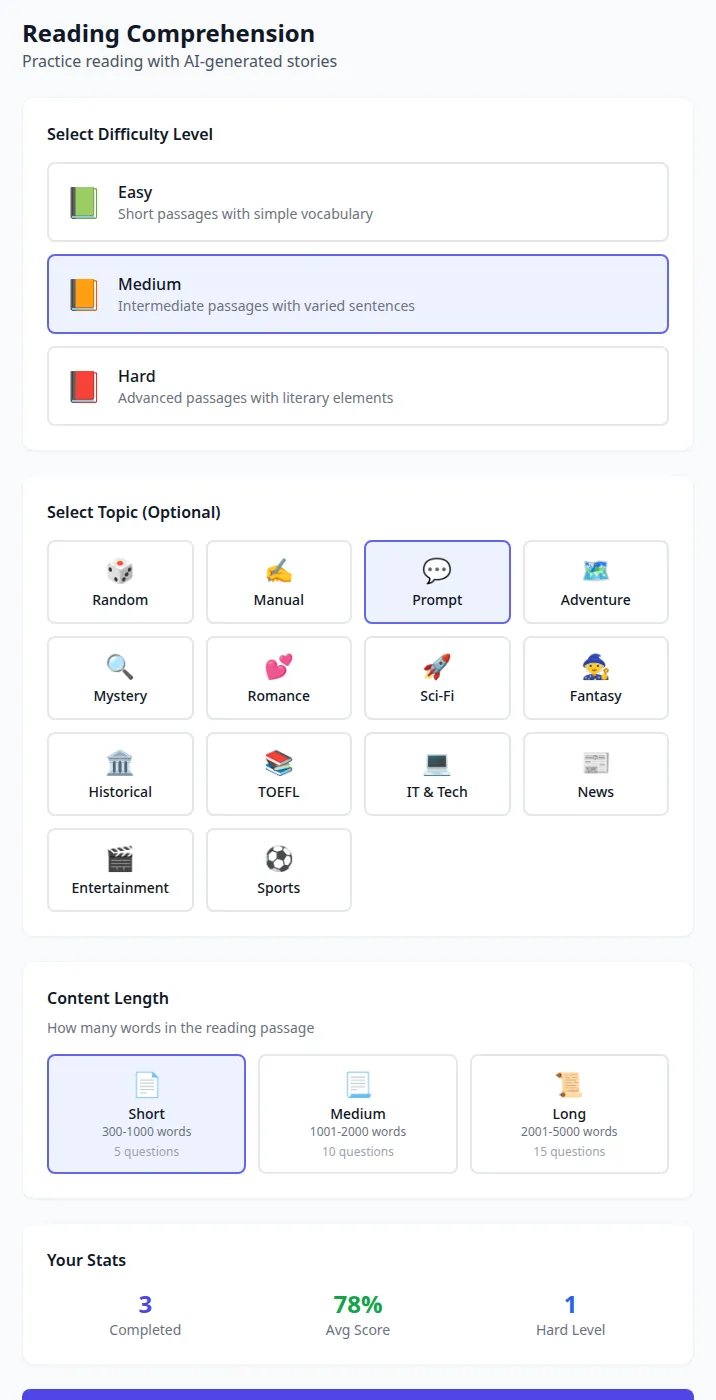
Open Read (Reading Comprehension) and Select Difficulty Level: Easy (short sentences, simple vocabulary), Medium or Hard (advanced, literary).
Optionally Select Topic: Random (default), Manual, Prompt, Adventure, Mystery, Romance, Sci-Fi, Fantasy, Historical, TOEFL, IT & Tech, News, Entertainment or Sports.
Choose the Content Length (remembered on this device):
Length Words Questions Short 300–1,000 5 Medium 1,001–2,000 10 Long 2,001–5,000 15 Choose Start Reading. Generating a long passage can take a while.
How the passage is made depends on the topic:
| Topic | What happens |
|---|---|
| Random or a named topic | The AI writes a passage adapted from a published work, article or scene and cites the source. Random picks a category for you and shows it as a badge |
| Prompt | Describe Your Article (for example "the history of coffee") and choose Generate Article |
| Manual | Paste Your Reading Content — at least 50 words; a counter shows the total — and choose Generate Questions. Your text is kept exactly as written; the AI writes the questions. You can also dictate the text with Voice or transcribe an audio file with Upload |
Your Stats show Completed readings, Avg Score and how many Hard Level readings you have done.
Read and listen
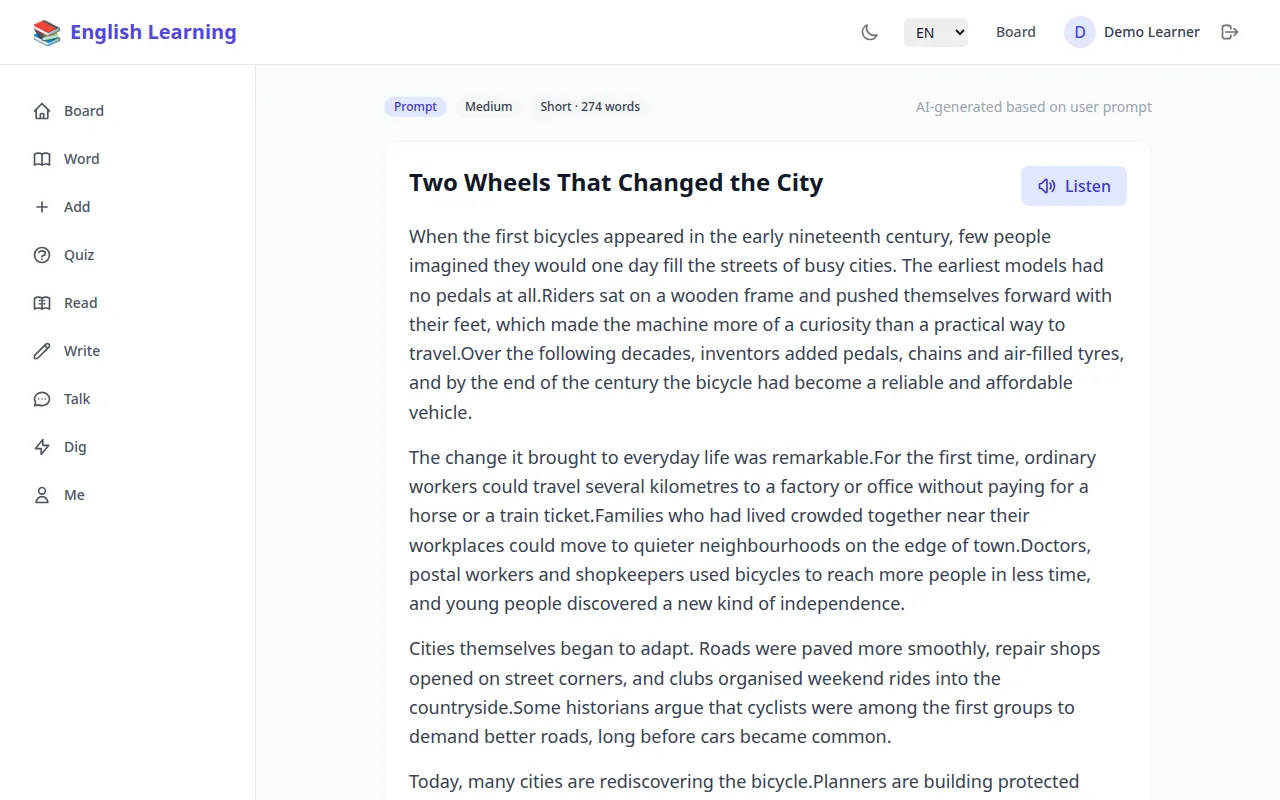
The passage opens with badges for category, level, length and word count, plus the source. Choose Listen to hear it read sentence by sentence; the sentence being read is highlighted and kept in view, and the screen stays on. Stop ends it. A citation appears below the passage.
Add words while you read
- Select a single word in the passage (double-click it on a computer) and right-click it.
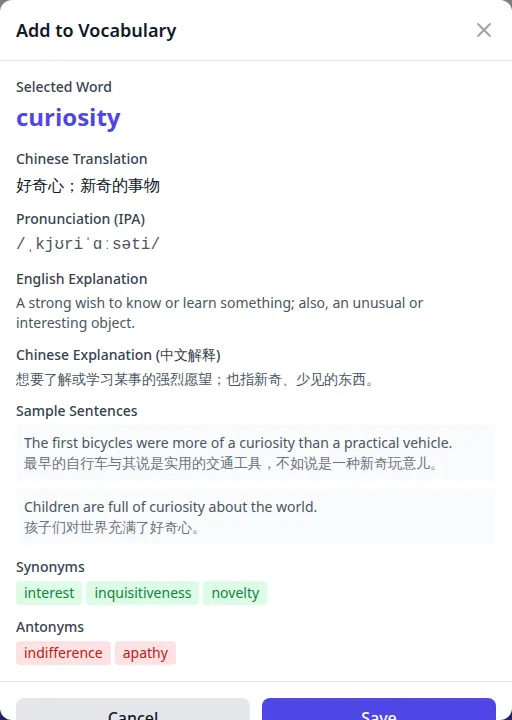
- The Add to Vocabulary dialog shows the Selected Word. Choose Auto Generate.
- Check the translation, IPA, explanations, sentences, synonyms and antonyms, then Save. Word saved successfully! closes the dialog. If the word is already in your list, the dialog says so and links to it.
Only single words (letters and hyphens) open the dialog. On phones this needs a browser that offers a context menu on a long press.
Answer the questions and use the reading guide
- Choose Answer Questions (N). Each multiple-choice question (A–D) shows Question X of N; Review Story goes back to the text.
- After each answer you see Correct! or Incorrect with an explanation. Choose Next Question, then See Results.
- Reading Complete! shows your score and percentage. A Reading Guide is prepared automatically (Preparing your reading guide…): a short overview of how to read the passage, Key Words with their meaning in context and a note, and Key Sentences with an explanation. If it fails, choose Retry.
- Review Answers lists each question with ✓ or ✗, Your answer, Correct and the explanation. Choose New Reading or Board.
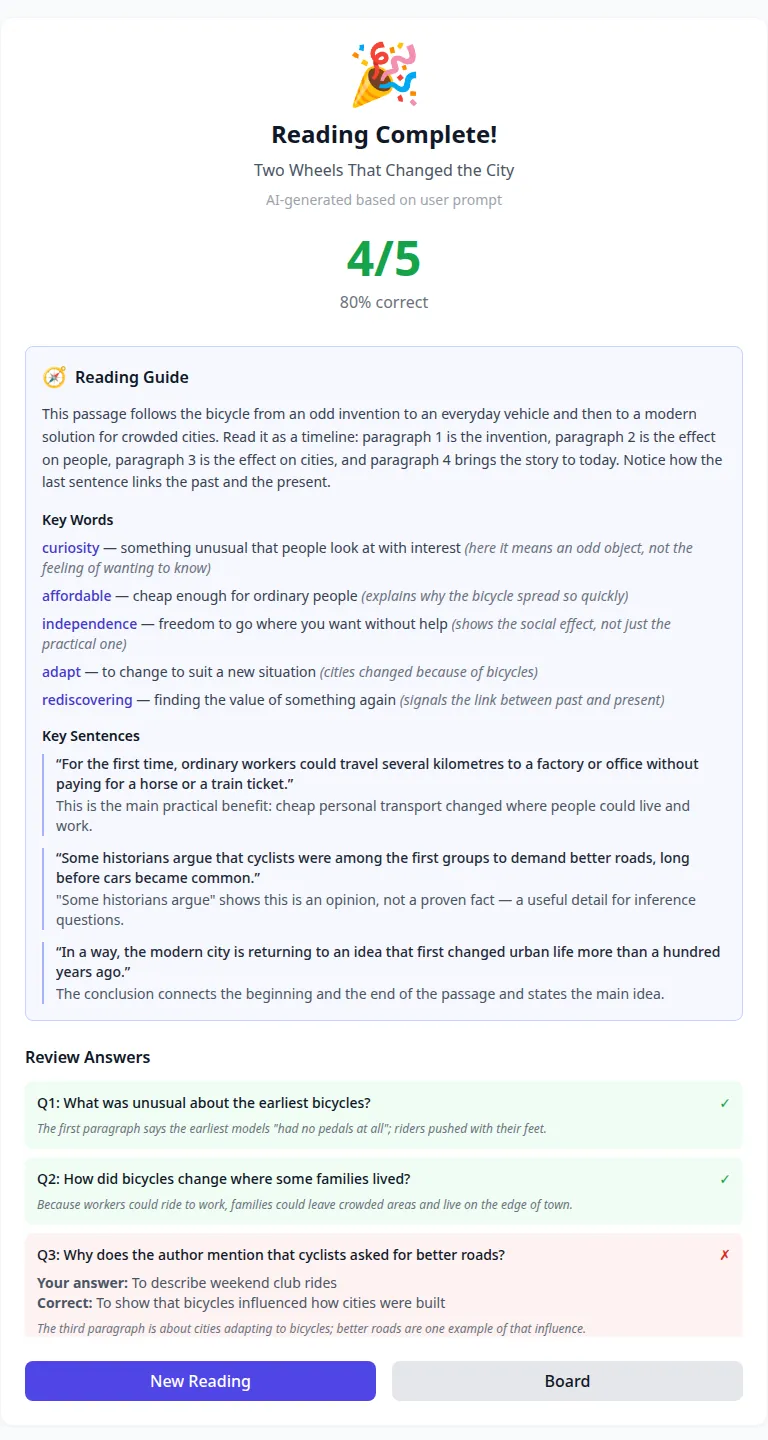
Reading history
Finished readings are saved under Reading History on the Read page (title, source, level, date and score). Select one to open Review Mode: the passage (with Listen and right-click to add words), its Reading Guide — or Show reading guide to create one — and Questions & Answers. Back to Reading returns to the setup page.
Practise writing (Write)
Get a topic
Open Write (Writing Practice) and Select Writing Category:
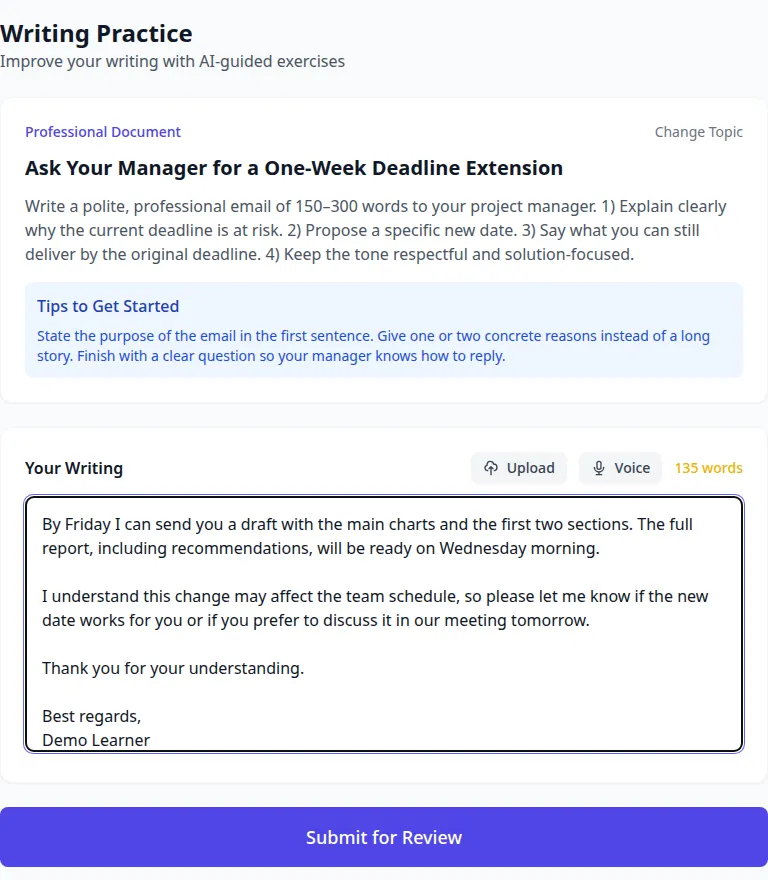
Category Writing type IT & Technology Technical writing about software and technology Creative Story Creative writing and narrative fiction Speech Writing Persuasive and informative speeches Professional Document Business emails, reports and proposals Interviewer Interview questions, written as the interviewer Interviewee Interview answers, written as the candidate Presentation Presentation scripts and speaker notes Manual Your own topic, with AI guidance Random (default) Any of the first seven Choose Get Writing Topic. The AI sets a specific topic, requirements (usually 150–300 words, key points and tone) and Tips to Get Started.
For Manual, the Create Your Own Topic dialog asks for Your Writing Topic and optional Additional Requirements (either can be dictated); choose Start Writing and the AI turns them into requirements and tips.
Change Topic returns to the category list (what you have written is discarded). Your Stats show Completed, Avg Score and Professional (IT & Technology plus Professional Document pieces).
Write and submit
- Type in Your Writing; the word count updates as you go.
- To dictate, choose Voice, speak, and choose it again to stop — the transcription is added at the end of your text. Upload transcribes an audio file instead.
- Choose Submit for Review (at least 10 characters).
Read the feedback
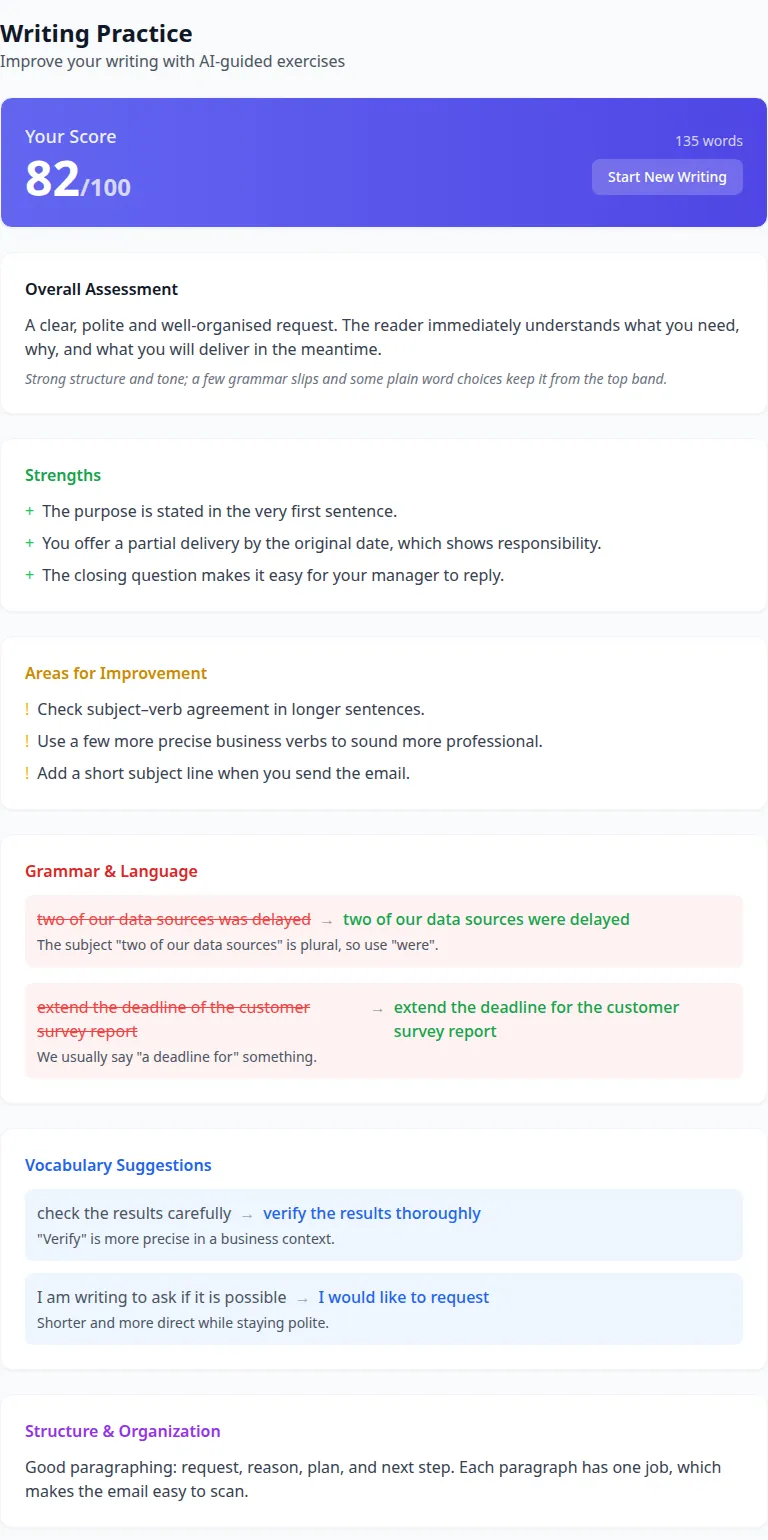
The review contains:
| Section | What it tells you |
|---|---|
| Your Score | A mark out of 100 and the word count |
| Overall Assessment | A one- or two-sentence summary and why you got that score |
| Strengths / Areas for Improvement | Two or three points each |
| Grammar & Language | Each mistake struck through, the correction and a short explanation |
| Vocabulary Suggestions | Plain wording, a stronger alternative and why |
| Structure & Organization | Comments on paragraphs and flow |
| Improved Example | A rewritten paragraph, when it would help |
| (closing note) | A short encouraging message |
| Your Original Writing | Your text for comparison |
Choose Start New Writing to begin again. Results are saved automatically to Writing History (topic, category, word count, date and score); select an entry to reopen its feedback.
In the current version, pieces written on a Manual topic are marked normally but are not added to Writing History.
Practise speaking (Talk)
Start a conversation
- Open Talk (Talk Practice) and Select Conversation Topic: IT & Technology, Storytelling, Speech & Persuasion, Professional, Interviewer (you run the interview), Interviewee (you answer), Presentation, Manual or Random.
- Choose Start Conversation. The AI sets a scenario, names the Skill Focus you are practising (for example "Answering behavioural questions with the STAR method") and sends the first message.
- For Manual, choose Continue, describe the Conversation Topic or Scenario (at least 10 characters — for example "ordering food at a restaurant") and an optional Skill Focus, then Start Conversation. ← Back returns to the topics.
Reply by voice or text
- Type in the box and press Enter (or the send button). Shift+Enter starts a new line.
- Speak: choose the microphone (Start voice input), allow microphone access, talk, and choose it again (Stop recording). A timer shows while recording; then Transcribing.... The text appears in the box so you can correct it before sending.
- Upload an audio file (MP3, WAV, WebM, OGG or M4A, up to 25 MB) to have it transcribed into the box.
The microphone and upload buttons appear only in browsers that support recording. The coach replies in text (replies are not read aloud).
After each of your messages the coach answers, adds a one-line tip under its reply, and leaves feedback on what you wrote: choose Show feedback under your message to read it, Hide feedback to close it.
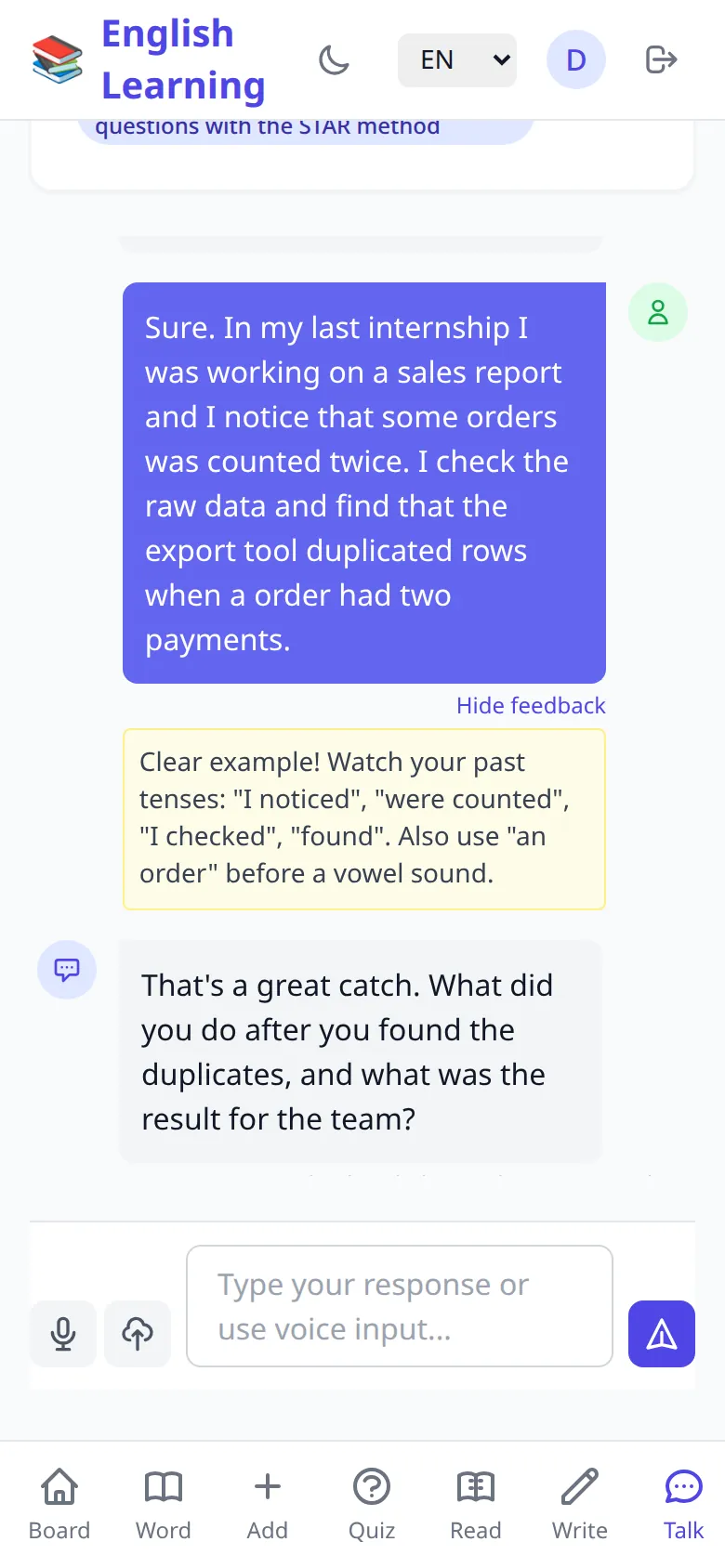
End and review
Choose End (you need at least one reply). The review shows:
| Section | Content |
|---|---|
| Overall Score | Out of 100, with your message and word counts |
| Skill Focus Progress | How well you practised the target skill |
| Fluency Assessment | Flow, sentence length and variety |
| Strengths / Areas for Improvement | Specific points |
| Grammar Issues | What you said, the correction and why |
| Vocabulary Usage | Range and better alternatives |
| (closing note) | Encouragement |
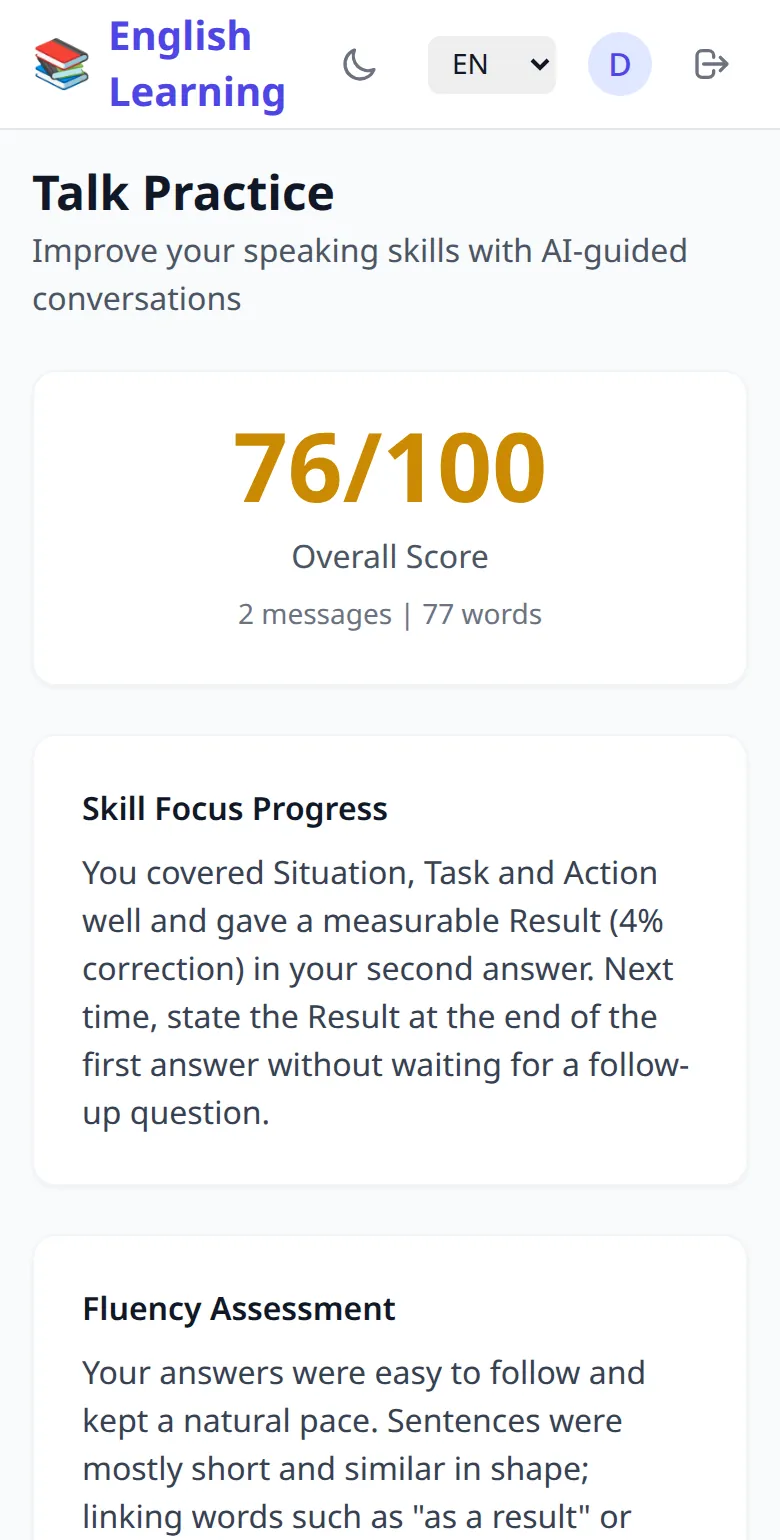
Choose Start New Conversation to practise again. Finished conversations are saved under Talk History (topic, skill focus, message count, date and score); select one to reopen it. Your Stats shows Completed and Avg Score once you have finished one.
Your profile (Me)
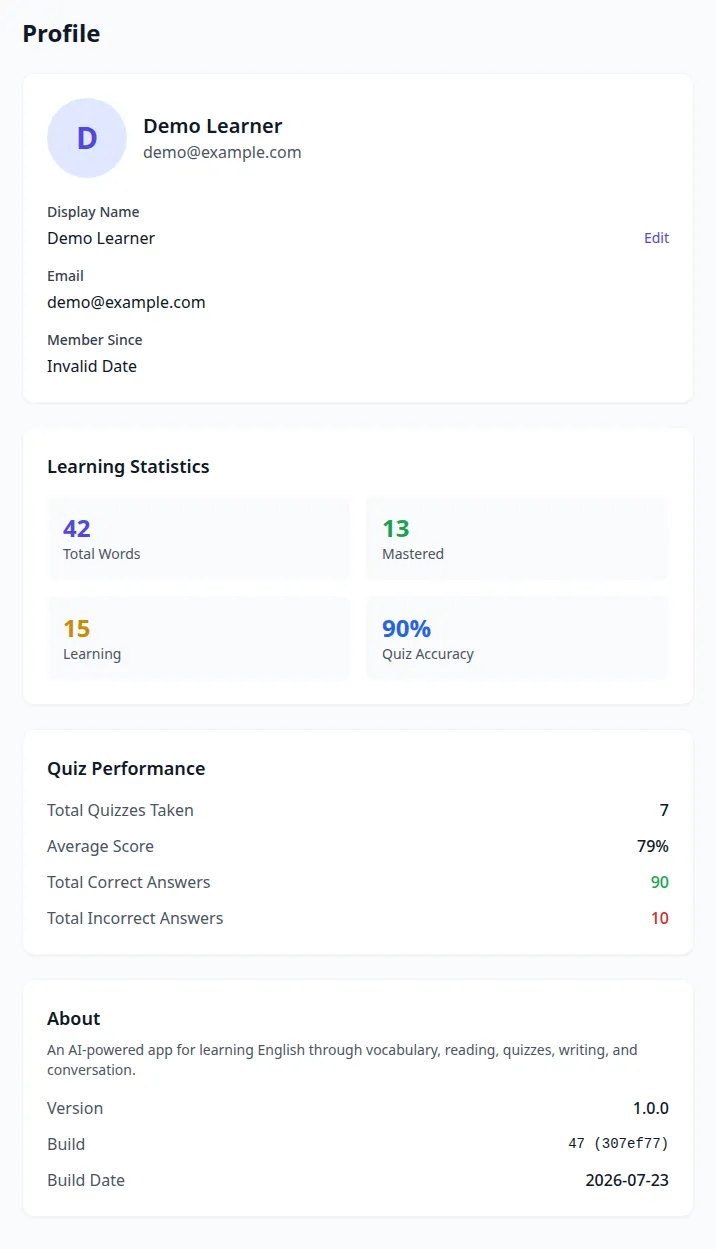
Me (Profile) shows your initial, name and email.
- Display Name — choose Edit, type a new name, then Save (Profile updated successfully!) or Cancel.
- Email and Member Since are shown but cannot be changed here.
- Learning Statistics — Total Words, Mastered, Learning, Quiz Accuracy.
- Quiz Performance — Total Quizzes Taken, Average Score, Total Correct Answers, Total Incorrect Answers.
- About — Version, Build (build number and code revision) and Build Date; useful when reporting a problem.
The app has no password change, email change, profile picture upload or account deletion.
Language and dark mode
Use the EN / 中文 menu to switch every label, button and message to Chinese (for example Board becomes 仪表板, Word 词汇, Quiz 测验, Read 阅读, Write 写作, Talk 对话, Dig 挖掘, Me 个人资料). The moon/sun icon switches dark mode. Both choices are stored in the browser, so set them once on each device. Your words, explanations and AI feedback do not change language.
Install the app
The site is a progressive web app called English Learning PWA.
- Android (Chrome) — open the site, then ⋮ → Install app or Add to Home screen.
- iPhone/iPad (Safari) — Share → Add to Home Screen.
- Desktop Chrome or Edge — the install icon in the address bar, or the browser menu → Install.
The installed app opens in its own window and updates itself when a new version is published. The app's pages load offline, but your word list, quizzes, read-aloud and every AI feature need a connection — nothing is stored for offline use.
Administration
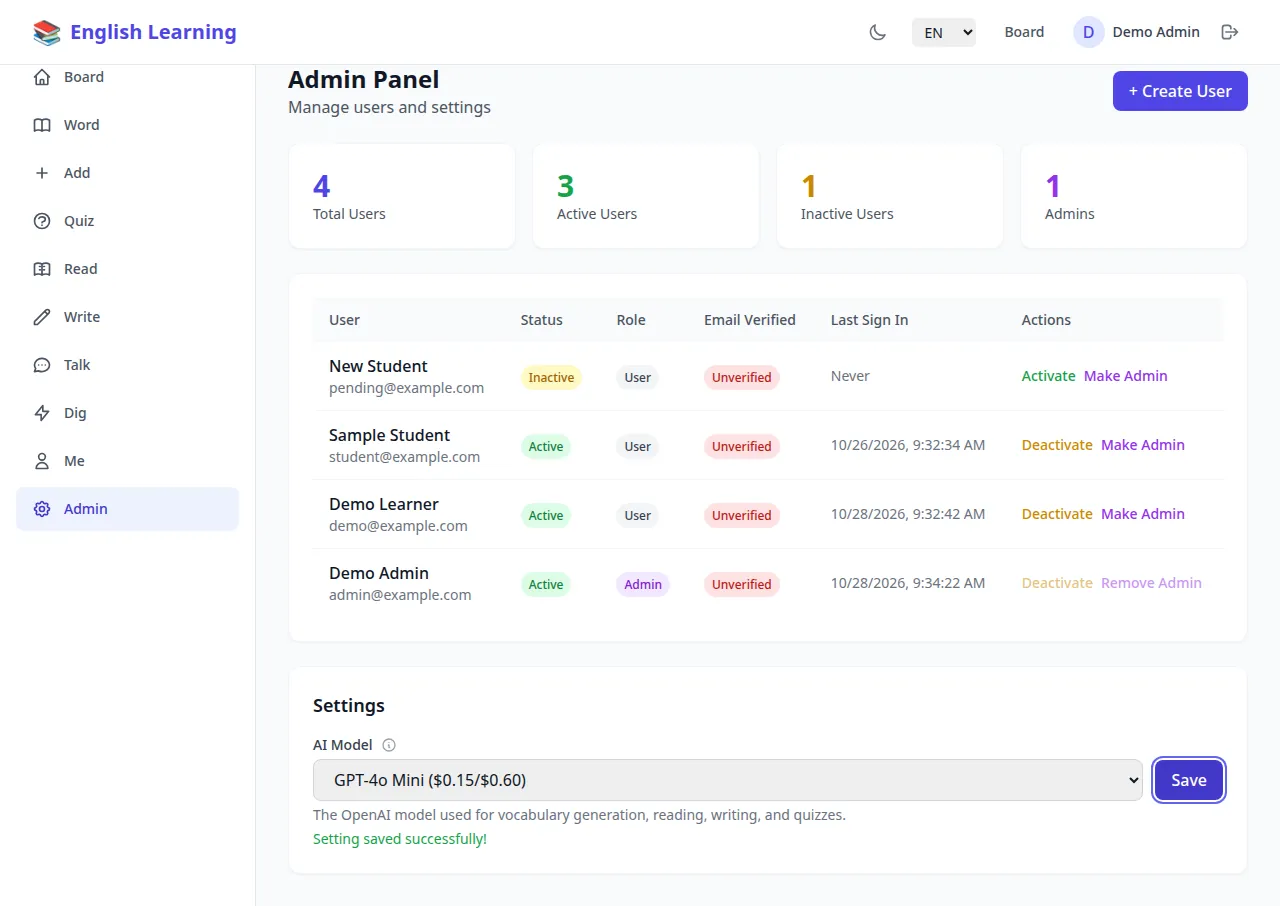
Users whose account has the admin role see Admin in the menu (Admin Panel — Manage users and settings).
| Task | How |
|---|---|
| Activate a new sign-up | Find the user (status Inactive) and choose Activate |
| Block a user | Deactivate (asks to confirm). They can no longer sign in |
| Give or remove admin rights | Make Admin / Remove Admin (asks to confirm). You cannot change your own row |
| Create an account | + Create User: Email, Password (at least 6 characters), Display Name, Activate user immediately (on by default) and Grant admin privileges → Create User |
| Choose the AI model | Settings → AI Model: pick one of 11 OpenAI models (the list shows price per million input/output tokens; View pricing info shows a table) → Save (Setting saved successfully!) |
The table shows each user's name and email, Status, Role, Email Verified (always Unverified, as the app has no email verification) and Last Sign In, with totals for Total Users, Active Users, Inactive Users and Admins. Administrators cannot see other users' words or results, delete accounts or change passwords.
In the current version the AI Model setting is applied only to requests made from administrator accounts; other learners' AI requests use the default model, GPT-4.1 Nano.
Limits and rules at a glance
| Item | Limit |
|---|---|
| Password | At least 6 characters |
| Session | Seven days, then sign in again |
| Quiz | Needs 4 words; 5–20 questions (default 10) |
| Dig | 5, 10, 15 or 20 words per round |
| Reading | Short 300–1,000 words / 5 questions; Medium 1,001–2,000 / 10; Long 2,001–5,000 / 15. Manual text needs at least 50 words |
| Writing | At least 10 characters to submit; marked out of 100 |
| Talk | Manual scenario at least 10 characters; at least one reply before End |
| Voice and audio files | MP3, WAV, WebM, OGG or M4A, up to 25 MB; transcription is in English |
| Read-aloud | Up to 200 characters per request to the online voice; longer text uses your device's voice |
| Word list pages | 20, 50, 100 or 200 per page |
Keyboard and mouse
| Where | Action | Result |
|---|---|---|
| Talk message box | Enter | Send |
| Talk message box | Shift+Enter | New line |
| Analyze Sentence box | Enter | Analyse |
| Tags, Synonyms, Antonyms fields | Enter | Add the item |
| Reading passage | Select a word, then right-click | Add to Vocabulary |
A suggested daily routine
- 5 minutes — Quiz. Run a 10-question quiz; due and new words come first.
- 10 minutes — Read. A Short passage at your level; right-click two or three new words to save them, then read the Reading Guide.
- 10 minutes — Write or Talk. Use today's words in a short piece or a role-play and read the feedback.
- Once a week — Dig. Add 10 words from a topic you care about.
- On the go — Play. Search for a tag (for example
work) and play just those words with Spell Out Letters on.
Privacy and AI
- Your words, results and history are stored in your account on the app's own server and are shown only to you. Administrators see your name, email, status and last sign-in time.
- Auto Generate, Generate, Dig, Read, Write and Talk send what you enter (words, passages, your writing, conversation and recordings for transcription) to OpenAI to produce results.
- Read-aloud sends the text being spoken to Google's text-to-speech service via the app's server.
- AI translations, explanations, citations and marks can be wrong. Check anything important against a dictionary or a teacher. Reading passages "adapted from" a published work are AI-written and may not quote it exactly.
- There is no export, sharing or account deletion in the app; ask the administrator if you need your data removed.
Troubleshooting
| Problem | What to try |
|---|---|
| account not activated when signing in, or an Account Inactive notice | An administrator must activate your account. No email is involved |
| "Please check your email to verify your account" after signing up | No email is sent; wait for an administrator to activate the account |
| Forgot your password | There is no reset link and no in-app way for an administrator to change it. Contact the administrator; they may need to create a new account for you |
| email already registered | That email already has an account — sign in instead |
| Passwords do not match / Password must be at least 6 characters | Retype both password fields; use 6 or more characters |
| Not Enough Vocabulary | Add at least four words, or use Dig to add several at once |
| English word and Chinese translation are required | Fill in both fields before Save Vocabulary |
| Please enter an English word, Chinese translation, or explanation first | Auto Generate needs something to start from |
| This vocabulary already exists! | The word is already saved; use View existing vocabulary → to open or edit it |
| Auto Generate, Dig, reading, writing or talk fails or shows an error | The AI service may be busy; try again later. Quizzes, the word list and manual entry still work |
| Couldn't load the reading guide. | Choose Retry |
| Microphone permission denied | Allow microphone access for the site in the browser's site settings, or use Upload |
| Failed to transcribe audio / Transcription failed | Speak a little longer and more clearly, check the microphone, or upload a file |
| Invalid file type / File is too large | Use MP3, WAV, WebM, OGG or M4A under 25 MB |
| No sound when playing words | Check the volume and silent switch, then tap play again. If the online voice is unavailable the app uses your device's voice |
| Continue (N) starts in the middle of the list | Open Play Settings and choose Reset Progress, or set Start from |
| Member Since shows Invalid Date | A display issue in the current version; your account is unaffected |
| A Manual writing piece is missing from Writing History | Manual-topic pieces are not saved in the current version — copy the feedback you want to keep |
| Right-click does nothing in a passage | Select exactly one word (letters or hyphens only) first |