# Mic's Music Player
Mic's Music Player is a browser music library, personal playlist player and karaoke app at [music.micstec.com](https://music.micstec.com/). Find songs by title, artist or lyrics, follow and adjust timed lyrics, sing over instrumentals, record a performance, pair a phone for private original vocals, or run a KTV Party with a shared stage and song requests. **Dig song** imports additional recordings into the shared library.
| At a glance | Details |
| --- | --- |
| First visit | A guest identity is created automatically; Google sign-in is optional for account features |
| Devices | Desktop and mobile browsers; installable web app |
| Languages and appearance | English / Chinese; light / dark theme |
| Playlists | Guests save on this device; registered users synchronize with their account |
| Karaoke requirements | A song with a prepared instrumental; microphone permission for monitoring or recording |
| Parties | Internet, an admitted room membership, and explicit audio activation on each listening device |
| Data | Shared server song library; account profile and registered playlists; local preferences and caches |
**On this page**
- [Start listening and find your way around](#start-listening-and-find-your-way-around)
- [Search the library and browse categories](#search-the-library-and-browse-categories)
- [Use playback controls, timer and range](#use-playback-controls-timer-and-range)
- [Read lyrics and correct timing](#read-lyrics-and-correct-timing)
- [Save favorites and manage playlists](#save-favorites-and-manage-playlists)
- [Share a song and customize the visualizer](#share-a-song-and-customize-the-visualizer)
- [Sing with prepared instrumentals](#sing-with-prepared-instrumentals)
- [Use the expanded stage and requested-song queue](#use-the-expanded-stage-and-requested-song-queue)
- [Choose, test and monitor a microphone](#choose-test-and-monitor-a-microphone)
- [Record and download your singing](#record-and-download-your-singing)
- [Pair a phone for private original vocals](#pair-a-phone-for-private-original-vocals)
- [Find and import recordings with Dig song](#find-and-import-recordings-with-dig-song)
- [Create a KTV Party and admit guests](#create-a-ktv-party-and-admit-guests)
- [Request songs, accept nominations and start a turn](#request-songs-accept-nominations-and-start-a-turn)
- [Set up the room speaker and recover audio](#set-up-the-room-speaker-and-recover-audio)
- [Manage party members, devices and room settings](#manage-party-members-devices-and-room-settings)
- [Use online performance when configured](#use-online-performance-when-configured)
- [Edit your profile and use administration](#edit-your-profile-and-use-administration)
- [Install, update and play in the background](#install-update-and-play-in-the-background)
- [Troubleshooting](#troubleshooting)
## Start listening and find your way around
1. Open [the player](https://music.micstec.com/) and allow the library to load.
2. Choose a song on **Home** or **Your Library**. Tap Play if the browser does not start audio automatically.
3. Use the bottom player while browsing other pages.
4. Open **Karaoke** for prepared instrumentals, **Dig song** for external search/import, or **KTV Party** for a room.
5. Open your profile or sign in with Google if you want an account that you can use on other devices.
On desktop, the sidebar contains navigation and playlists. On phones the navigation and player are compact. The app keeps a guest identity for the browser; it is not the same as a portable registered account. Interface language and theme controls change presentation without changing the music files.
Every screenshot here is from an isolated demo library with invented song titles, artists, covers, lyrics and accounts. Audio is synthetic. The images do not expose the production music collection. Browser microphone checks use a simulated input; physical microphone quality and Bluetooth delay were not measured.
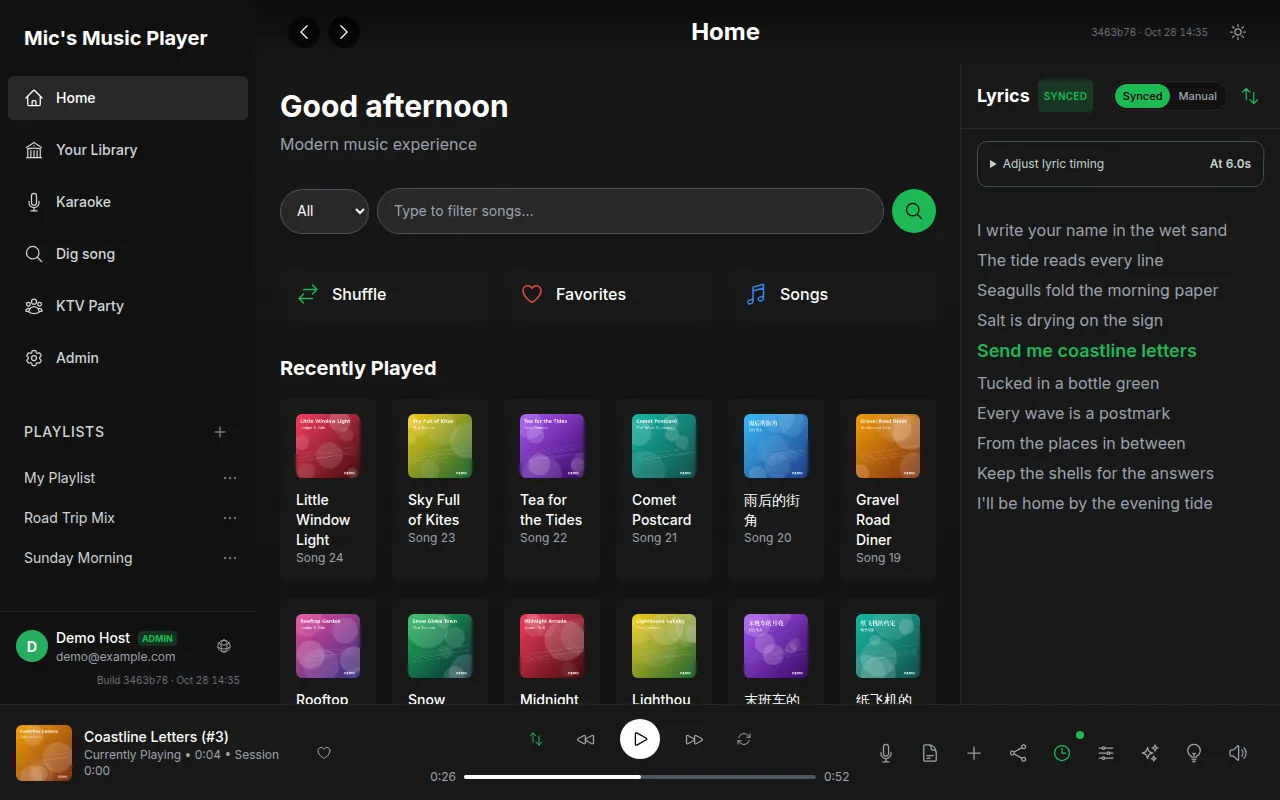
The Home page and persistent player with fictional demo songs and lyrics. Select the image to enlarge it.
## Search the library and browse categories
The quick filter searches songs already in the shared library. It is separate from Dig song's external search.
1. Enter text in **Type to filter songs...**.
2. Choose **Search field**: **All**, **Title**, **Artist**, **Album**, **Year**, **Genre** or **Lyrics**.
3. Select a result to play it. A remembered lyric can be enough when the title is unknown.
4. Clear the input and choose **All** to return to the complete view.
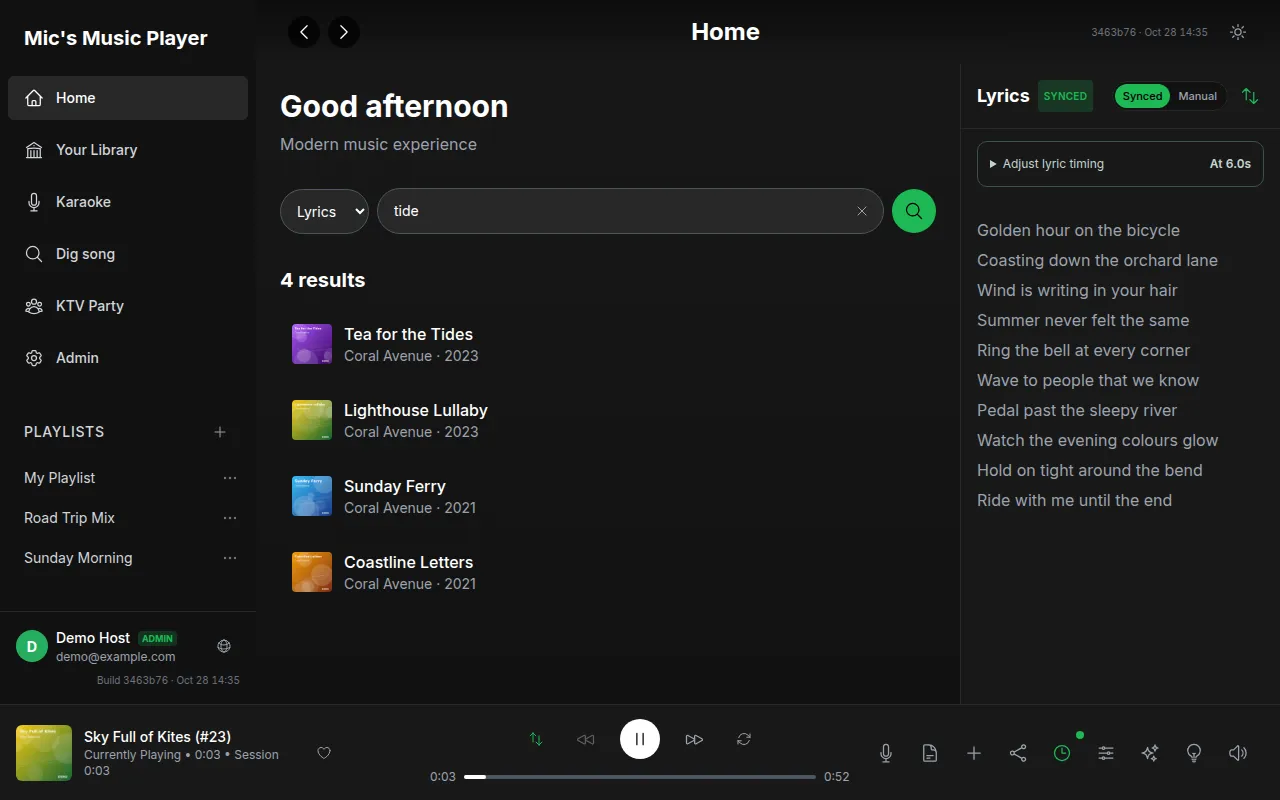
Filtering the fictional library by a line of lyrics. Select the image to enlarge it.
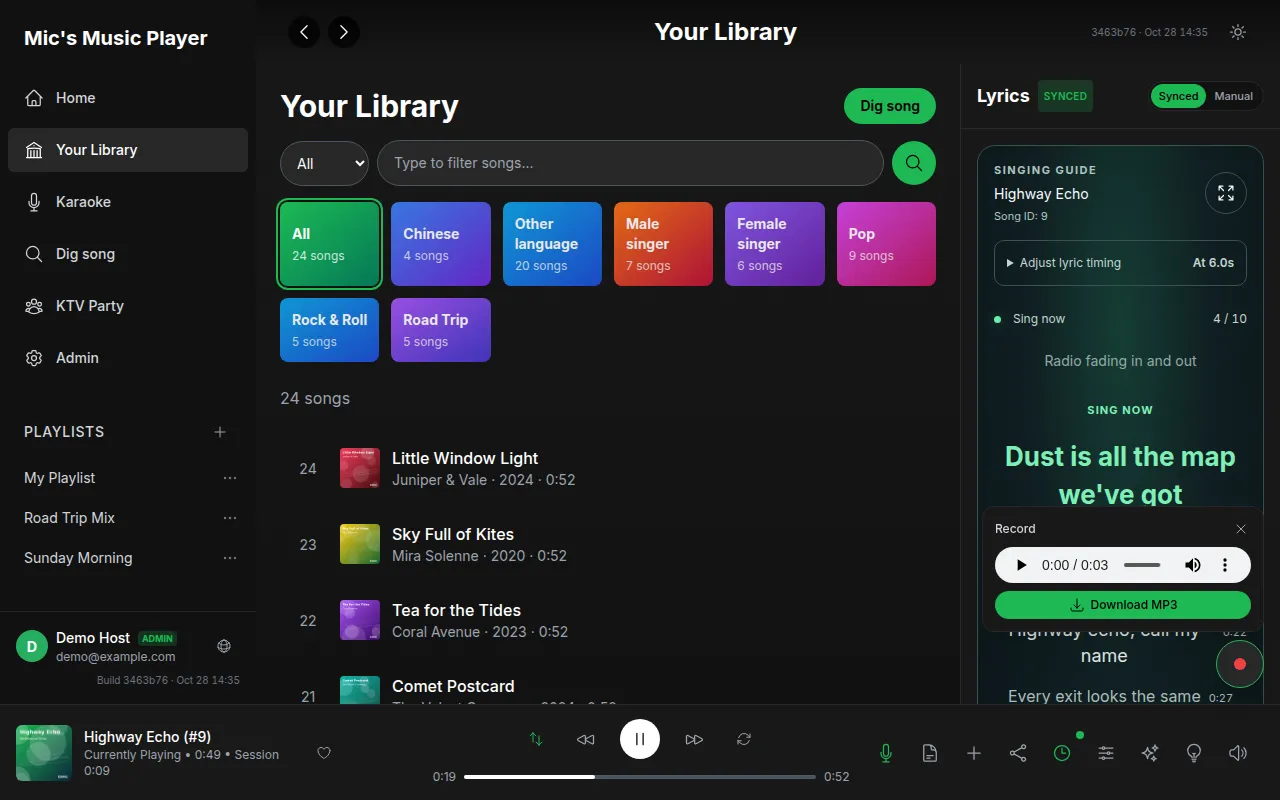
In **Your Library**, choose category cards to narrow the collection. **Show more** reveals additional categories and **Show less** collapses them. Category labels can be bilingual; songs may belong to several categories. A selected category combines with the text filter, so clear both if expected results are missing.
Use page numbers, **Previous**, **Next** or **Go to page** for long lists. Loading titles can take time while metadata arrives. Empty results can mean a narrow category/filter rather than an empty server library.
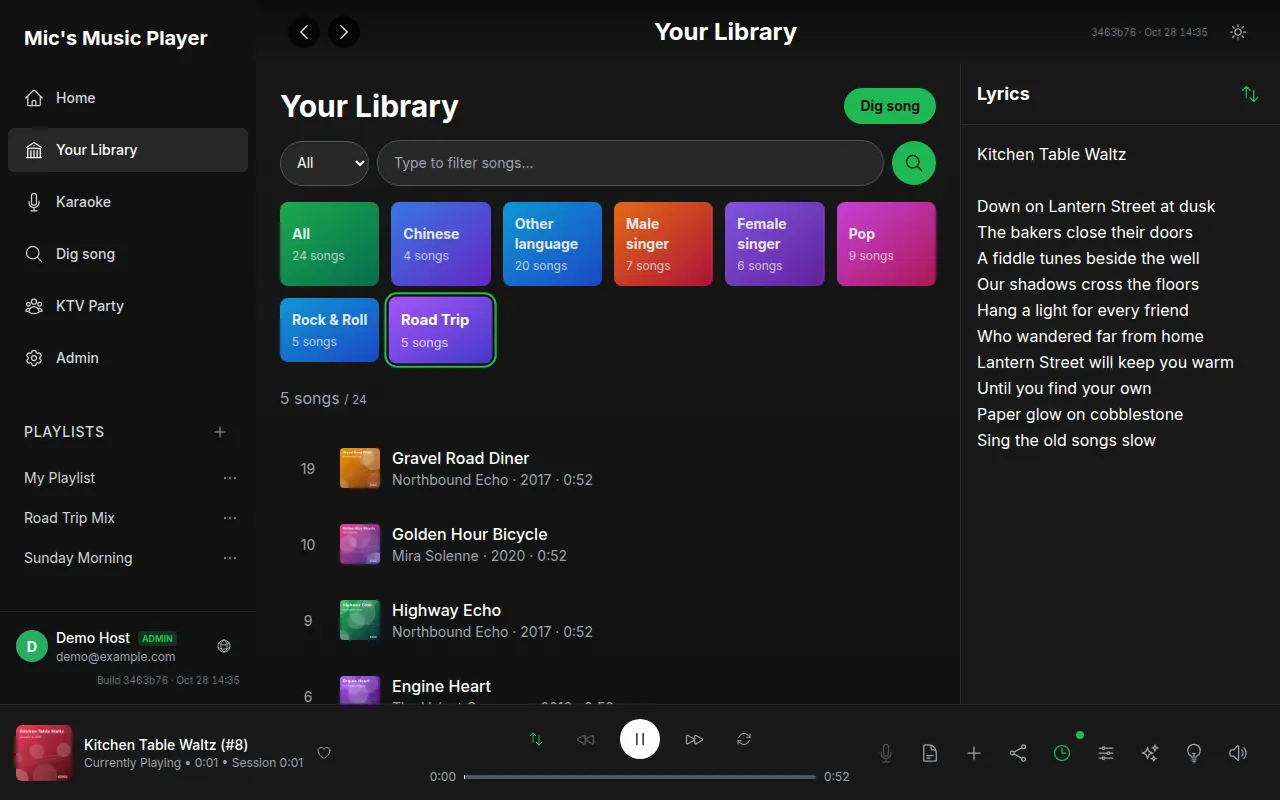
The Road Trip category selected in the demo library. Select the image to enlarge it.
## Use playback controls, timer and range
| Control | Result |
| --- | --- |
| **Play / Pause** | Start or pause the current recording |
| **Previous / Next** | Move within the current playback context |
| Progress bar | Seek to another part of the song |
| **Shuffle** | Change normal traversal to random order |
| **Repeat** | Cycle off, repeat all and repeat one |
| **Volume / Mute** | Set output level or silence the player |
| Heart | Add/remove a favorite on the current device |
| **Toggle Lyrics** | Show/hide the lyrics panel |
| **Karaoke (instrumental)** | Use the prepared instrumental, when available |
| **Keep screen on while playing** | Request wake lock; the alternate always-on setting can keep the screen awake beyond playback |
| **Toggle Visualizer** | Open the visualization |
The player displays song ID, elapsed/duration and session time. Share links can open a particular ID, for example `/music/?song=124`; the target must still exist in the server library.
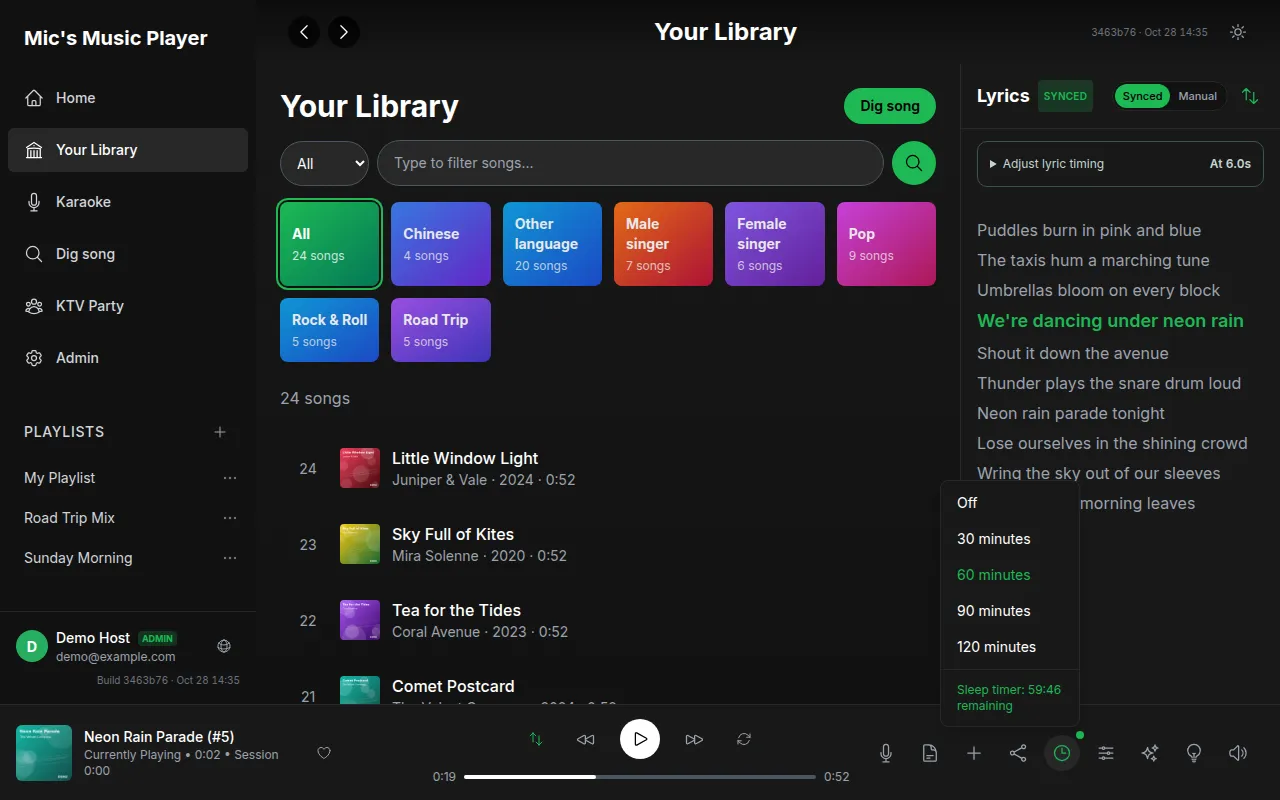
Open **Sleep Timer** and select **30**, **60**, **90** or **120 minutes**, or **Off**. The remaining time is shown while active. Choose Off to cancel a timer before leaving a long listening session.
The sleep timer menu with its four durations and Off option. Select the image to enlarge it.
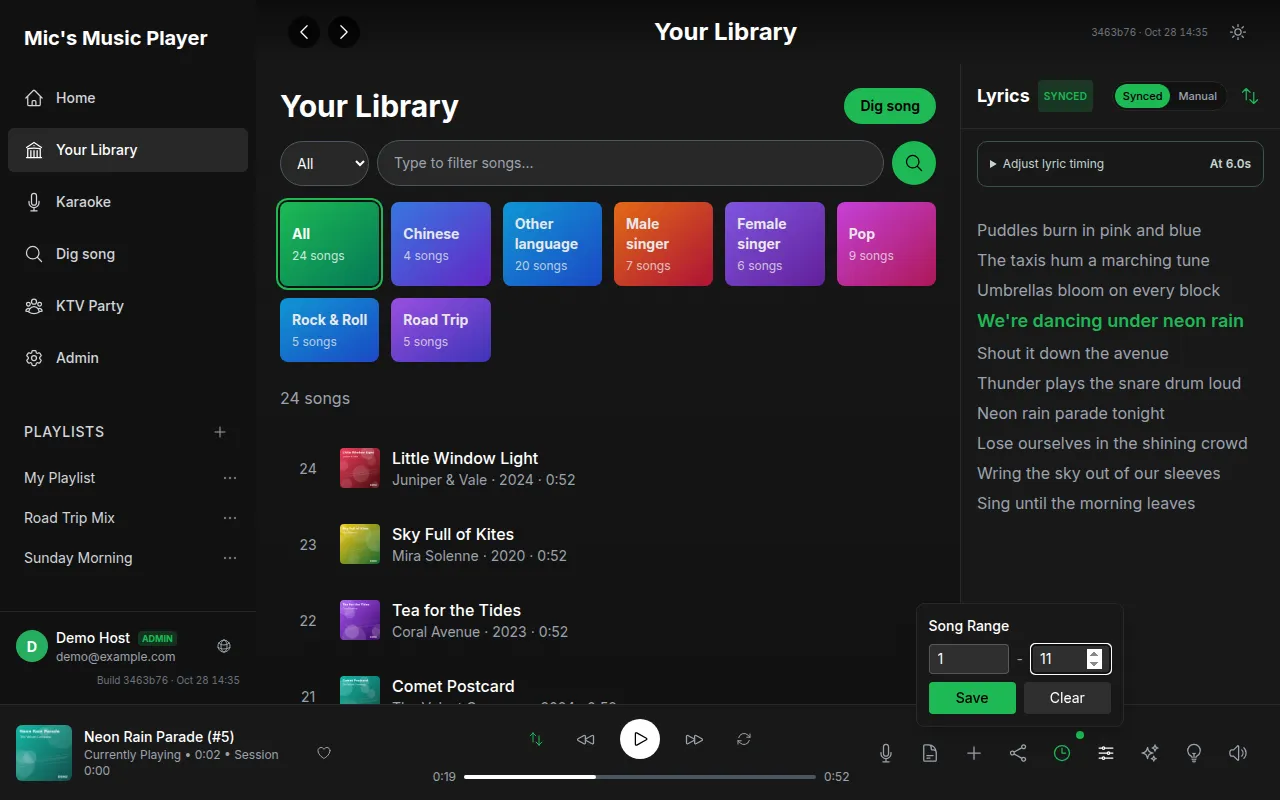
**Song Range** limits playback to numeric IDs. Fill **From** and **To**, choose **Save**, and check the active-range indication. **Clear** removes the restriction. A leftover range can explain why Next or shuffle keeps returning to a small part of the library.
The Song Range form using a small demo ID range. Select the image to enlarge it.
| Desktop shortcut | Action |
| --- | --- |
| `Space` | Play/pause when not typing in an input |
| `Ctrl` / `Cmd` + `→` | Next |
| `Ctrl` / `Cmd` + `←` | Previous |
| `Ctrl` / `Cmd` + `L` | Toggle lyrics |
## Read lyrics and correct timing
Timed lyrics show the current line and follow the recording. A word-timed source can highlight individual words. Plain **Manual** lyrics have no precise timing; scrolling them cannot create synchronized cues.
Choose **Synced** or **Manual** when the song provides the options, and use the auto-scroll toggle to control following. Selecting a timed lyric line seeks playback to that point.
To correct a consistent delay:
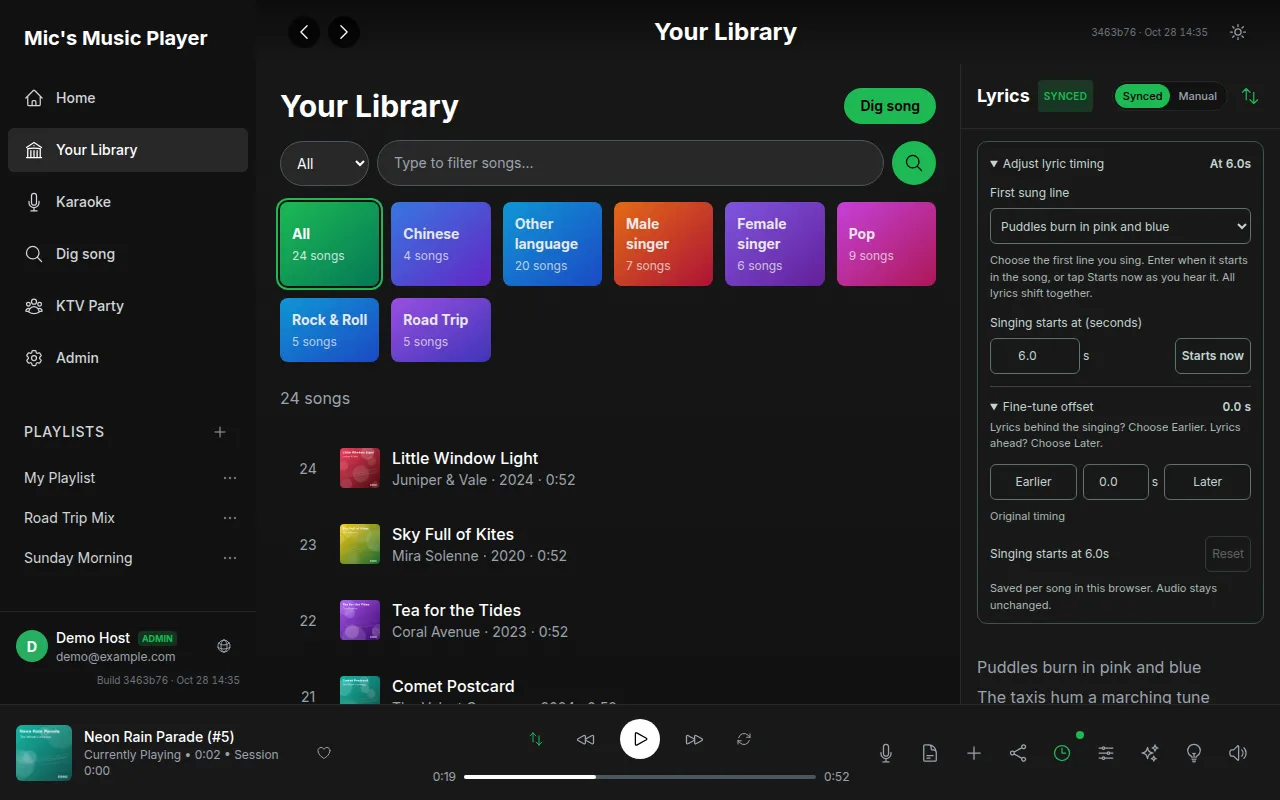
1. Open **Adjust lyric timing**.
2. Choose **First sung line**. Introductory credits and blank lines are skipped by default, but check the selection.
3. Enter **Singing starts at (seconds)**, or tap **Starts now** when that line begins.
4. In **Fine-tune offset**, choose **Earlier** or **Later** in 0.5-second steps, or enter the correction directly.
5. Use **Reset** to restore the source timing.
Positive lyric offsets delay the words; negative offsets advance them. The chosen line and correction are saved per song **in this browser** and apply to both regular lyrics and the singing guide, including cue countdowns and replay targets. They do not edit the audio or original lyric file.
The lyric-timing controls, first-line selector and fine adjustment. Select the image to enlarge it.
## Save favorites and manage playlists
The heart marks favorites locally. A playlist is a named collection; removing a song from a playlist does not remove the recording from the shared library.
1. Choose **Create Playlist**, enter **Playlist Name**, and open it.
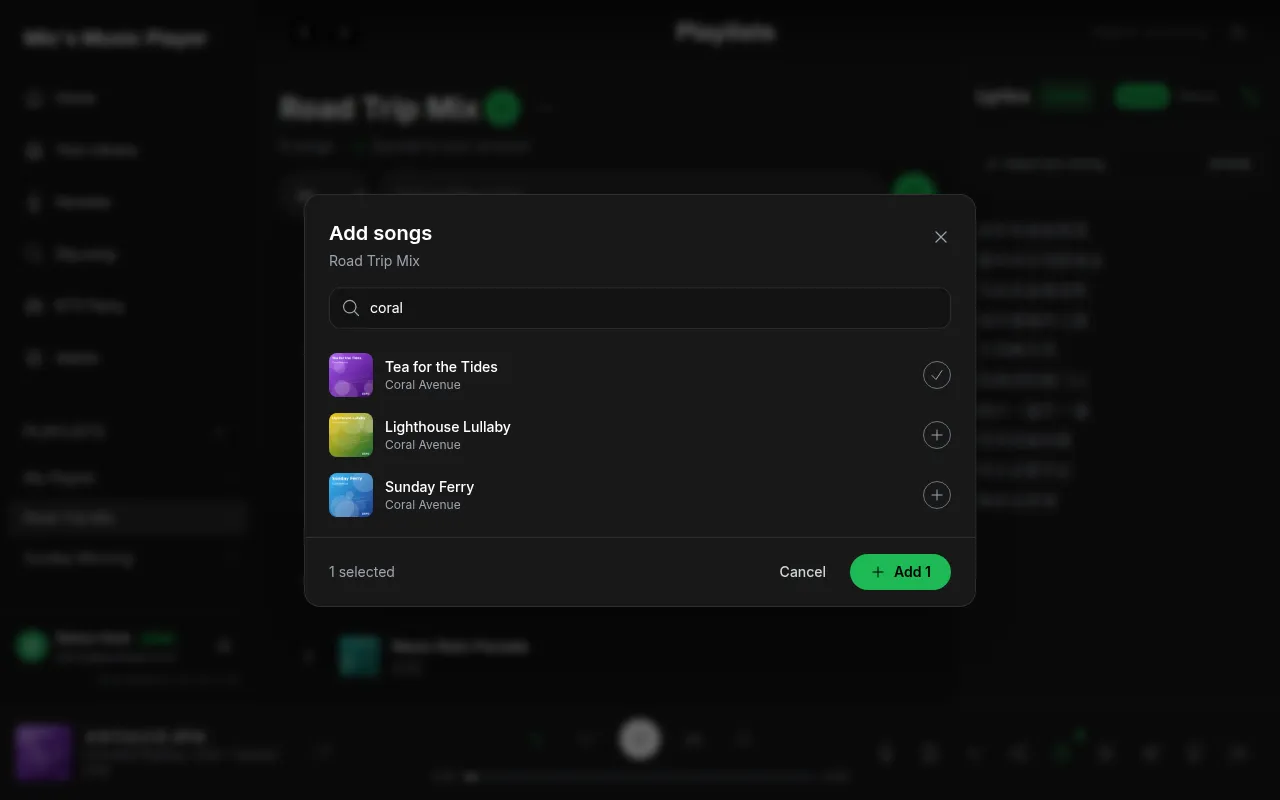
2. Choose **Add songs**, search **Search songs or artists**, check matching rows and choose **Add (n)**.
3. Alternatively, use a song's **Add to Playlist** action and choose a destination.
4. Use **Remove from Playlist** to remove an entry.
5. Open **Playlist actions → Rename** to change the title, or **Delete Playlist** to remove a non-default list after confirmation.
The default list is marked **Default** and cannot be deleted through the normal delete action. Existing songs are skipped when adding duplicates. The add dialog may show only its first 200 matching results; refine the query for a long library.
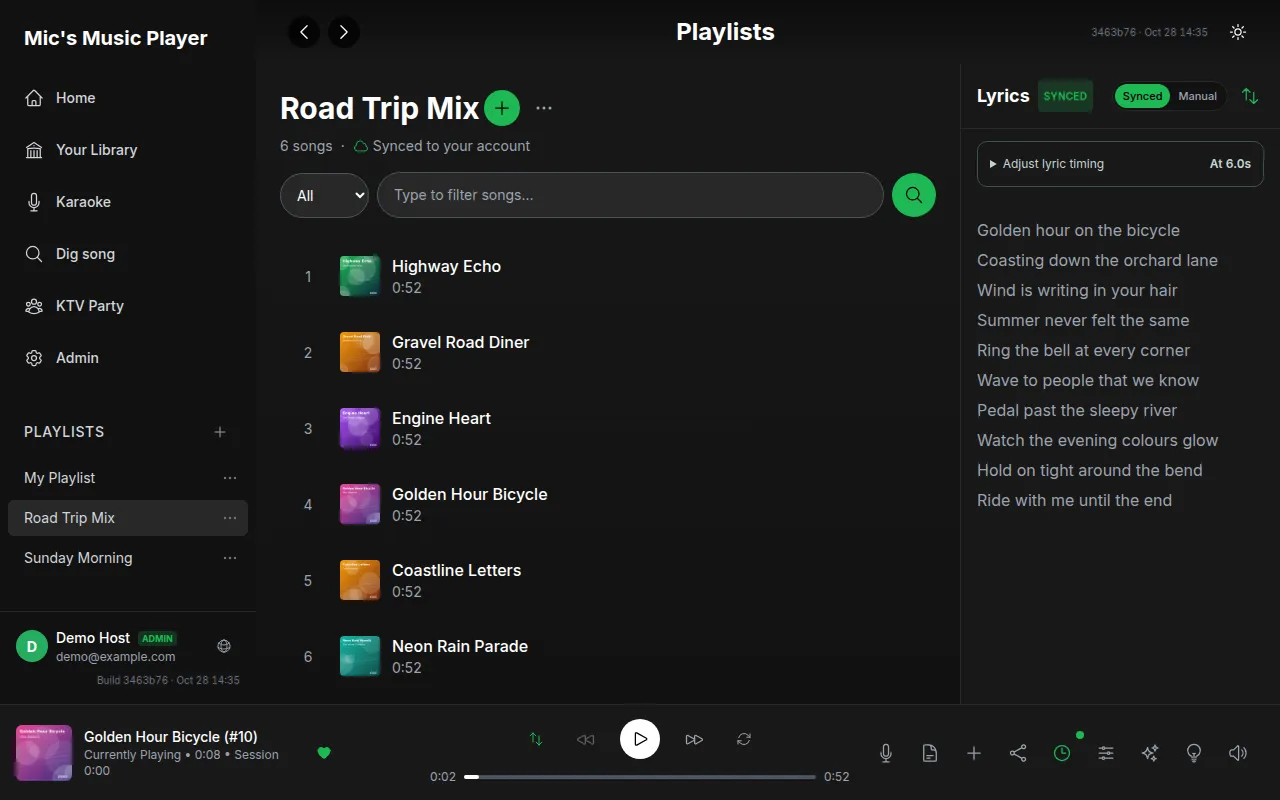
A fictional playlist with song rows and playlist actions. Select the image to enlarge it.Selecting several songs in the Add songs dialog. Select the image to enlarge it.
Check **Saved on this device** versus **Synced to your account**. Registered playlists come from the signed-in account; guest playlists come from local storage. Changing identity can change which lists you see. Do not assume guest lists or favorite marks automatically become account-wide data.
## Share a song and customize the visualizer
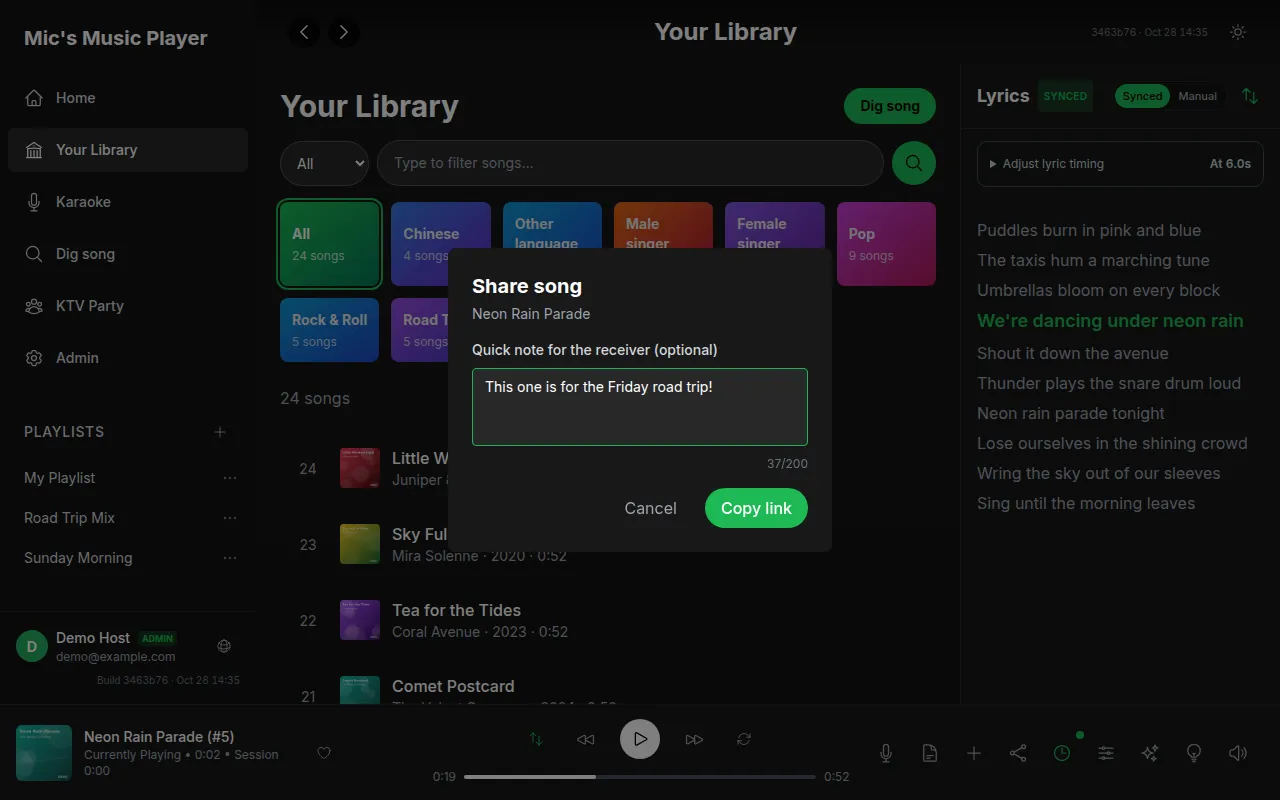
Choose **Share Song**, add an optional message, and use **Share** on browsers with native sharing or **Copy link**. The link refers to a library song ID; it does not send a standalone audio file. Cancel closes the share form.
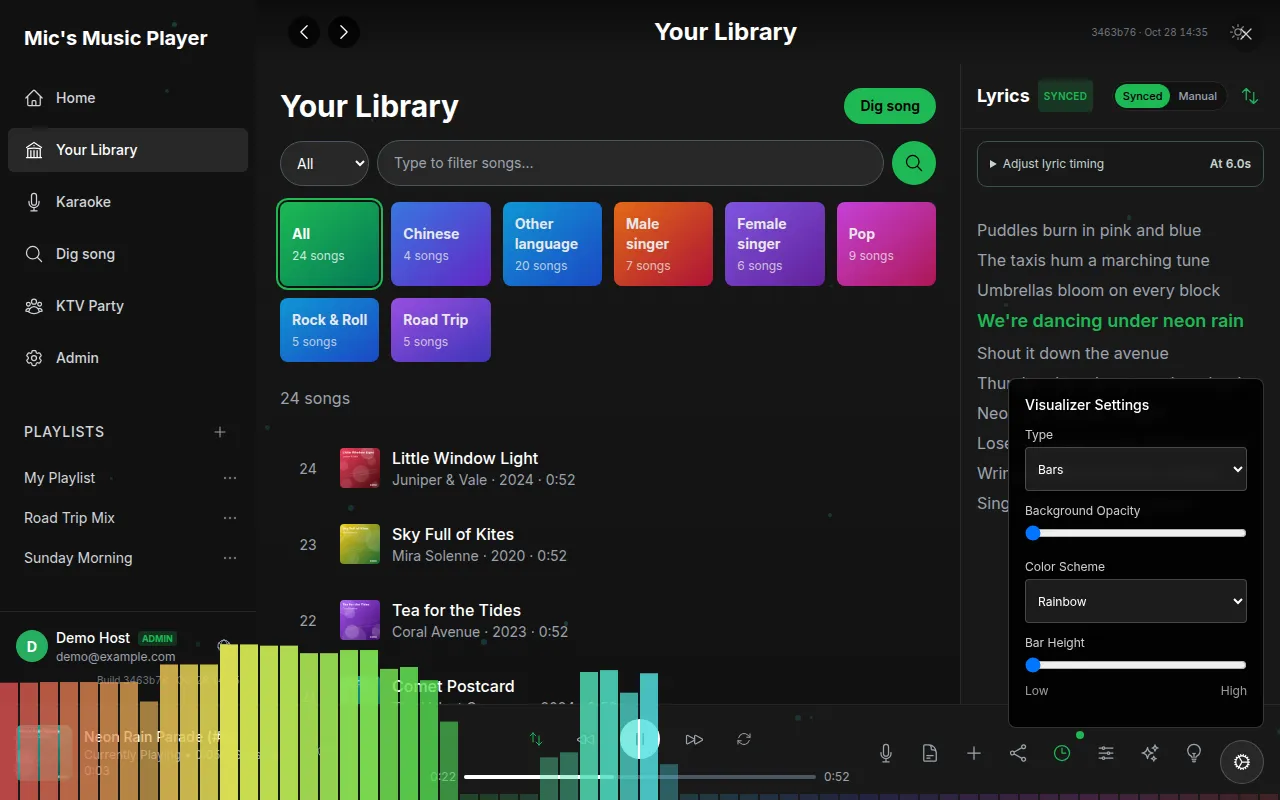
The song-sharing dialog with a fictional message. Select the image to enlarge it.The visualizer and its display settings using synthetic demo audio. Select the image to enlarge it.
The visualizer can appear after a period of inactivity during playback. Open **Visualizer Settings** for **Bars**, **Circle**, **Wave**, **Galaxy**, **Fountain** or **Terrain**. Color schemes include **Spotify Green**, **Rainbow**, **Blue Waves** and **Fire**. Adjust background opacity and bar height, or turn off **Show visualization**. Close the view or move the pointer to regain the normal controls.
## Sing with prepared instrumentals
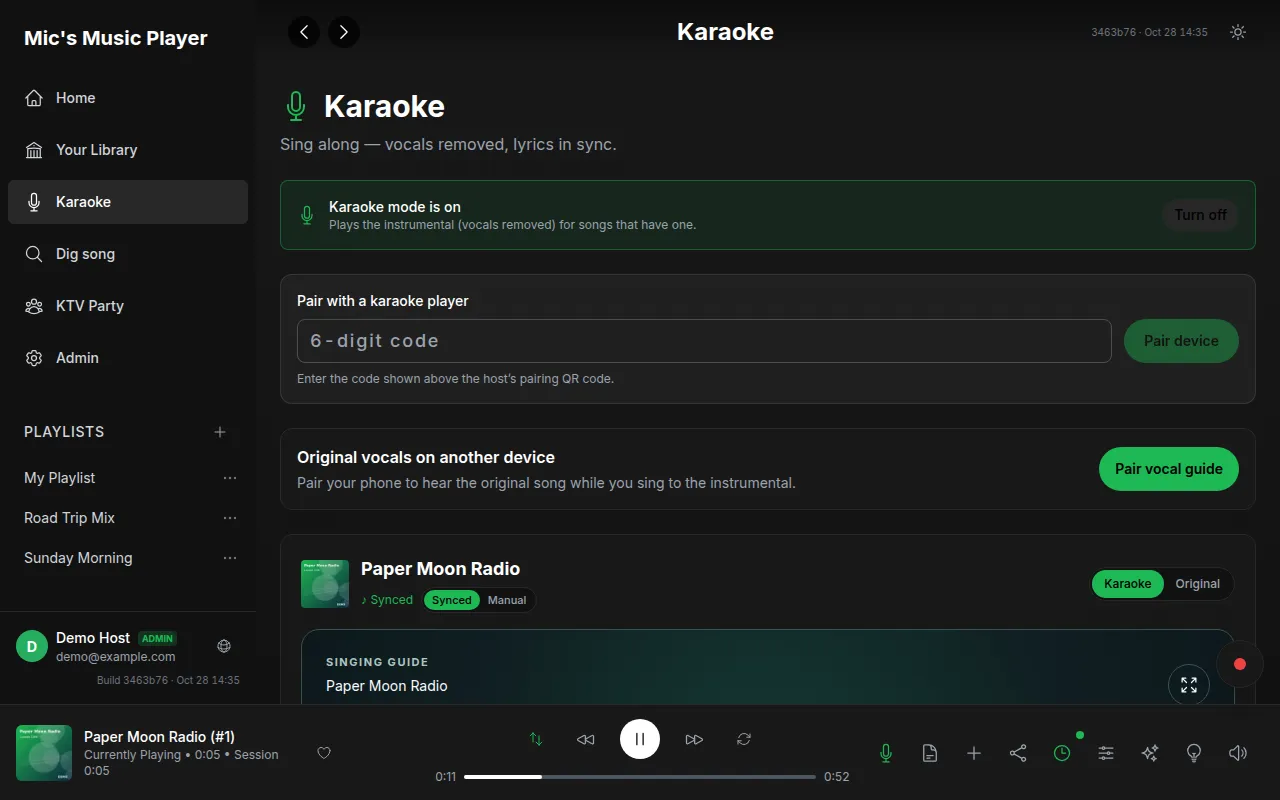
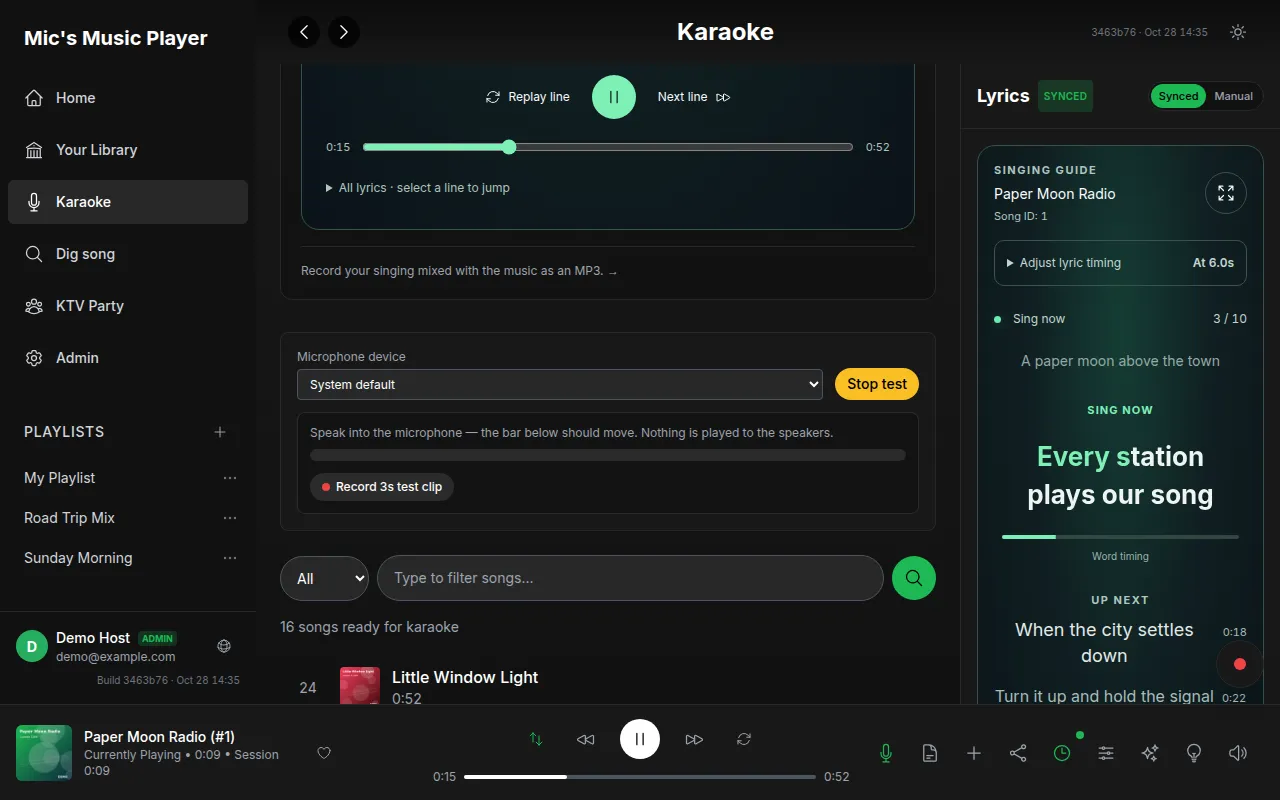
1. Open **Karaoke**. It lists songs whose instrumental files are ready.
2. Choose **Turn on**, then **Sing** on a song.
3. Follow **Get ready**, **Sing in …**, **Sing now** and **Up next** cues.
4. Choose **Karaoke / Original** to change the main player's audio without losing its position.
5. Use **Replay line** for a two-second lead-in, **Next line** to advance, or select a line in the expanded lyric list.
Instrumentals are prepared in advance; turning on karaoke does not remove vocals live from any arbitrary recording. **No instrumental for this song** means preparation is absent. Recently imported songs may need background processing before appearing here. Automatic line/word timing depends on a timed source; manual lyrics remain plain text.
The Karaoke page with prepared demo songs and the singing guide. Select the image to enlarge it.
## Use the expanded stage and requested-song queue
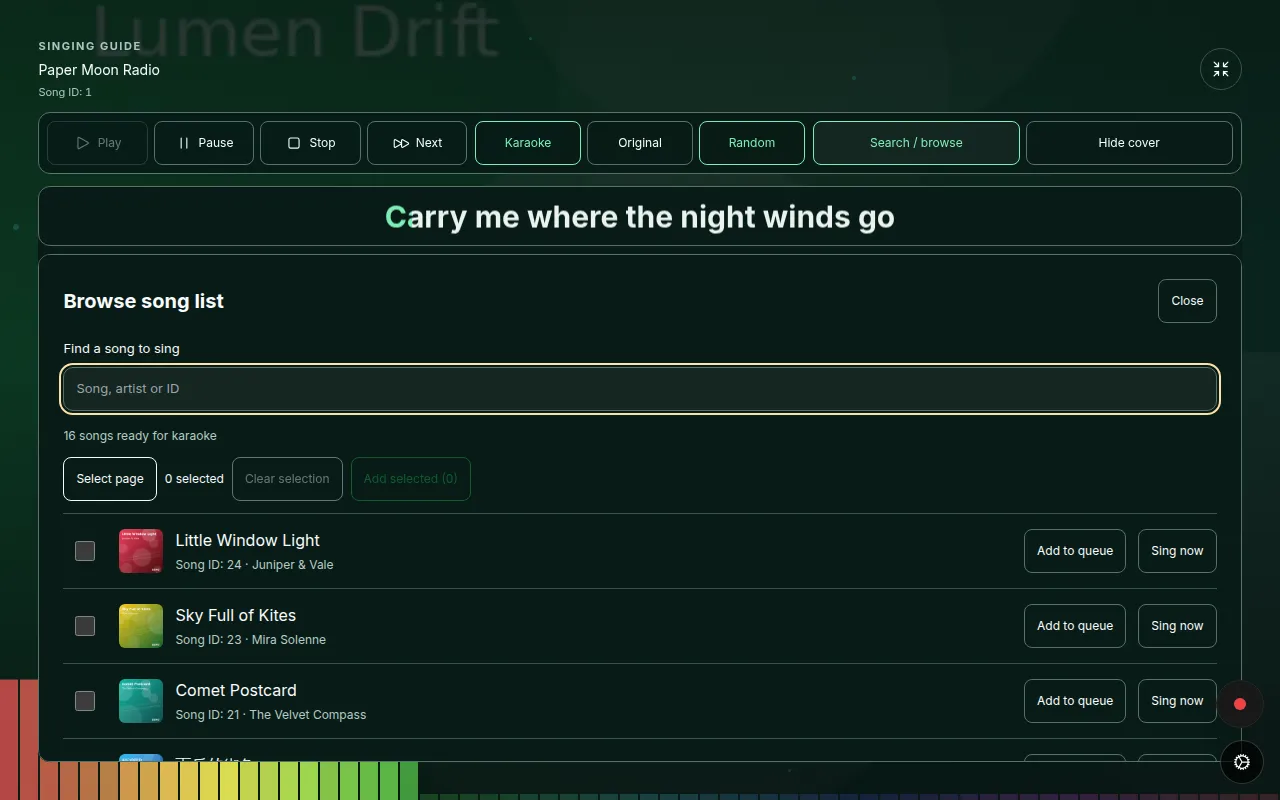
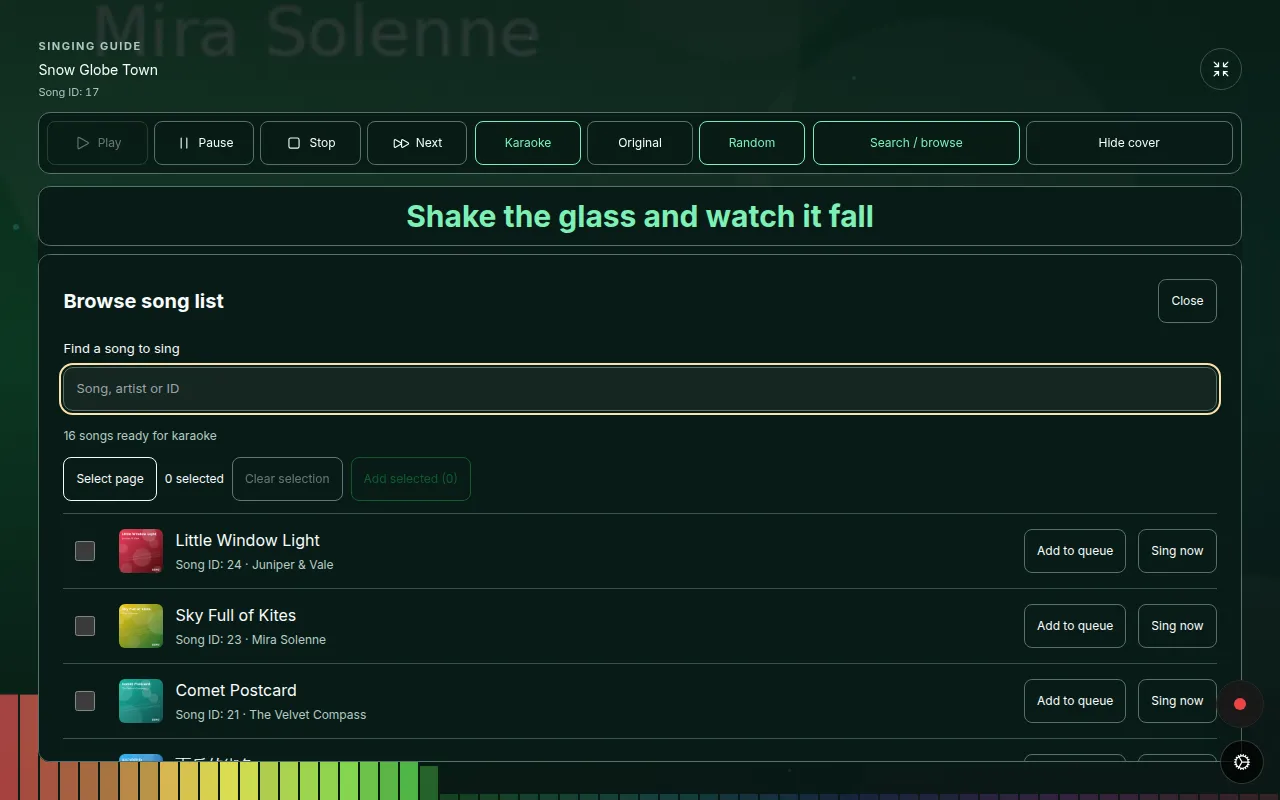
**Expand singing guide** opens a larger stage/fullscreen view where supported. The toolbar keeps **Play**, **Pause**, **Stop**, **Next**, **Karaoke / Original**, and **Random / ID ↓** available. Stop resets to the beginning; ID ↓ traverses higher IDs toward lower IDs. Choosing a traversal order clears repeat-one; selecting ID ↓ also clears an older saved ID range unless you deliberately set one again.
**Search / browse** opens a paginated list of ready songs with IDs, **Add to queue** and **Sing now**. Requested songs play in request order ahead of the normal shuffle/repeat traversal. Sing now starts a selection immediately.
The expanded karaoke stage with searchable ready songs. Select the image to enlarge it.
To add a batch, choose **Select songs to add together**, tick songs or **Select page**, then **Add selected (n)**. Selection survives filtering and page changes. Duplicate requests are skipped and the requested queue has a 50-song limit; any items not added remain selected. **Clear selection** resets the selection. The queue's **Remove** controls remove pending requests.
Batch song selection inside the expanded karaoke stage. Select the image to enlarge it.
**Full lyrics** opens an inline scrollable list that follows the current line without replacing the toolbar. **Hide cover / Show cover** controls the background, with the choice remembered. The queue, pairing area and visualization settings remain accessible; narrow screens arrange them below the lyrics.
## Choose, test and monitor a microphone
1. Allow microphone access on the HTTPS player.
2. Choose **Microphone device**; **System default** follows the browser/device default.
3. Choose **Test mic** and speak. Its level meter should move; this test does not send sound to the speakers.
4. Use **Record 3s test clip** to check a short recording, then **Stop test** when done.
5. Choose **Turn on mic** for live monitoring and adjust **Mic volume** and **Reverb**. **Turn off mic** stops monitoring.
Use headphones to prevent speaker feedback. A browser may need permission before revealing device names. If changing a USB microphone or audio output, check the selected device and repeat the test.
Microphone device, test controls and level meter in the demo browser. Select the image to enlarge it.
## Record and download your singing
When karaoke mode is enabled and a prepared song is selected, the floating **Record** control is available across player pages.
1. Select the song, allow the microphone and start playback.
2. Choose **Record** to capture the microphone mixed with the music.
3. Choose **Stop & save**.
4. Listen with the result's audio controls and choose **Download MP3** to retain the recording.
Closing a popover or page is not a download. Save the result before leaving. The floating recorder is separate from KTV Party's room audio; it is hidden when party audio owns playback. Browser support and microphone permission determine availability.
The completed local recording preview and Download MP3 action. Select the image to enlarge it.
## Pair a phone for private original vocals
This two-device karaoke feature is separate from KTV Party room membership.
1. On the main player, choose **Pair vocal guide**.
2. On the second device, scan its QR invitation or enter the six-digit **Quick pairing code** in **Pair with a karaoke player**, then choose **Pair device**.
3. Choose **Start vocal guide** on that device. Wear headphones to hear the original vocals privately while the main player plays the instrumental.
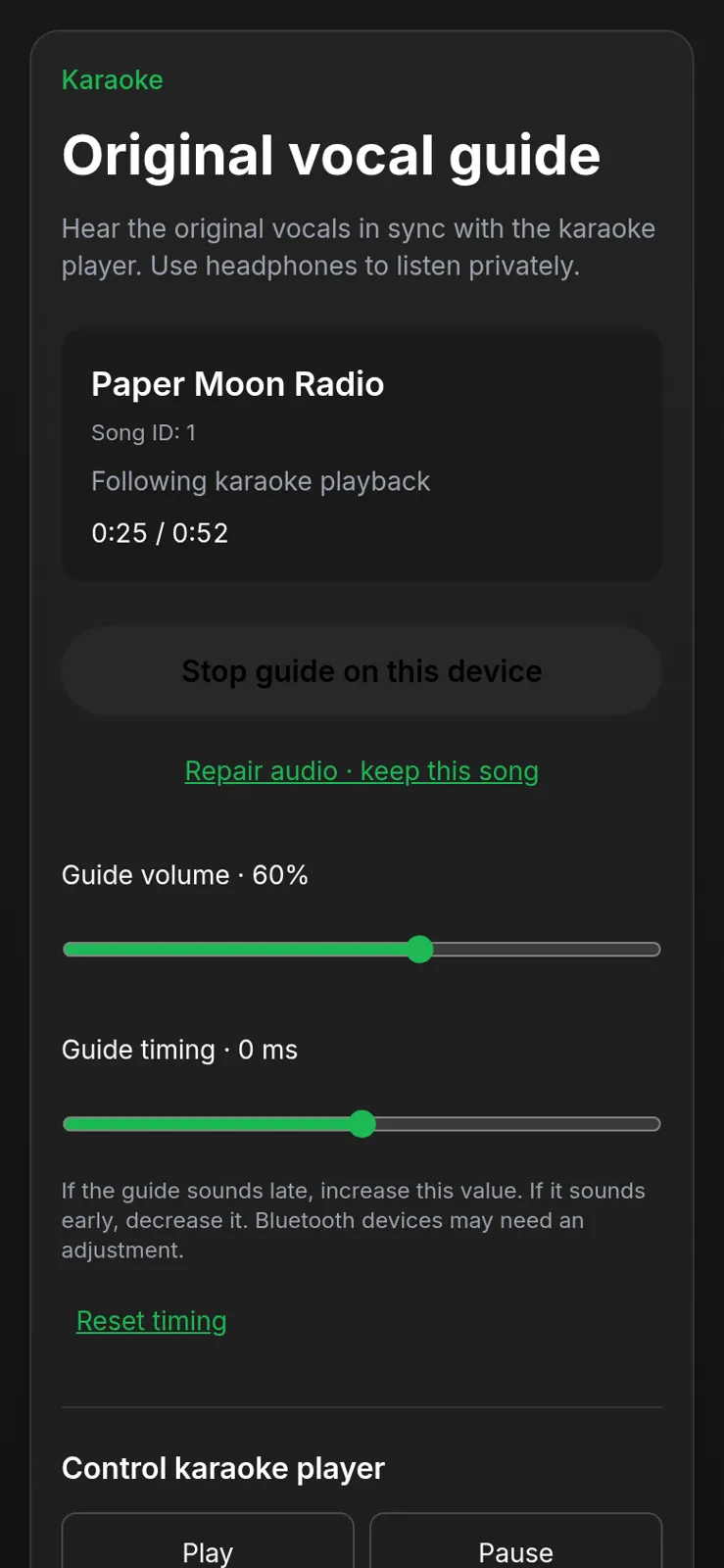
4. Adjust **Guide volume** and **Guide timing**. Increase the timing value if the guide sounds late; decrease it if early.
The guide follows main-player play/pause, seeks, speed and song changes. It can search by **Song, artist or ID**, **Add to queue**, **Sing now**, remove requests, and use remote **Play**, **Pause**, **Stop song**, **Skip song** and the position control when permitted. The guide always plays the original recording even when the main player changes between Karaoke and Original.
A paired phone's private vocal guide and remote song controls in the isolated demo. Select the image to enlarge it.
Name the phone with **This device's name → Save**. The main player's **Paired devices** list shows device name, verified app username and connection state. **Allow controls** can be turned off while listening remains available. Removing a device revokes its access and refreshes the invitation. Up to ten guide devices can pair.
**Stop guide on this device** stops local listening. Leaving saves the pairing so **Return to paired karaoke** can reopen it, but a fresh tap is needed for audio. **Repair audio · keep this song** attempts recovery without skipping. Active listening, controls and searches renew activity; an untouched device expires after 30 minutes. Main-player reload, **End pairing**, session expiry or entering KTV Party can require a new pairing. Keep both pages connected for continuous synchronization.
## Find and import recordings with Dig song
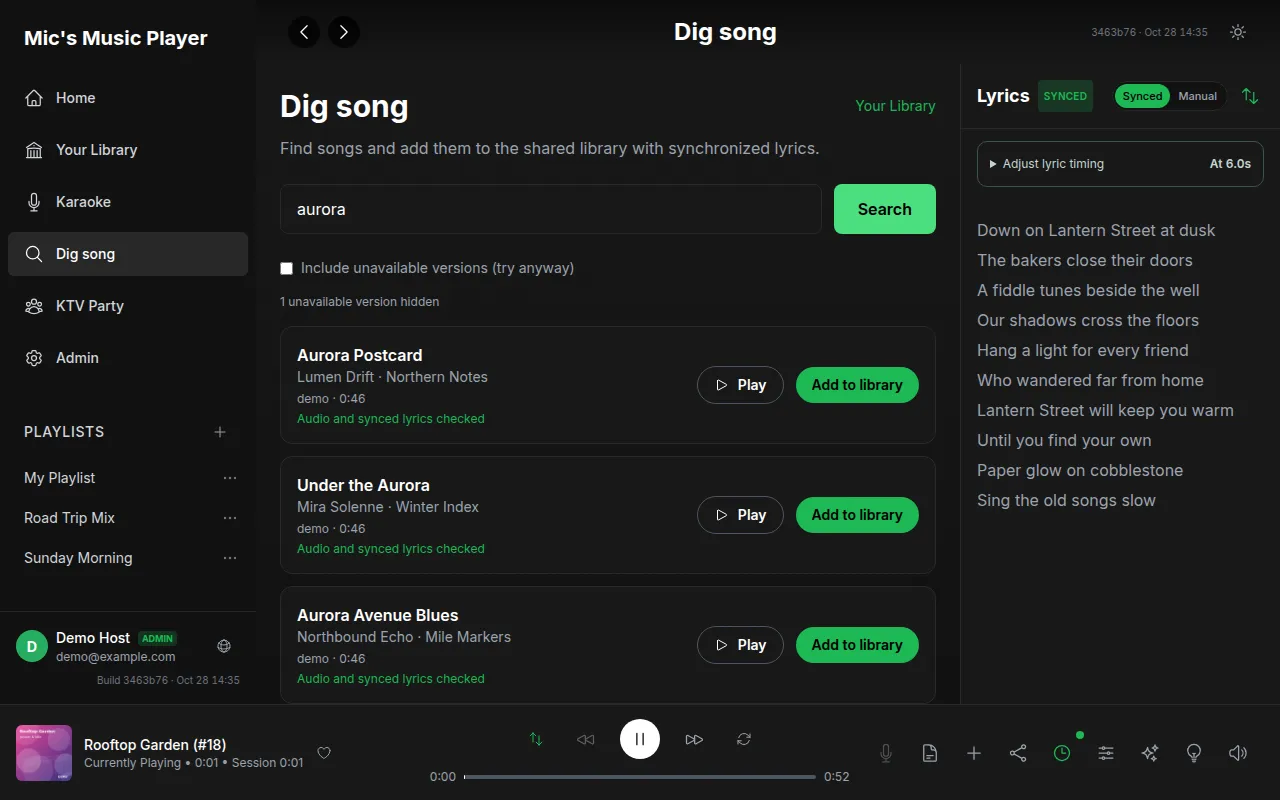
1. Open **Dig song**, enter a title or artist and choose **Search**.
2. Read each version's verification label. Use **Previous / Next** for result pages.
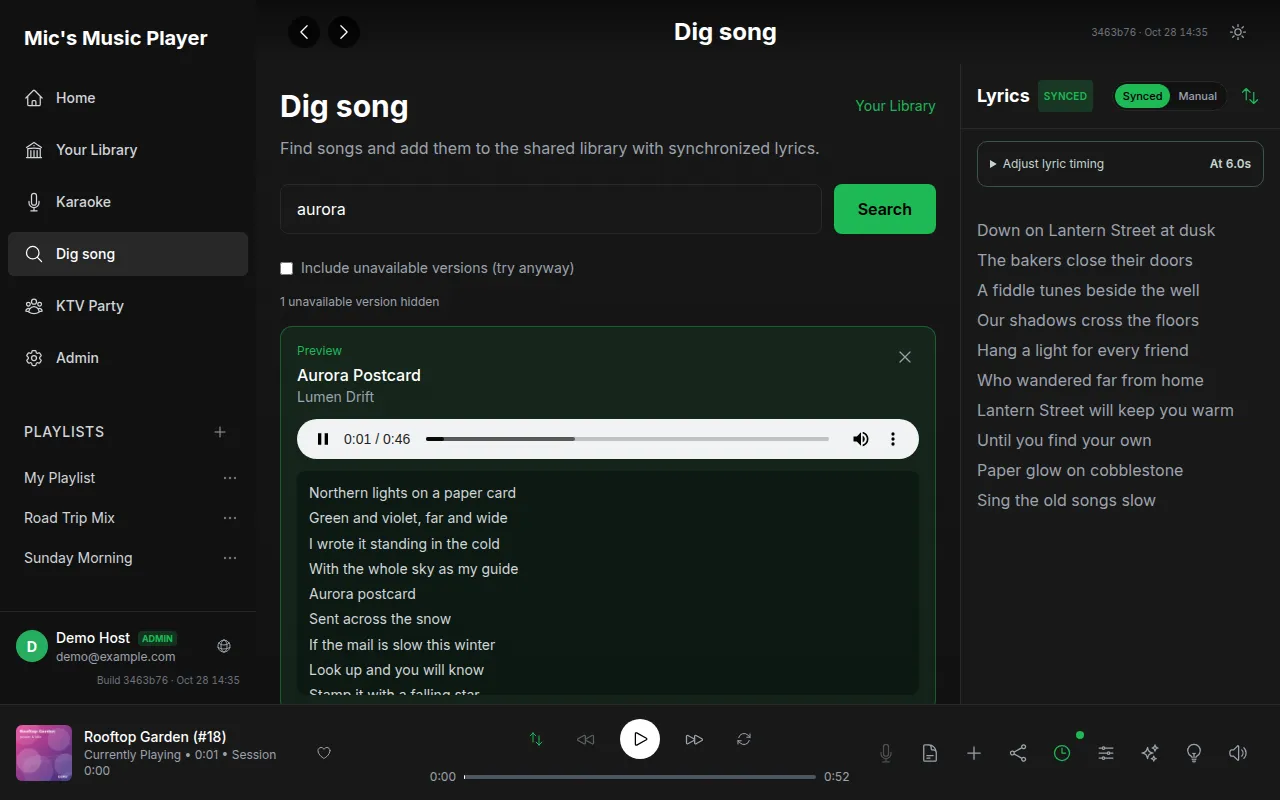
3. Choose **Play** to preview the selected recording and lyrics before importing. **Pause**, **Cancel preview** or **Close preview** stops/closes that preview.
4. Choose **Add to library** on the exact version you want.
5. Wait for the success message and **In library · #ID** link; open it to play the imported track.
| Search status | Meaning |
| --- | --- |
| **Audio and synced lyrics checked** | A sample and timed lyrics passed the source checks |
| **Not fully verified — try Play** | Checks were incomplete or unavailable; preview can still work |
| **Source check failed — you can retry Play** | A failure was observed; the recording may still be retried |
**Include unavailable versions (try anyway)** reveals hidden failures. Source availability can change after checking; a label is not a promise of complete playback. Search results expire, so search again if the app says they have expired. The service accepts searches up to 200 characters and recordings up to 100 MB.
Dig song search results from a simulated external provider with fictional songs. Select the image to enlarge it.A fictional external recording preview with synchronized lyrics. Select the image to enlarge it.
If synchronized lyrics are missing, **Add lyrics to continue** offers plain text up to 20,000 characters. **Add with these lyrics** saves them; **Add using title only** proceeds with the title as non-synced lyrics; **Cancel — do not add** leaves the library unchanged. The title becomes the first line automatically. Plain text does not acquire fabricated timing.
Imported recordings become shared library content. Poster, metadata and instrumental processing run in the background; playback can be available before karaoke preparation finishes. **Check status again** refreshes an import whose result is uncertain. The library checks for existing versions rather than deliberately adding duplicates. Import only material you have the right to use.
## Create a KTV Party and admit guests
1. Open **KTV Party**, enter **Room name** and **Your name**.
2. Enable **Host approves new guests** if needed, then **Create room**.
3. Under **People → Invite friends**, share the eight-character **Invitation code**, QR or **Copy invite link**.
4. Guests choose **Join room → Enter invitation code**, enter their name, and join. They do not need a Google account.
5. When approval is enabled, guests see **Waiting for host approval** until a host/co-host approves them in **People**.
**Get a new code** invalidates the old invitation. **Your rooms** lets you return to existing memberships. Invitations admit a person; the separate **Pair another device** flow adds a device to an existing membership.
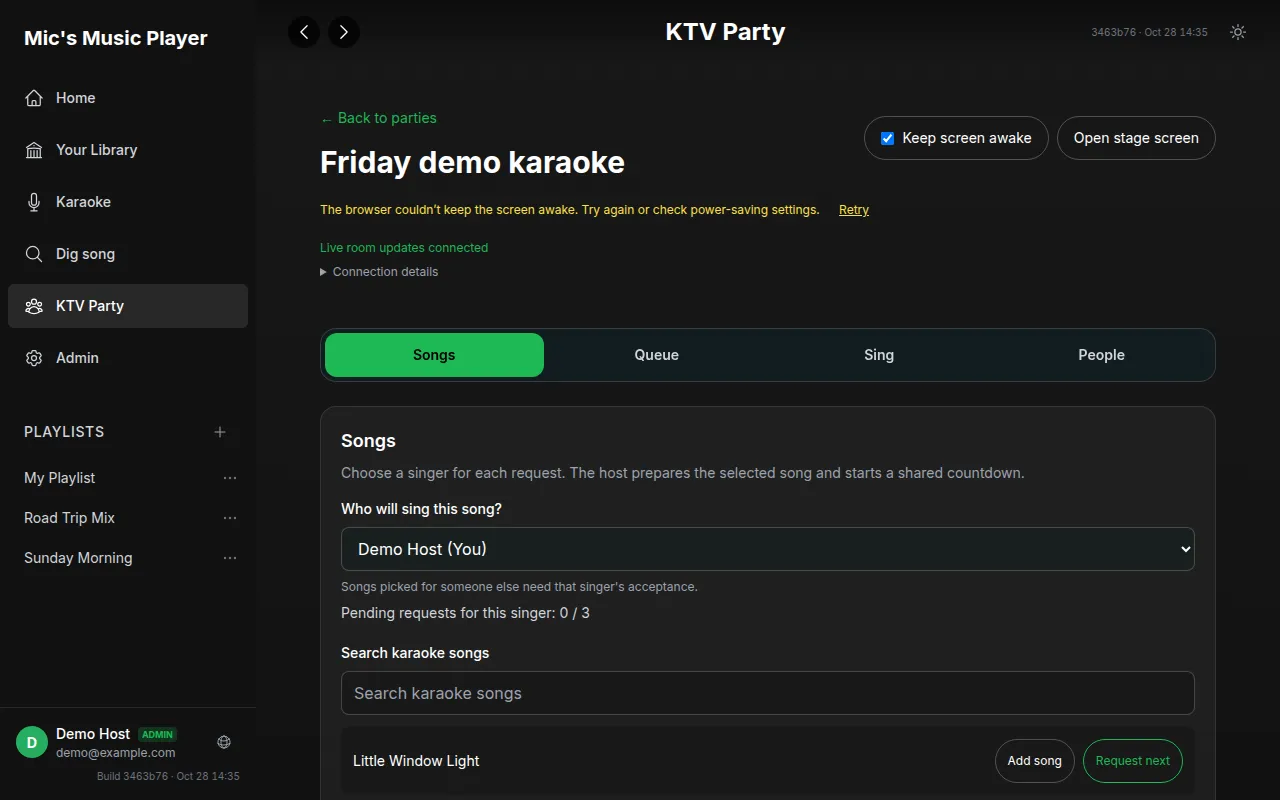
A newly created isolated demo party showing its Songs tab. Select the image to enlarge it.
## Request songs, accept nominations and start a turn
The controller has **Songs**, **Queue**, **Sing** and **People** tabs.
1. In **Songs**, choose **Who will sing this song?**, then search available karaoke songs.
2. Choose **Add song** for a normal request or **Request next** for host-approved priority.
3. A request for another person waits for **Accept song**; that singer can **Decline song**.
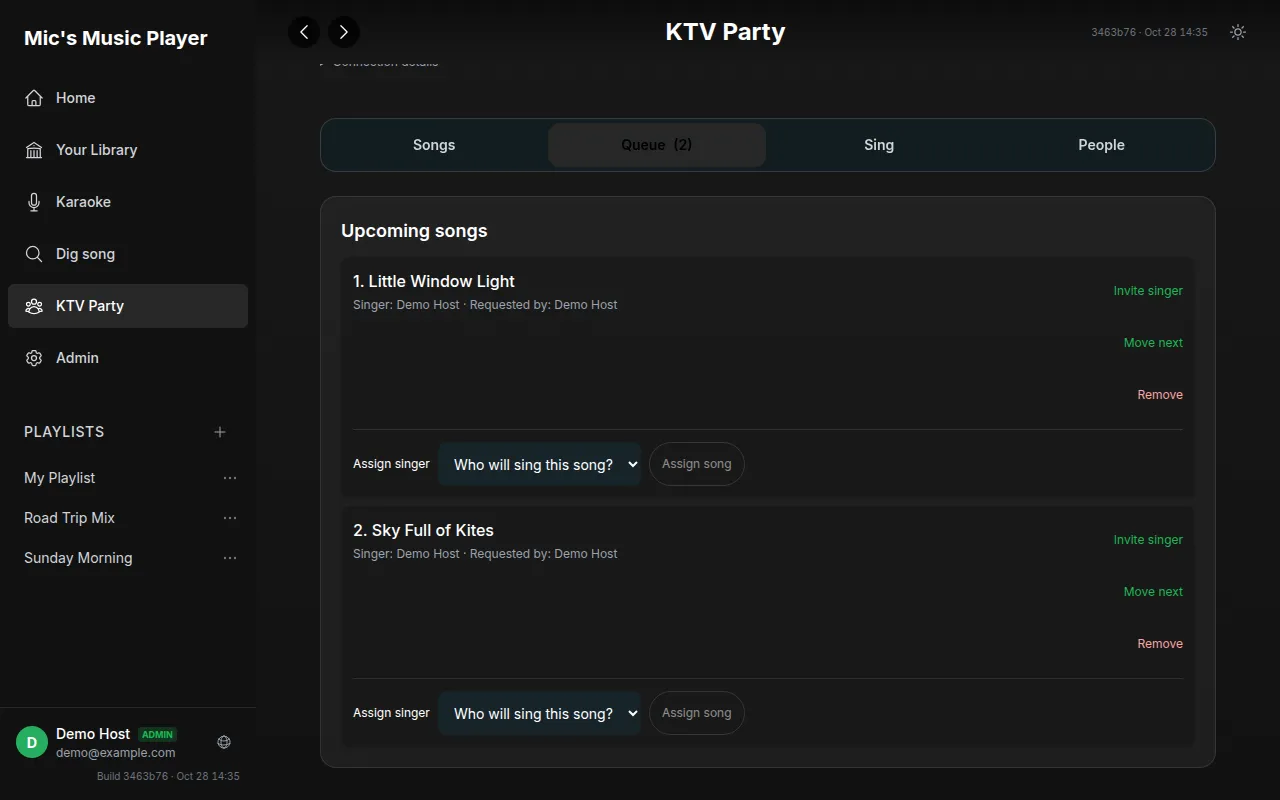
4. In **Queue**, the host chooses **Invite singer** for the selected request.
5. In **Sing**, the singer chooses **I'm ready to sing**, or **Decline turn**.
6. Prepare the stage/audio, then start the shared countdown.
Two fictional requests in the party queue, with singer and host actions. Select the image to enlarge it.
**Move next** overrides fair order; **Return to fair order** removes that override. **Approve next** approves a priority request. **Assign singer** reassigns a request, and **Remove** removes an editable queued entry. A selected singer invitation can be cancelled without deleting its queued song. Requests can be held when a singer leaves.
## Set up the room speaker and recover audio
1. Choose **Open stage screen** on the TV/laptop or shared display.
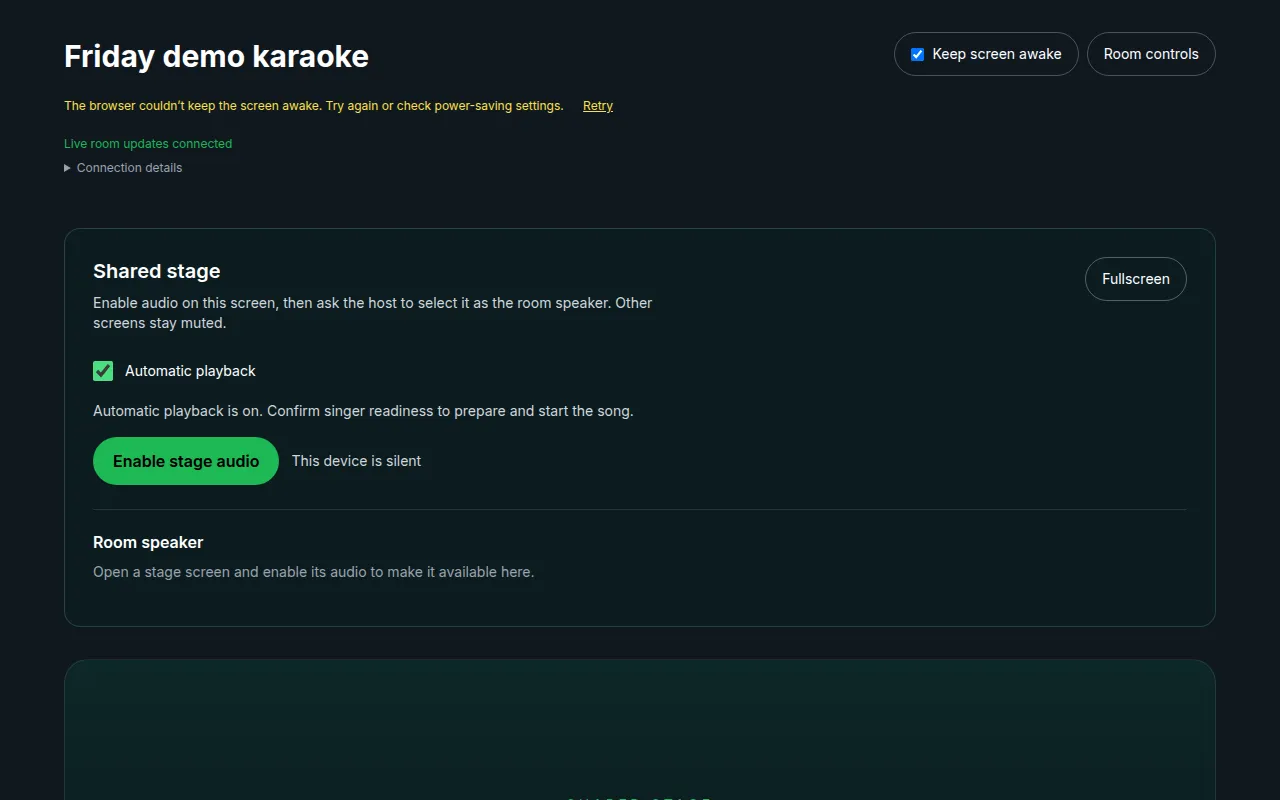
2. On that screen, choose **Enable stage audio**. A user gesture is required to unlock audio.
3. On a host/co-host controller, select that enabled screen under **Room speaker**.
4. Confirm the singer's readiness, choose **Prepare selected song**, wait for **Audio prepared**, then **Start countdown**.
5. Use **Pause song**, **Resume with countdown** or **Skip song** as required.
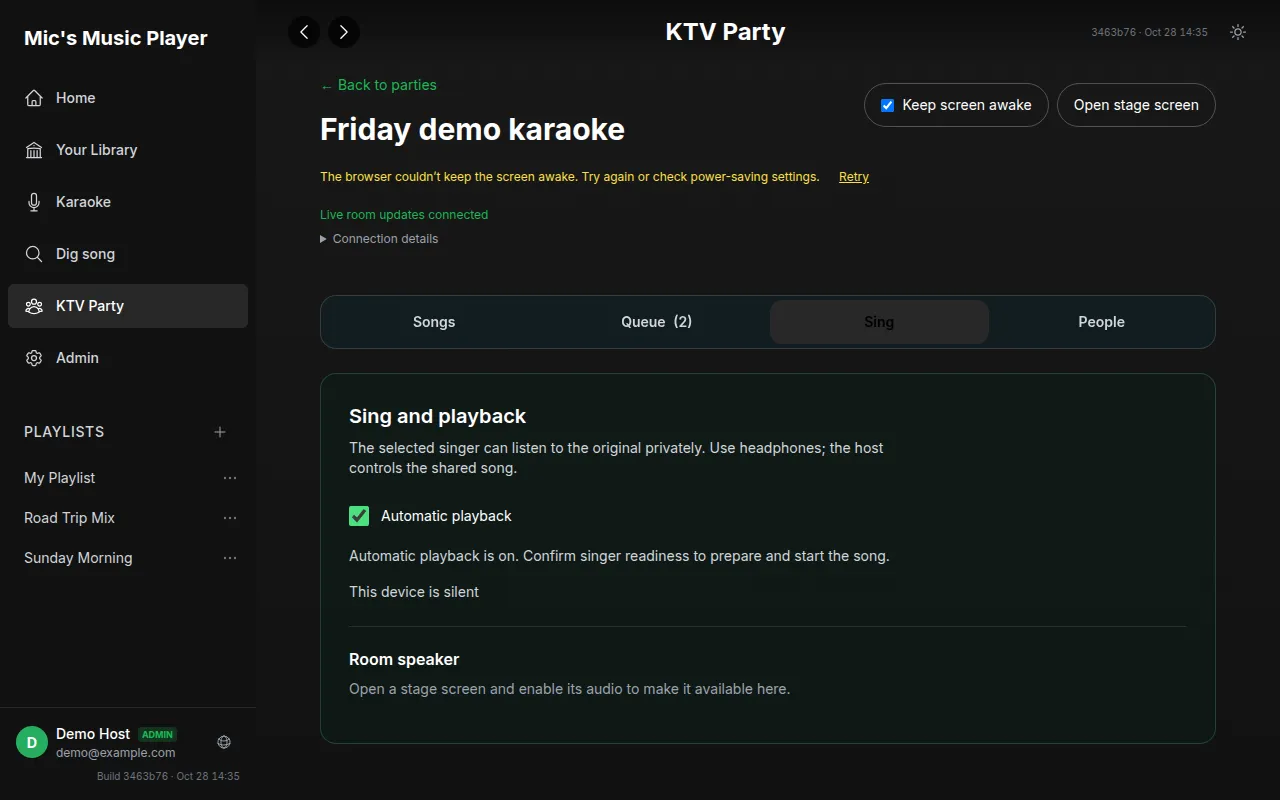
With **Automatic playback** enabled, preparation/start proceeds when the singer, room speaker and any required guide are ready. It pauses at an unmet requirement; read the status before repeatedly pressing controls. Other stage screens remain silent unless designated.
The Sing tab showing automatic playback and room-speaker selection before audio is enabled. Select the image to enlarge it.
The selected singer can **Enable private vocal guide** for headphones, set guide volume/timing, and choose **Require my vocal guide for this song**. If required, the room waits for that phone and pauses for recovery if it fails. Make the guide optional to continue without it, or recover it and **Resume with countdown**.
If an output disconnects, enable audio again and reselect the stage. **Retry audio preparation**, **Confirm output and retry**, and **Reset for new headphones** address specific recovery states. **Connection details** and **Audio timing and health** show browser/network estimates, not a physical measurement of speakers. Bluetooth/TV latency still needs a listening check.
The shared stage screen in the isolated demo before a performance begins. Select the image to enlarge it.
## Manage party members, devices and room settings
| Host/co-host action | Effect |
| --- | --- |
| **Approve / Decline** | Decide pending guest admission |
| **Remove / Restore access** | Remove a member or restore a removed/declined membership |
| **Block / Unblock** | Block the person and disconnect devices; unblocking alone does not restore admission |
| **Make co-host / Remove co-host role** | Grant/revoke moderation and queue powers |
| **Transfer host** | Give ownership to another member; the former host loses host controls |
| **Lock new joins** | Stop new admissions without discarding the room |
| **Pending songs per singer** | Limit future pending requests; lowering the limit preserves existing requests |
| **Show invitation QR and code on the common screen** | Display guest admission information on the stage |
| **Close room** | End the room for everyone after confirmation |
Under **Pair another device**, choose **Shared screen** for a view without controls/invitation details or **Phone controls** for your membership's allowed controls. **Create pairing code** creates a short-lived, single-use code; a new one cancels the previous one. On the other device choose **Pair another device**, enter it and **Connect device**. Up to two additional devices can join a membership. **Connected devices → Disconnect** revokes one.
If the host disconnects, co-host controls remain available and ownership can transfer after a grace period. Without a moderator, the queue is preserved and playback waits. **Keep screen awake** requests browser wake lock but may be refused by the operating system.
## Use online performance when configured
Some deployments enable an additional **Online performance** panel. These options were checked in the current source; the isolated room used for these screenshots has no media service, so an actual remote performance was not tested.
The host can choose **Local room**, **Online singer**, or **Local room + remote audience** when playback is idle. Online/hybrid listeners choose **Watch and listen**, then **Enable received audio** if browser autoplay is blocked.
For the performing device:
1. Wait for your selected turn and prepared song.
2. Under **Prepare your performing device**, choose **Microphone + clean backing**, or in hybrid mode **Mixer with backing already included** when the mixer feed already contains the music.
3. Set **Backing correction** and, for clean microphone mode, confirm headphones.
4. Choose **Enable microphone and prepare** and wait for readiness before the host starts.
5. Adjust **Audience backing level** and **Audience microphone level** as appropriate.
The audience receives a live mix with lyric video. **Listen to original vocals privately** changes the performer's headphone monitor while excluding those original vocals from the digital audience mix. Headphones prevent acoustic pickup. Capture stops when leaving, hiding or pausing the page, or changing turns. After changing input/output or correction, prepare capture again. **Stop streaming on this device** ends this device's stream/listening role.
## Edit your profile and use administration
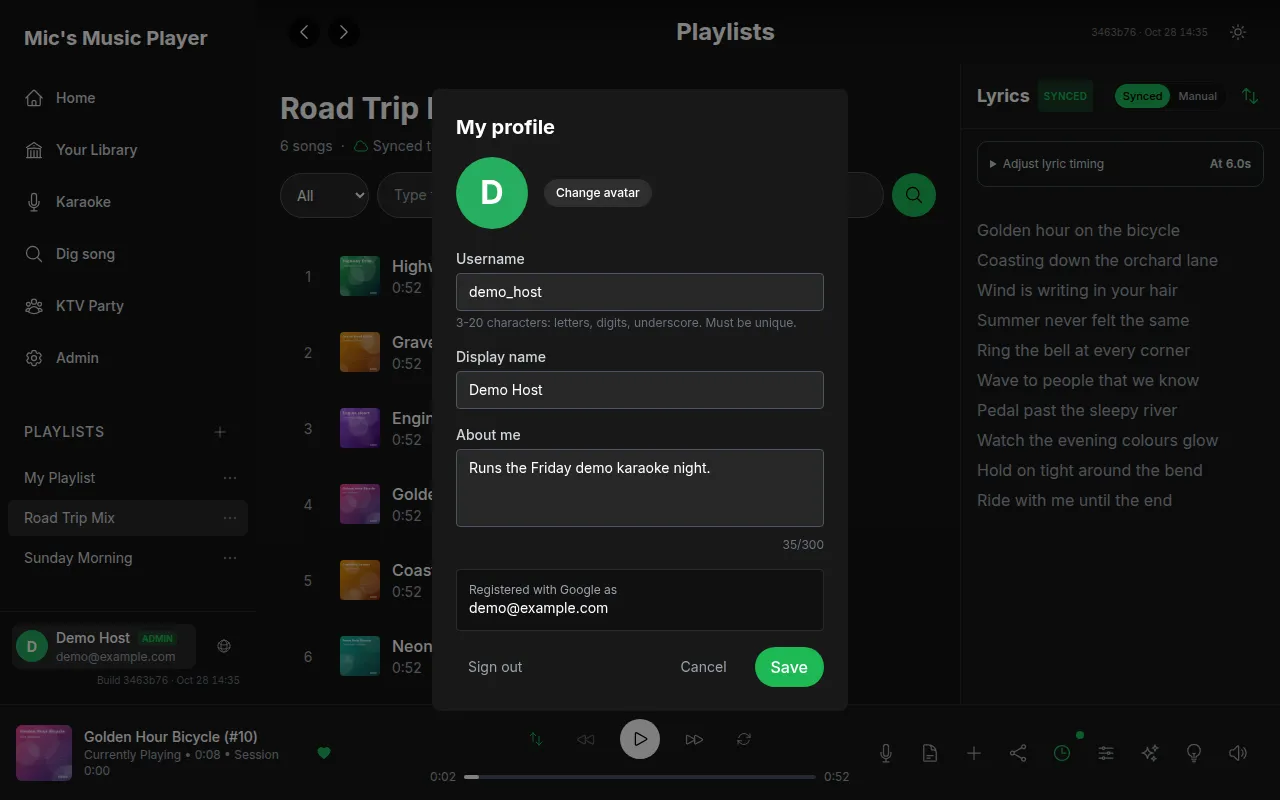
Open **My profile** to set **Username** (3–20 letters, digits or underscores, unique), **Display name**, **About me** and an avatar. Use **Change avatar** or **Remove avatar**, then save. Google-registered profiles can be used across devices; the guest hint explains when the identity is device-based.
The profile editor using an invented demo identity. Select the image to enlarge it.
Administrators see **Admin**:
| Area | Procedure and result |
| --- | --- |
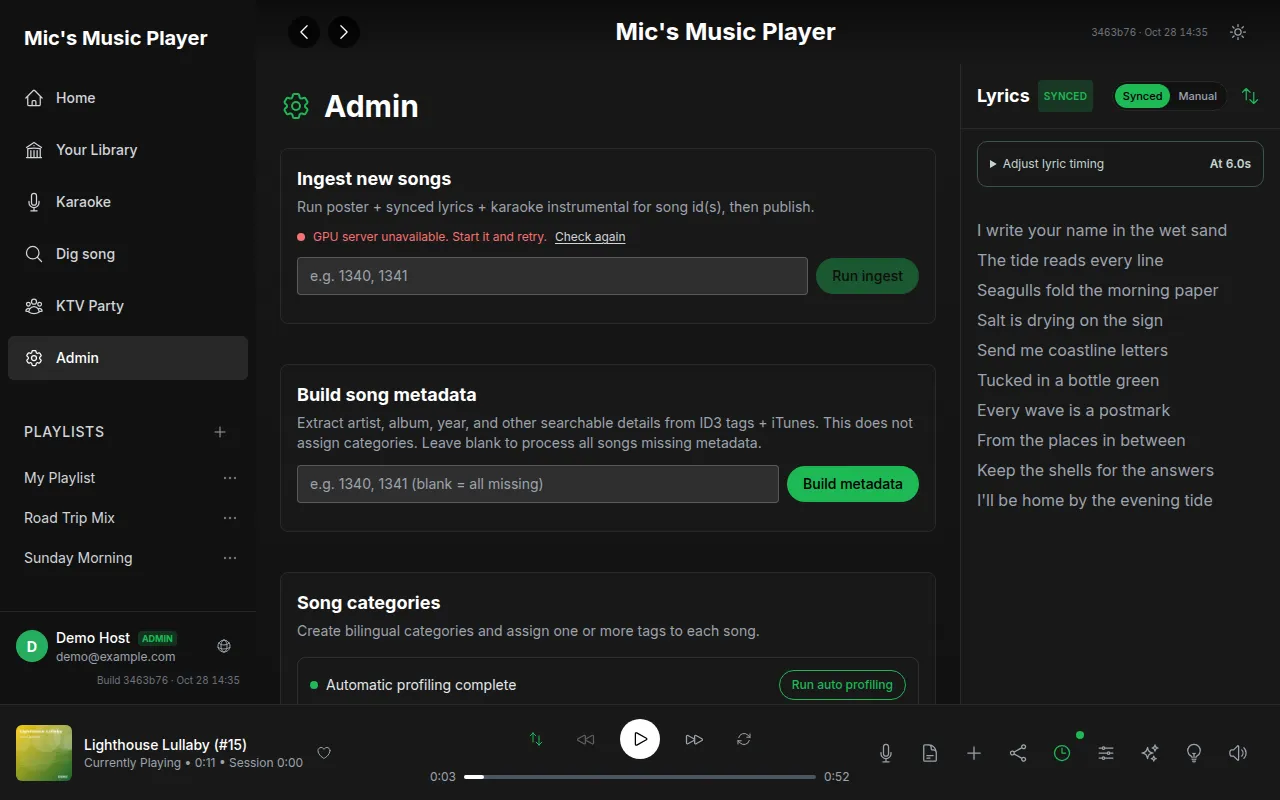
| **Ingest new songs** | Enter IDs, check GPU availability, choose **Run ingest** and review its processing log |
| **Build song metadata** | Enter IDs or leave blank for missing metadata, then **Build metadata**; this extracts searchable details without assigning categories |
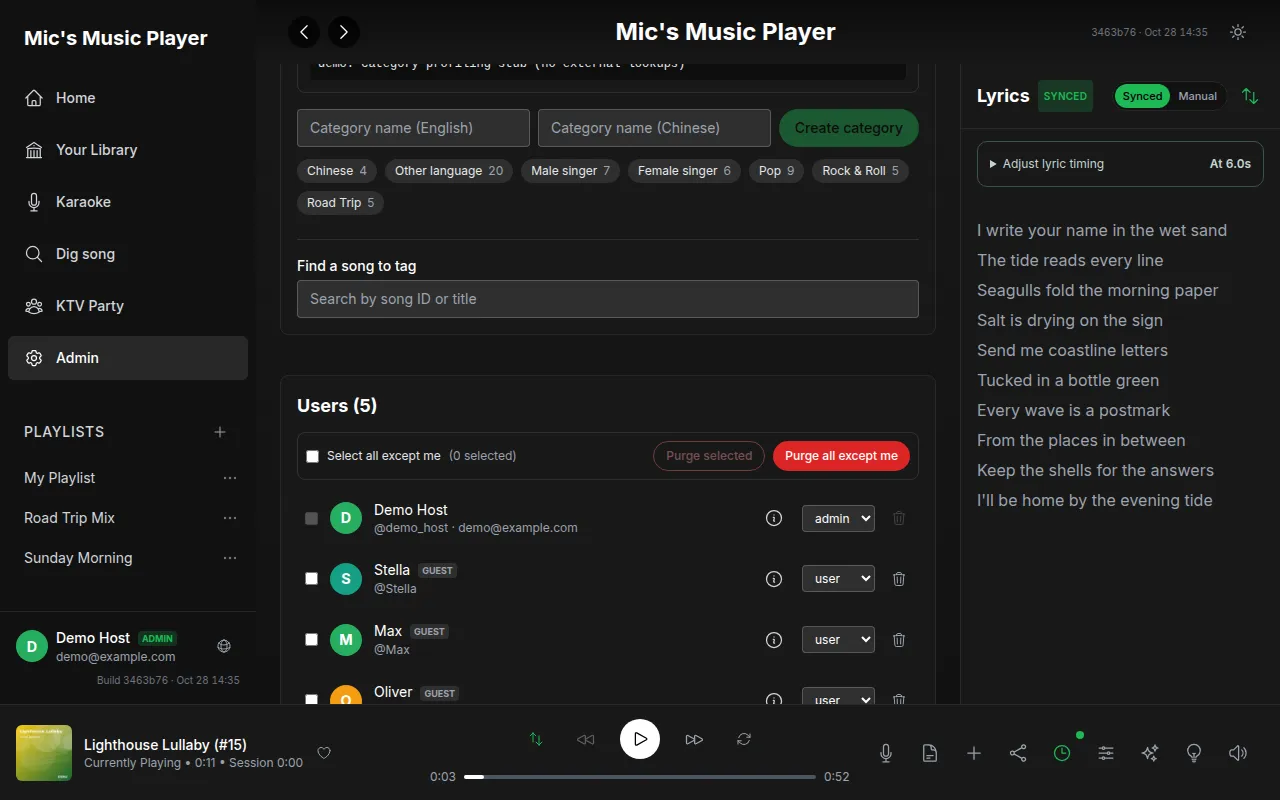
| **Song categories** | Create bilingual names with **Create category**; find a song, select categories and **Save categories** |
| Automatic profiling | **Run auto profiling** refreshes automatic classification; manually saved songs are protected from overwrite |
| **Users** | Expand account details, inspect session/activity information, remove a user, **Purge selected** or **Purge all except me** after confirmation |
The administration page's ingest and metadata controls in the isolated demo. Select the image to enlarge it.The demo administration page's category and profiling controls. Select the image to enlarge it.
Purging accounts is permanent and protects the current administrator. These are operator functions; the guide review did not launch production ingest jobs or purge production users.
## Install, update and play in the background
Use **Install App** when offered or the browser's installation/Home Screen action. **Update Available → Update** refreshes the app. Lock-screen media controls and background playback depend on browser/OS support and permissions.
Cached original recordings can help with offline/background listening, but this does not download the entire library. Instrumentals, external searches and party connections can still require the network. Android power management can suspend long playback; review battery restrictions for the browser or installed app if that happens.
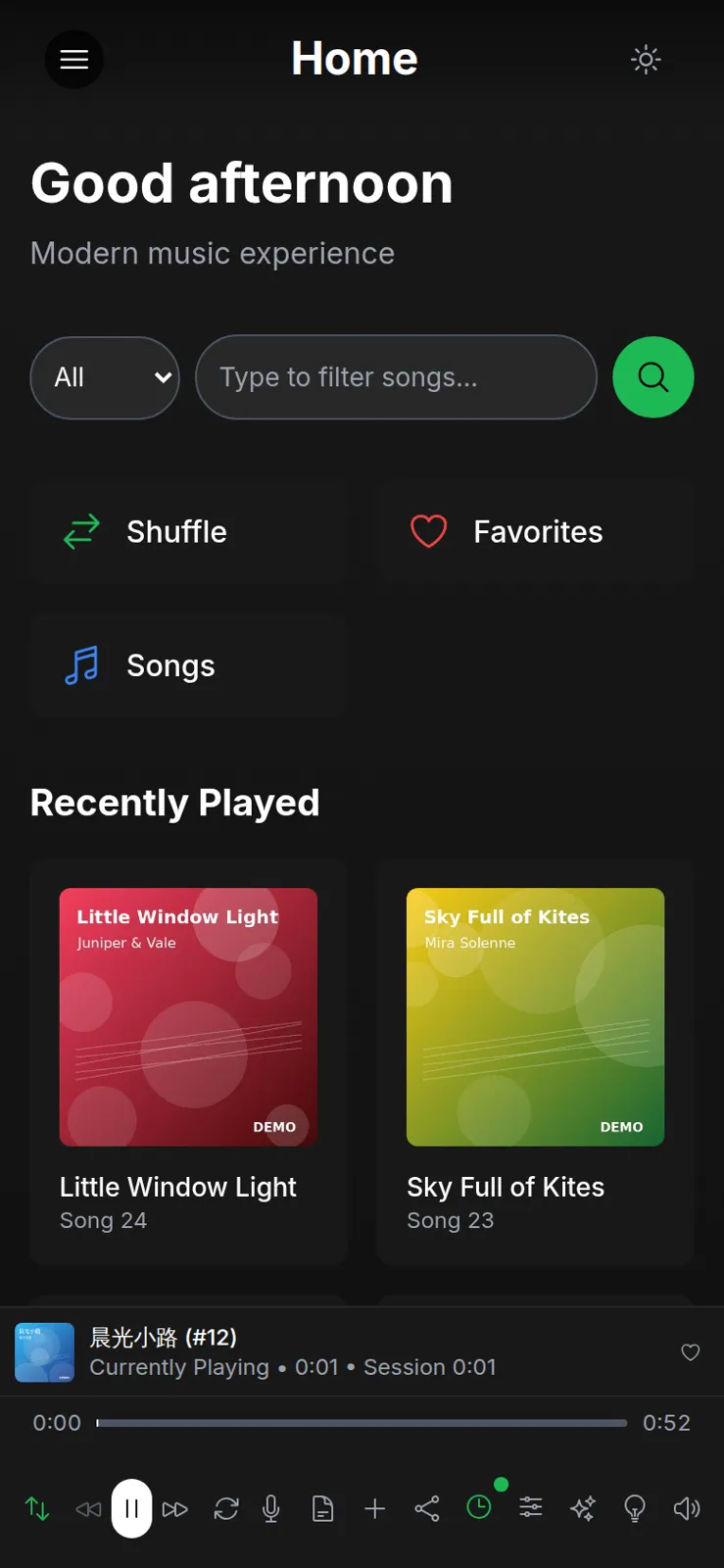
The fictional demo library on a phone-sized screen. Select the image to enlarge it.
Profiles, playlists, requests and imported recordings involve server data; language, theme, lyric offsets, guest lists and cache choices are browser-specific. Recording requires microphone access, and online performance sends a live microphone mix. No app-store listing or rendered promo/tutorial video was found in the reviewed player repository.
## Troubleshooting
| Symptom/message | What to do |
| --- | --- |
| Song does not start | Tap Play to unlock audio; check connection, try Next, then return |
| Unexpectedly short song selection | Clear the search/category and **Song Range**; review repeat-one |
| **Manual** lyrics or no timed cues | The selected version has no timed source; plain lyrics cannot supply exact timing |
| Lyrics early/late | **Adjust lyric timing**, choose the correct first line, then fine-tune |
| **No instrumental for this song** | Choose a prepared song or wait for background processing |
| Microphone denied/missing | Grant browser microphone permission, select a working device and run **Test mic** |
| Feedback/echo | Use headphones and reduce monitoring level |
| Missing playlists on another device | Check the registered account and the list's storage badge |
| Dig says **These results have expired** | Repeat the search before adding |
| Source unavailable/security verification | Wait and retry; a different version may be accessible |
| Import busy or too large | Wait for the current import; the file limit is 100 MB |
| Guide pairing invalid/expired | Use the host's current code/QR and tap Start vocal guide again |
| Private guide is late on Bluetooth | Increase Guide timing and check by ear |
| Party stage silent | Enable audio on the stage, select it as Room speaker, prepare again |
| Party waiting for singer/guide | Accept the nomination, confirm readiness, and enable the required guide or make it optional |
| Room locked/invalid invitation | Ask the host to unlock or provide the current invitation |
| Queue or device limit reached | Remove an unused request/device or wait for a turn |
| Streaming service unavailable | Online mode requires the configured media service; local room controls may still work |
| Output changed or browser suspended audio | Confirm output, enable/retry audio and resume with a countdown |
Report the build shown in the app together with the exact action and message. Room invitations, device pairing codes and personal tokens should be sent only to intended participants.