# MicsBook
MicsBook is a private browser ebook library at [ebook.micstec.com](https://ebook.micstec.com/). Browse EPUB and PDF books, read or download them, listen to EPUB text, keep personal lists and tags, save bookmarks and notes, and request missing titles. Managers maintain the shared catalog; administrators manage accounts, settings, requests, copyright reports and system alerts. A separate **bookbrowser-cli** client provides scriptable access.
| At a glance | Details |
| --- | --- |
| Access | Email/password account, or Google sign-in when configured; registration depends on the library's settings |
| Formats | EPUB and PDF readers; MOBI uploads need server-side conversion to EPUB |
| Devices | Desktop and mobile browsers; installable web app |
| Interface | English and Chinese |
| Saved to your account | Recent books, named lists, private book tags, bookmarks, notes and profile |
| Saved in this browser | EPUB reading location and reader appearance/preferences |
| Read aloud | EPUB text; server speech service and browser fallback/support determine availability |
**On this page**
- [Sign in, register and understand access](#sign-in-register-and-understand-access)
- [Browse Books, Authors, Series and Random](#browse-books-authors-series-and-random)
- [Search the catalog and inspect a book](#search-the-catalog-and-inspect-a-book)
- [Read EPUB chapters and navigate pages](#read-epub-chapters-and-navigate-pages)
- [Set reader themes, font, spacing and fullscreen](#set-reader-themes-font-spacing-and-fullscreen)
- [Translate selected text and look up a word](#translate-selected-text-and-look-up-a-word)
- [Save bookmarks and notes while reading](#save-bookmarks-and-notes-while-reading)
- [Manage saved reading items across books](#manage-saved-reading-items-across-books)
- [Listen to EPUB text and choose a starting point](#listen-to-epub-text-and-choose-a-starting-point)
- [Read and download PDF books](#read-and-download-pdf-books)
- [Organize private lists, tags and recently read books](#organize-private-lists-tags-and-recently-read-books)
- [Request a missing book and follow its outcome](#request-a-missing-book-and-follow-its-outcome)
- [Share links, retain files and manage your profile](#share-links-retain-files-and-manage-your-profile)
- [Understand Reader, Manager and Admin roles](#understand-reader-manager-and-admin-roles)
- [Maintain the shared library](#maintain-the-shared-library)
- [Resolve reader requests](#resolve-reader-requests)
- [Manage users, global settings and alerts](#manage-users-global-settings-and-alerts)
- [Use bookbrowser-cli](#use-bookbrowser-cli)
- [Install, work offline and get help](#install-work-offline-and-get-help)
- [Troubleshooting](#troubleshooting)
## Sign in, register and understand access
1. Open [MicsBook](https://ebook.micstec.com/) and choose **Sign in**.
2. Enter the email/password supplied by your administrator, or use Google when offered.
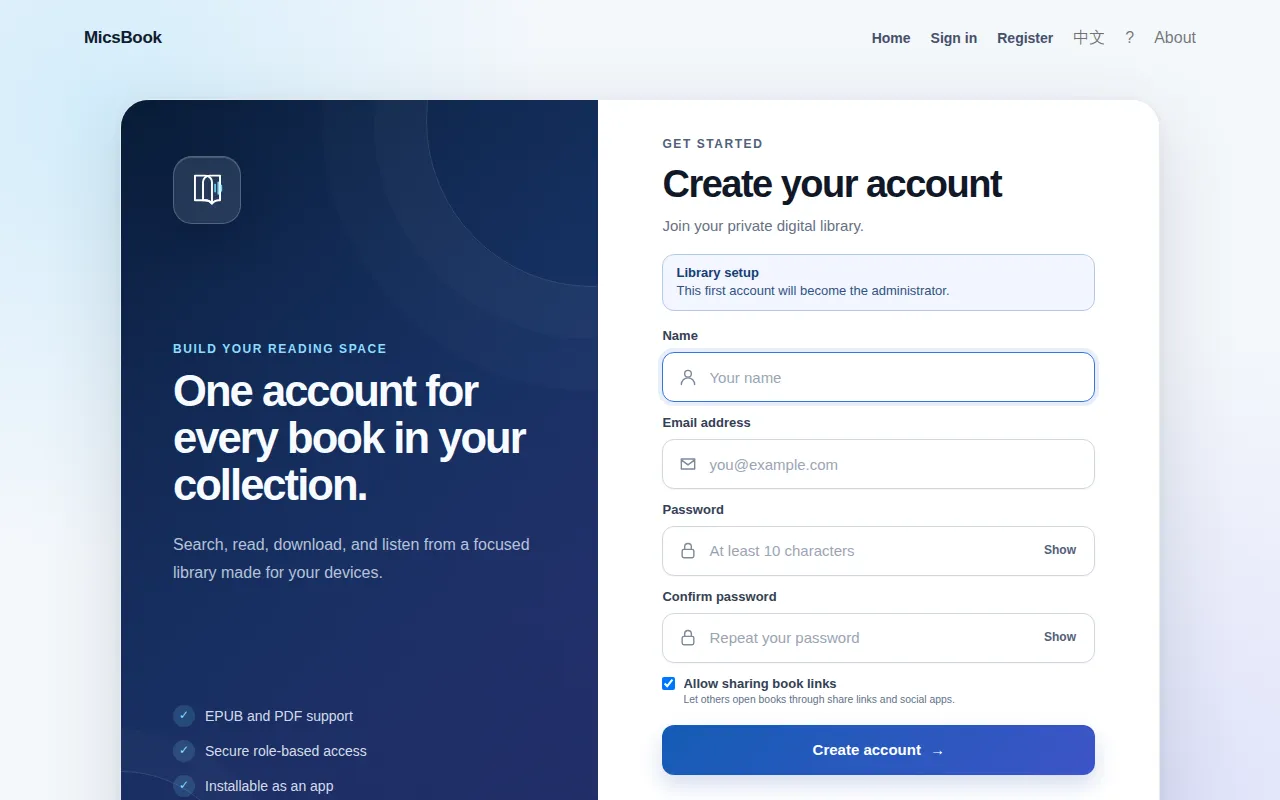
3. If **Register** is available, enter **Name**, **Email address**, a password of at least ten characters, and **Confirm password**, then **Create account**.
4. Review **Allow sharing book links**, which controls whether your account exposes sharing actions.
5. Once signed in, open **Books** to browse the catalog.
The registration form on an isolated test library, before a demo account is created. Select the image to enlarge it.
On a fresh library the first registration becomes the administrator; later self-registrations become readers. That setup behavior is for a new installation, not a way to claim administration of an existing service. **Registration is closed** means an administrator must arrange access. Password recovery is handled by the administrator's reset controls; the reviewed interface does not provide an email-reset workflow.
Anonymous visitors normally cannot browse the whole catalog. Depending on the library's setting, a direct book link and its required downloads can remain available without a login. A sharing button therefore does not by itself tell you whether the recipient must sign in.
All screenshots below show a separate test library containing public-domain works by Lewis Carroll, Jane Austen and Arthur Conan Doyle, downloaded from Project Gutenberg. The only account shown is fictional. No production library or reader history was used. Server speech synthesis, external book imports and physical phone background behavior were not tested end to end.
## Browse Books, Authors, Series and Random
| Navigation | What it provides |
| --- | --- |
| **Books** | Complete shared catalog, normally newest first |
| **Authors** | Author names; select one to see their books |
| **Series** | Series and sequence numbers from book metadata |
| **Random** | A randomly selected catalog title |
| **Search** | Catalog search across title, author and series |
| **My Library** | Your account's recent books, lists, tags and saved reading items |
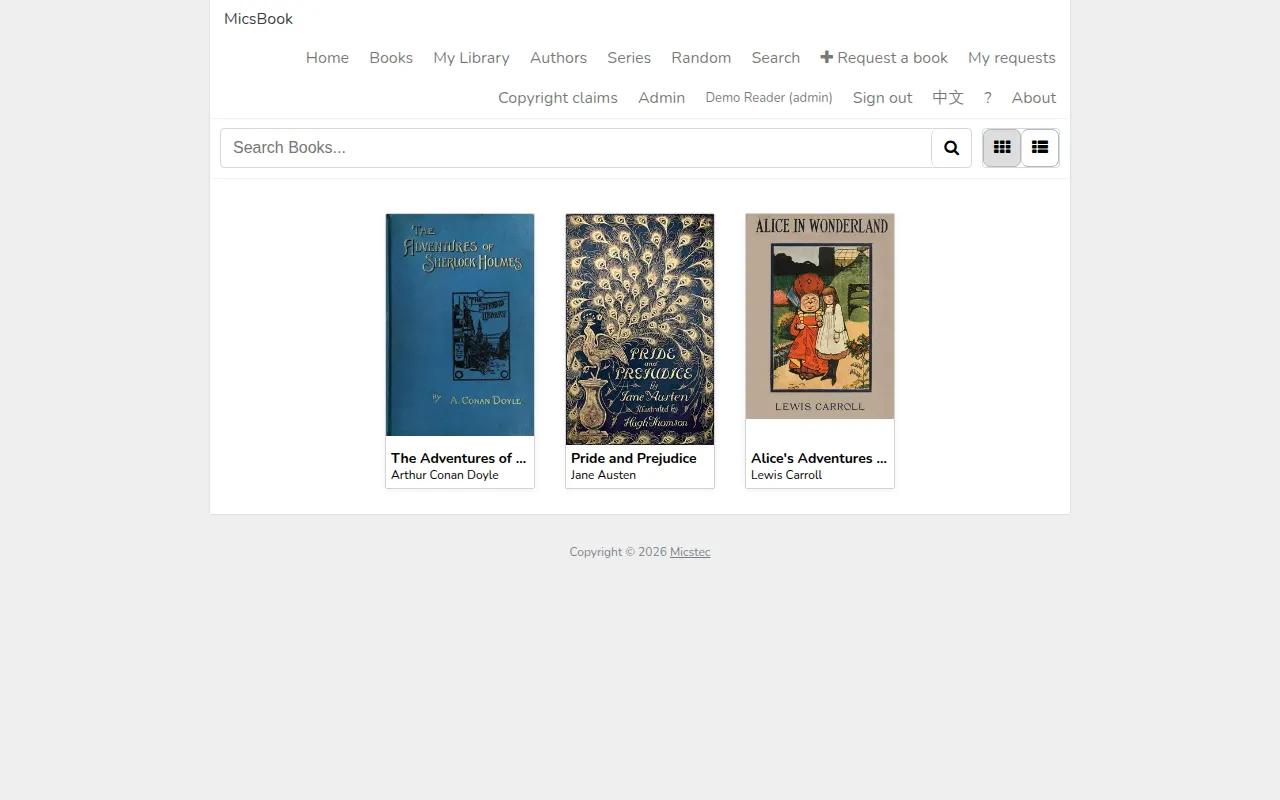
The isolated library containing three public-domain classics. Select the image to enlarge it.
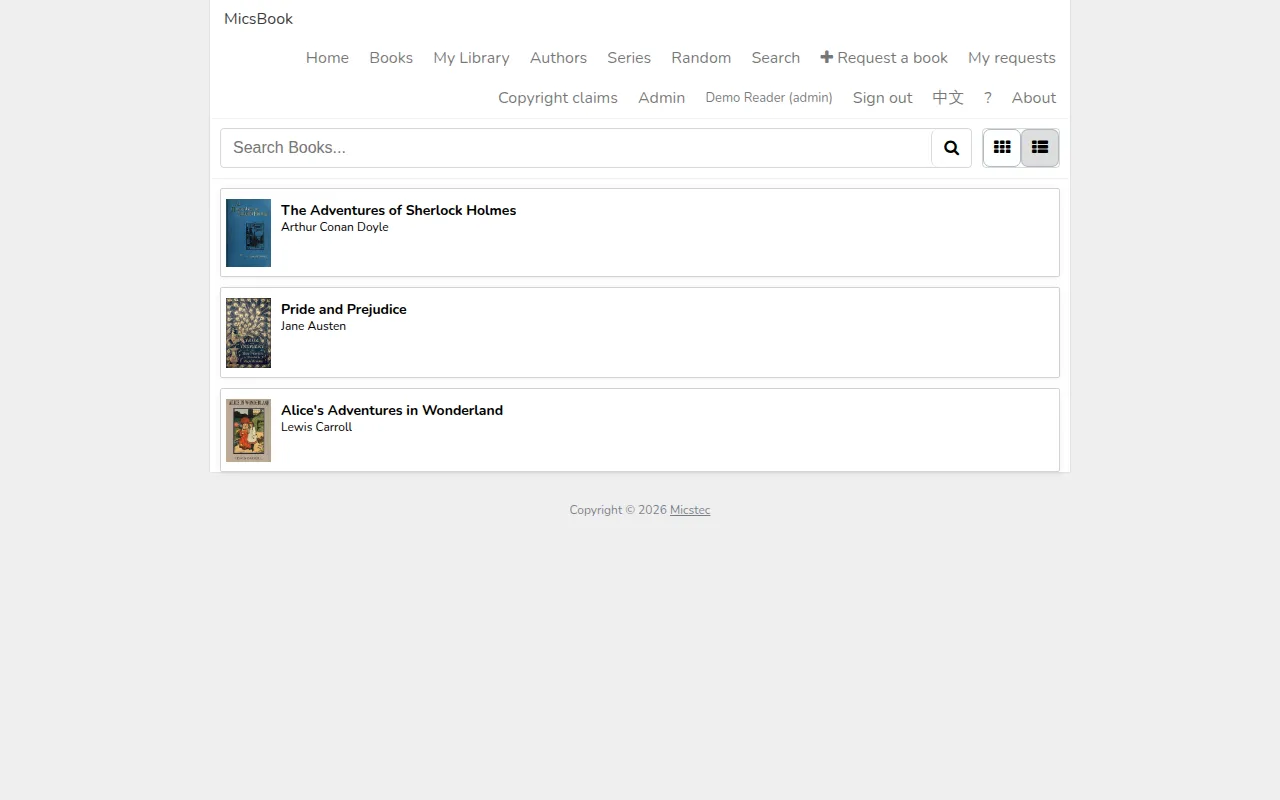
Use the grid/list view controls to change how book results appear. A cover or title opens the book details; an author or series link opens that grouping. If a series is empty, the books may not include series metadata.
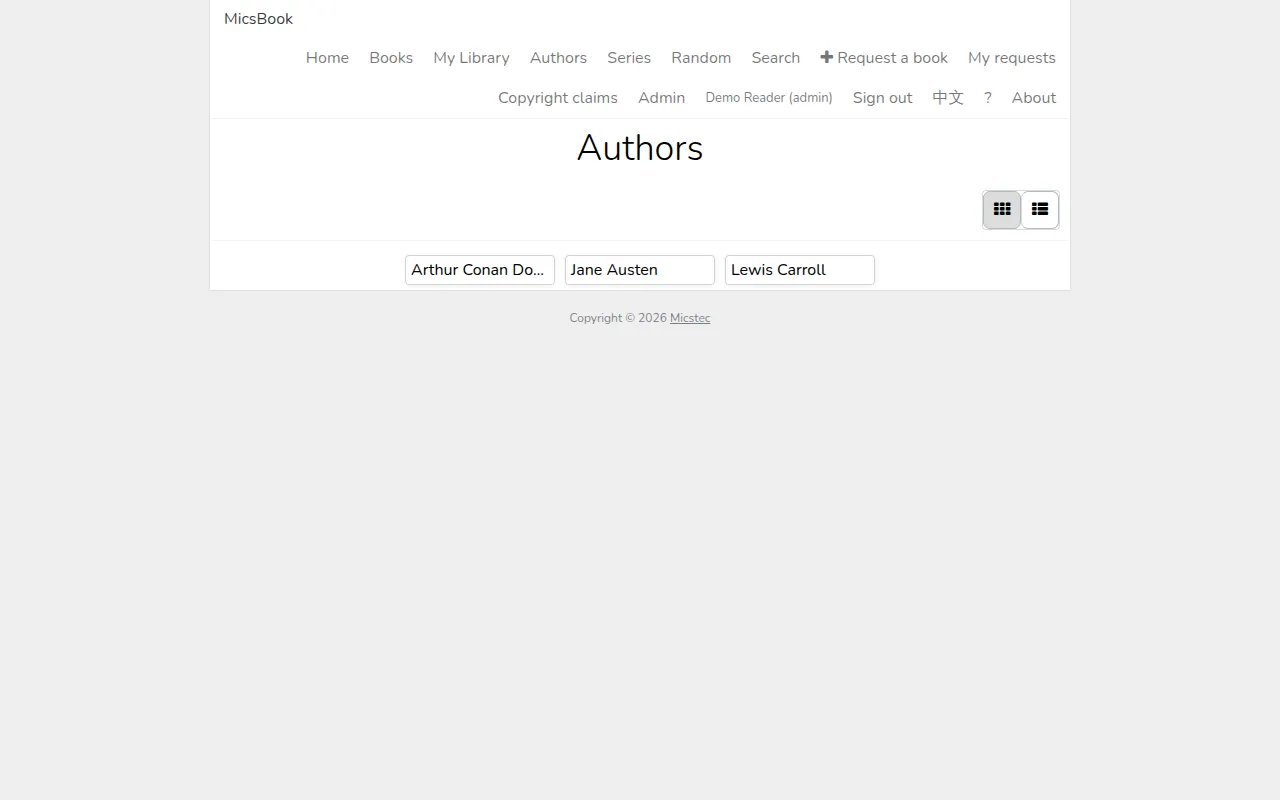
The same public-domain catalog in compact list view. Select the image to enlarge it.Browsing the authors represented in the small test library. Select the image to enlarge it.
The catalog also accepts sort query values such as `?sort=title-asc`, `title-desc`, `author-asc`, `author-desc`, `series-asc`, `series-desc`, `seriesindex-asc`, `seriesindex-desc` and `modified-desc`. These are URL options; the reviewed normal catalog does not show a separate sort dropdown. The administration Library page does have visible sort controls.
## Search the catalog and inspect a book
1. Open **Search**, or enter text in **Search Books...**.
2. Submit a title, author or series fragment.
3. Choose a result's title/cover to open it.
4. Review the cover, description, author, series/index, publication date and ISBN where supplied by the file metadata.
5. Choose **Read** to open the built-in reader or **Download EPUB / Download PDF** to retain the file.
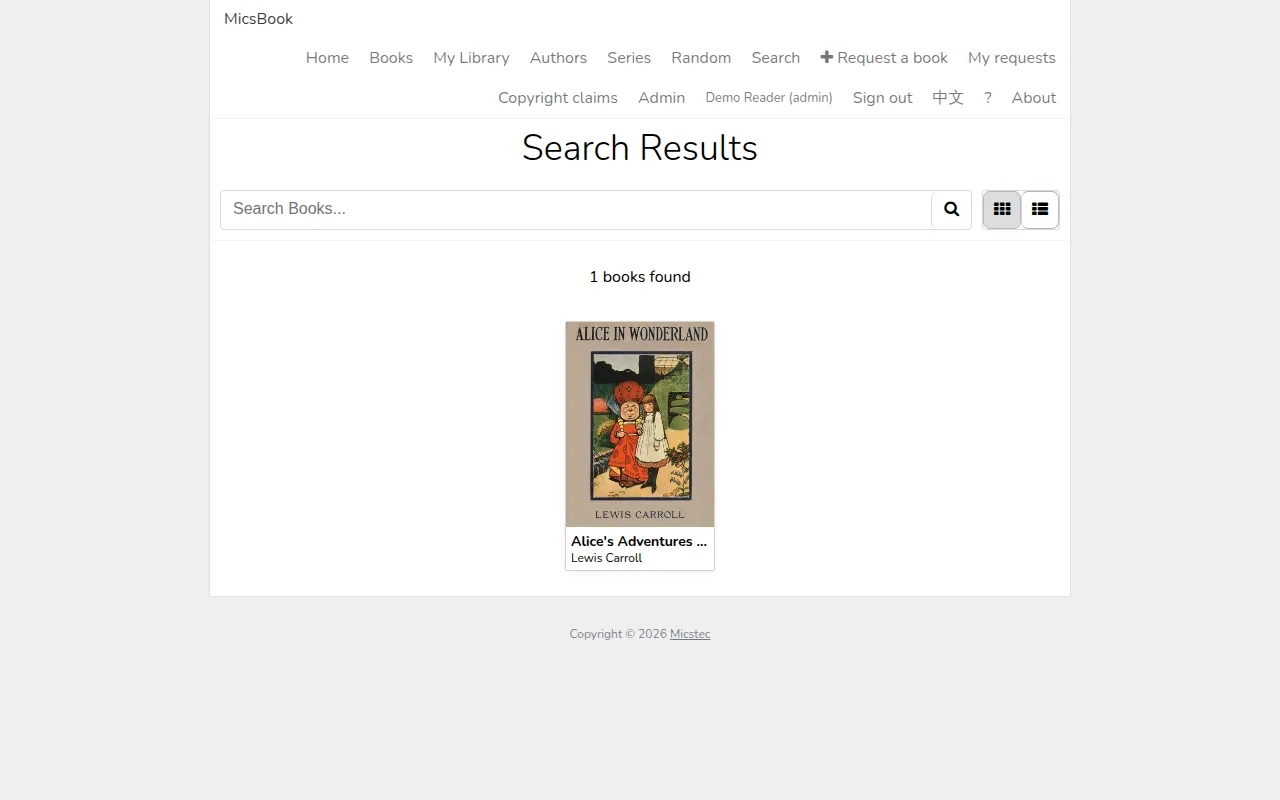
Searching for Alice in the test library. Select the image to enlarge it.
Normal web search checks title, author and series case-insensitively. It does not search the full text of every book or expose the field-combination advanced-search UI suggested by older documentation. Search inside an open EPUB is a separate reader feature. The CLI supports explicit author/series search options.
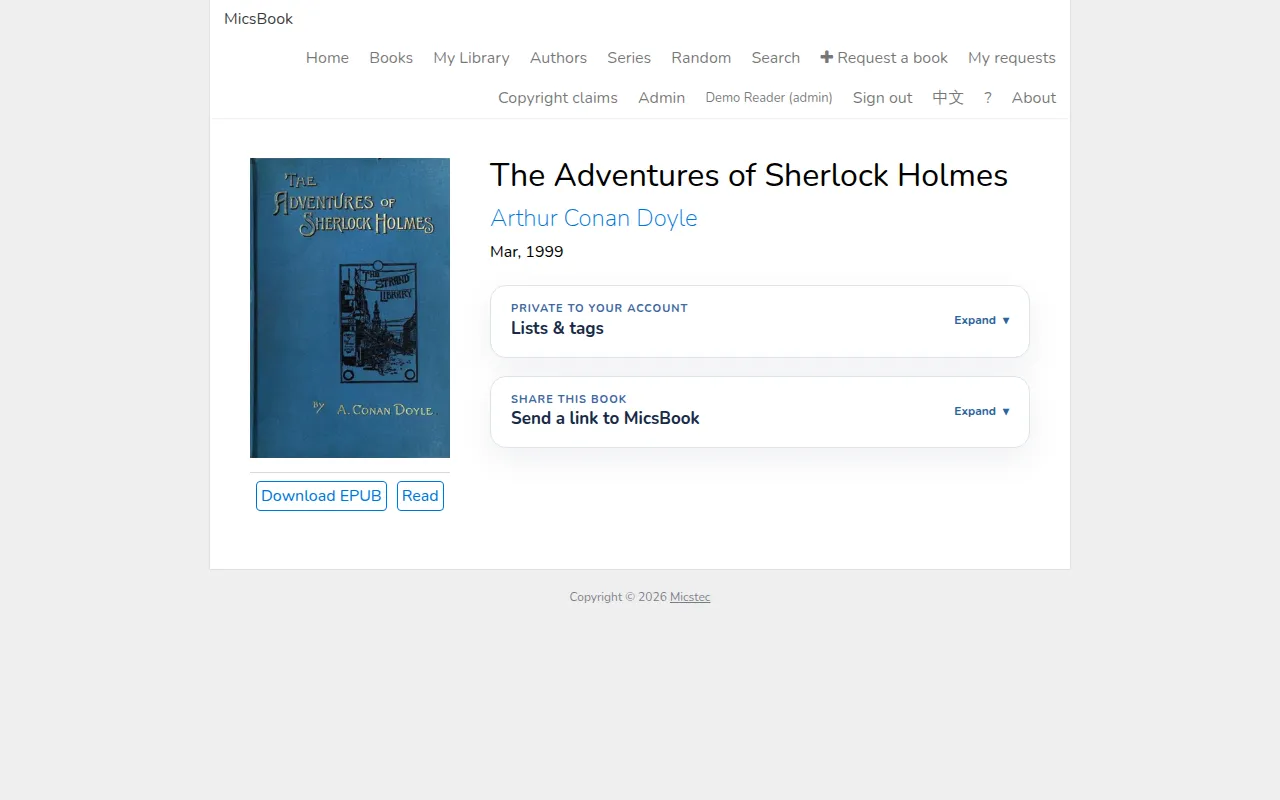
The details page for a public-domain Sherlock Holmes edition. Select the image to enlarge it.
## Read EPUB chapters and navigate pages
1. Choose **Read** on an EPUB book page.
2. Wait for **Loading the book…** to finish. The reader can restore a previous location saved in this browser.
3. Use the previous/next buttons, left/right arrow keys, or the left/right portions of a page to turn pages.
4. Open the sidebar with its menu button; tapping the far-right edge also opens it.
5. Use the contents/list tab for chapters, the search tab for **Search book...**, the information tab for metadata, and settings for appearance.
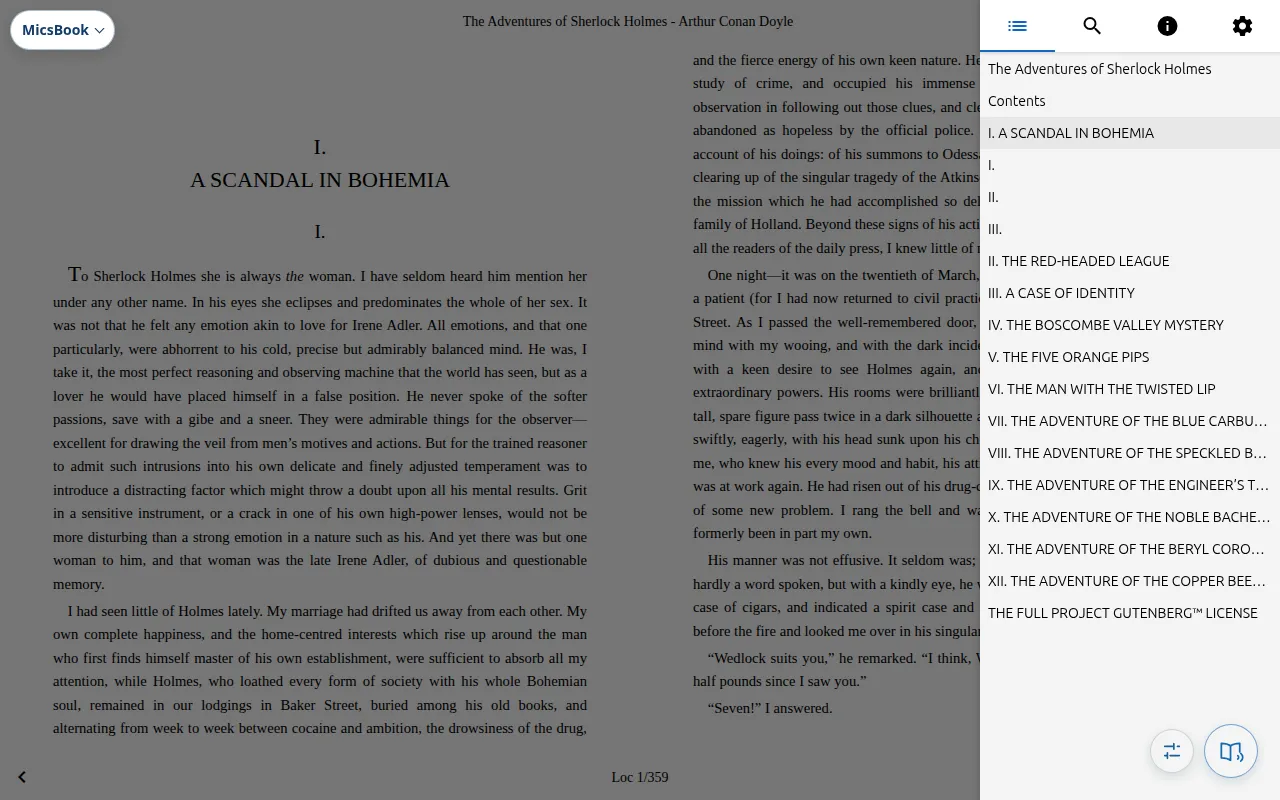
The built-in EPUB reader displaying a chapter from the public-domain Sherlock Holmes. Select the image to enlarge it.
The bottom location/progress controls help you see or change your position. The reader's location is browser-specific, so create an account bookmark before switching devices. A recent-book entry identifies what you read; it does not automatically synchronize the last visible EPUB page.
To search within the book, enter a word or phrase in **Search book...** and submit. Select a result to jump to its location. Book content and metadata quality depend on the ebook file; a malformed table of contents or unusual layout can affect navigation.
## Set reader themes, font, spacing and fullscreen
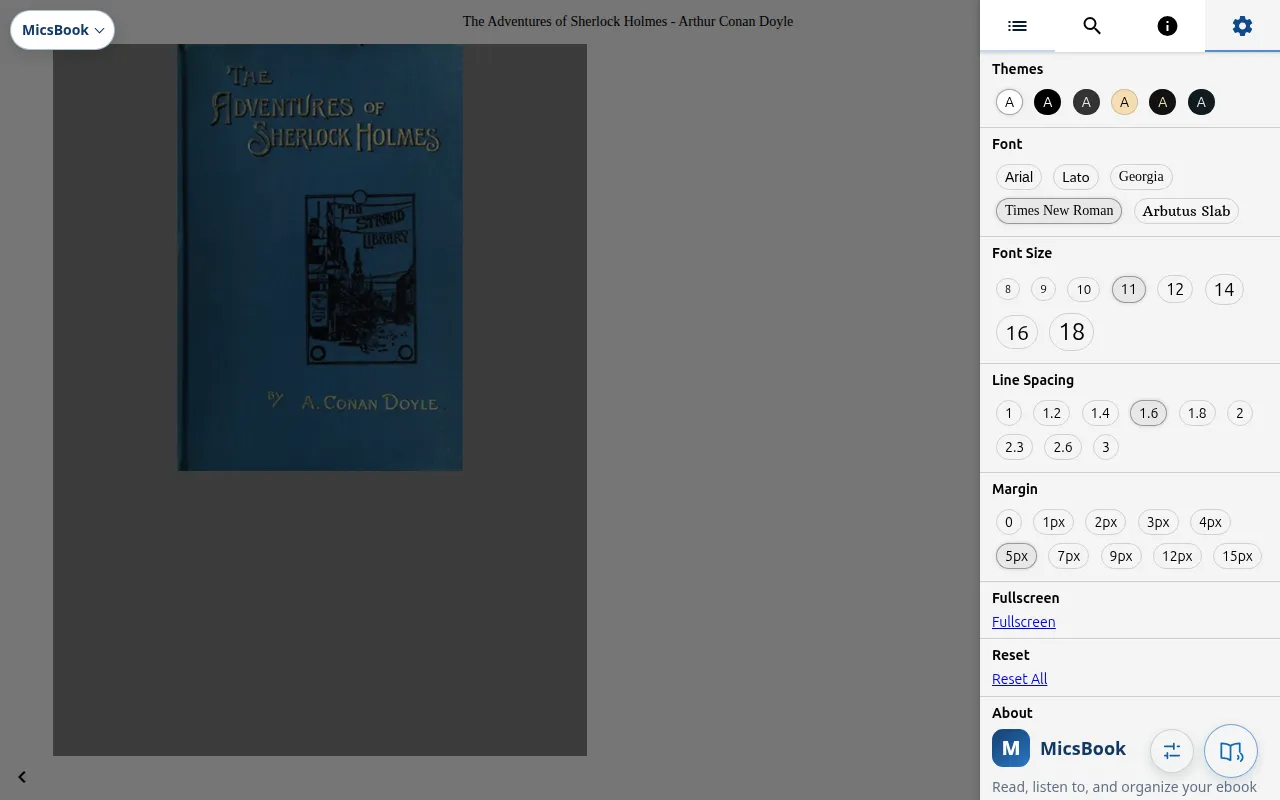
Open the EPUB sidebar's settings tab.
| Setting | Choices |
| --- | --- |
| **Themes** | Six light/dark/sepia color combinations |
| **Font** | Arial, Lato, Georgia, Times New Roman and Arbutus Slab choices |
| **Font Size** | Presets from 8 to 18 points |
| **Line Spacing** | Presets from 1 to 3 |
| **Margin** | Presets from 0 to 15 px |
| **Fullscreen** | Expand the reader where the browser permits |
| **Reset All** | Clear browser-local reader/site storage after confirmation and reload |
The EPUB sidebar's theme, typography and spacing settings. Select the image to enlarge it.
Settings apply to the reading presentation, not to the original EPUB. **Reset All** uses local storage clearing, so it can also remove other locally saved site preferences and reading positions. Account bookmarks and notes remain server-side. It is better to adjust a specific setting first when only the font or contrast is wrong.
The **MicsBook menu** contains Home, Save, language, help and About. Hold and drag it if it covers content; the position is remembered. English/Chinese changes the interface rather than translating the entire book.
## Translate selected text and look up a word
Select a word or passage in an EPUB. The selection actions offer **Translate** and **Define**.
1. Select a short passage and choose **Translate** for a Chinese translation.
2. For an English word, choose **Define** for an English dictionary entry.
3. Use the popup's language/target controls where offered, or close it to resume reading.
These are online lookups: the selected text goes to the configured public translation/dictionary endpoints. They do not translate an entire book offline. A missing word, network restriction or failed service response produces an error; preserve the original passage when a result is important.
## Save bookmarks and notes while reading
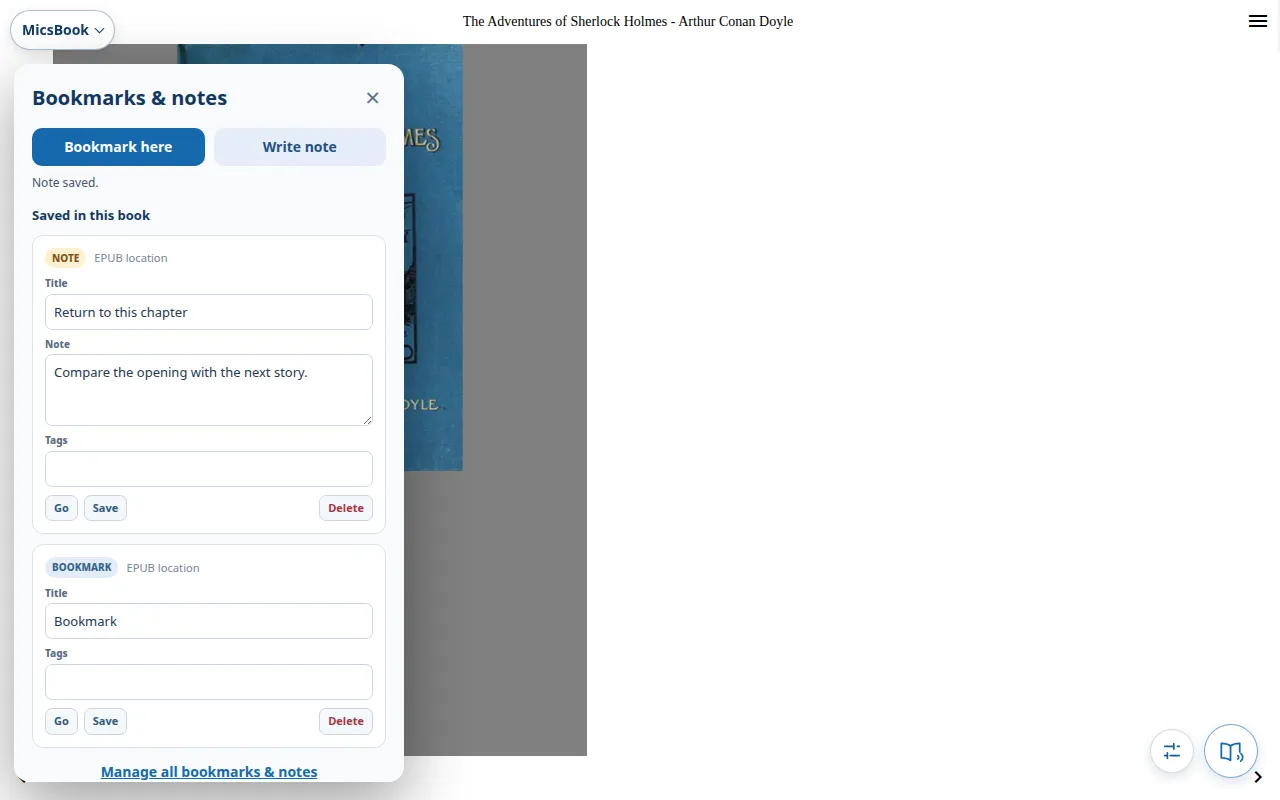
1. Open **MicsBook menu → Save**. The panel is titled **Bookmarks & notes**.
2. Choose **Bookmark here** to save the current location.
3. To annotate a passage, select it first, choose **Write note**, then fill **Title**, **Note** and comma-separated **Tags**.
4. Choose **Save note**.
5. Under **Saved in this book**, use **Go** to return, **Save** after editing, or **Delete** to remove an item after confirmation.
An account bookmark and note created in the isolated reading session. Select the image to enlarge it.
A note can retain a quote from the current selection. Bookmarks and notes are account-private and persist on the server, while their locator identifies a position within that particular book file. Replacing a book with a different edition may make an old locator less useful.
## Manage saved reading items across books
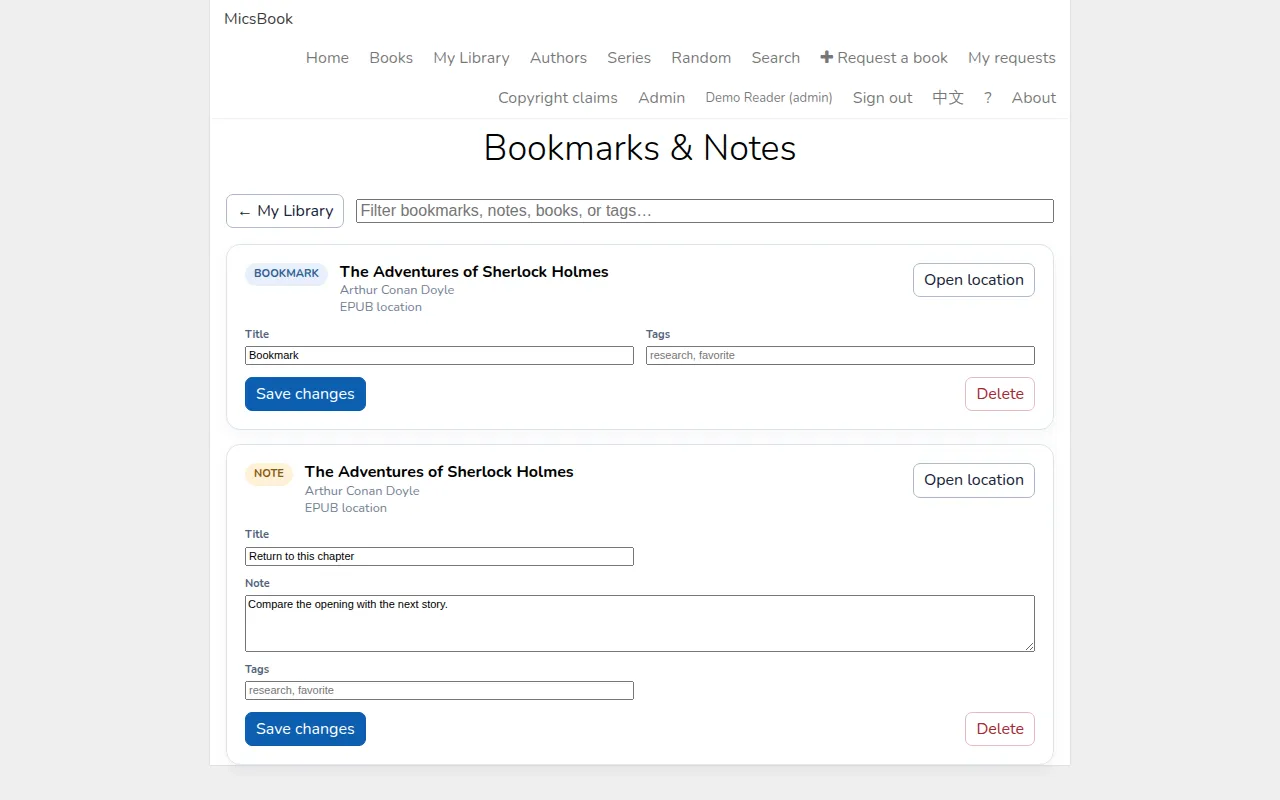
Open **My Library → Bookmarks & notes**, or **Manage all bookmarks & notes** in the reader.
1. Filter using **Filter bookmarks, notes, books, or tags…**.
2. Edit an item's **Title**, **Note** where applicable, and **Tags**.
3. Choose **Save changes**.
4. Choose **Open location** to return to the corresponding EPUB/PDF location.
5. **Delete** removes only the saved item, not the book itself.
The cross-book saved-reading page with the demo bookmark and note. Select the image to enlarge it.
The common MicsBook tools are also loaded in the PDF viewer. EPUB-specific speech, reflow themes and page-turn gestures remain distinct from PDF controls.
## Listen to EPUB text and choose a starting point
1. Open an EPUB and select its round **Read aloud** control.
2. Start from the current location, or choose **Choose starting point…** and select the paragraph where listening should begin.
3. Follow the highlighted spoken paragraph as the reader advances.
4. Use **Pause / Resume** to suspend/restart listening and **Stop** to end it.
Read-aloud uses text extracted from the EPUB; image-only pages have little or no usable text. The speech service must be available, and browser speech support can provide a fallback on some devices. The test session verified controls and settings but did not claim a working production voice service.
### Playback options
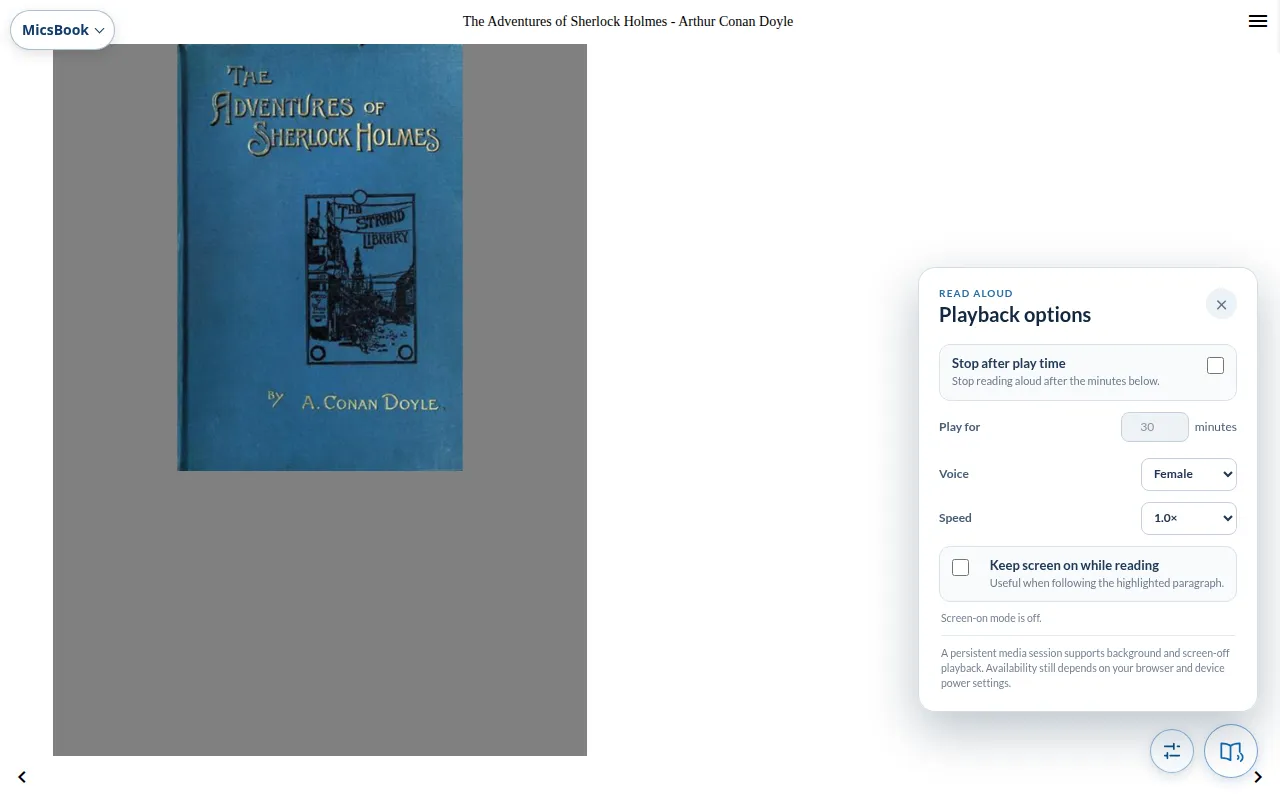
Open **Read-aloud options** beside the playback button.
| Option | Result |
| --- | --- |
| **Voice** | Female or Male |
| **Speed** | 0.4×, 0.6×, 0.8×, 1.0×, 1.2×, 1.5× or 2.0× |
| **Stop after play time** | Enables a listening-duration limit |
| **Play for** | 1–480 minutes when the timer is enabled |
| **Keep screen on while reading** | Requests wake lock while following text, subject to browser support |
Read-aloud voice, speed, duration and screen-on options. Select the image to enlarge it.
Lock-screen/media controls and background playback depend on browser and power settings. Installed-app mode does not guarantee unlimited screen-off playback. If a phone suspends audio, allow background activity or keep the reader visible. Cloud/server speech requires a network connection even if a book was cached.
## Read and download PDF books
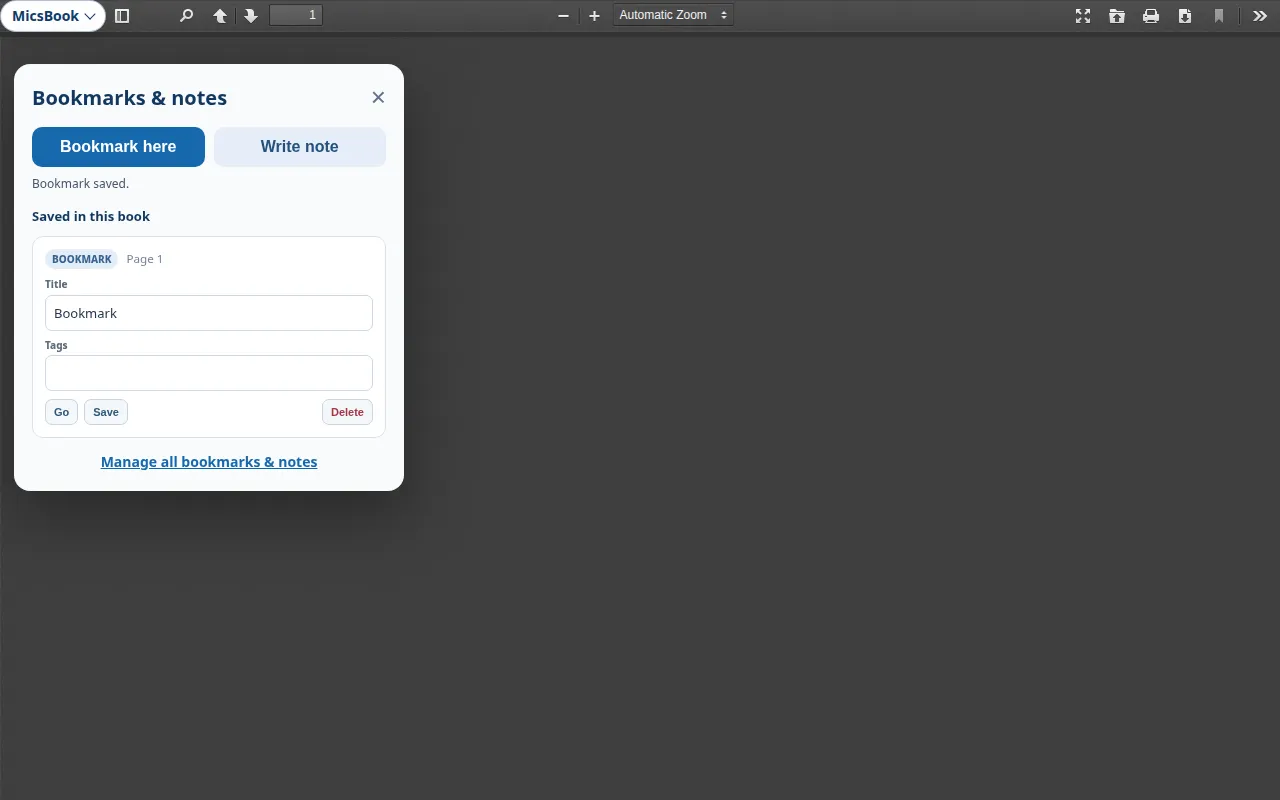
PDF opens in the built-in PDF.js viewer. The recovered test package was missing its `pdf.js` asset, so the document canvas did not render in this review, although account bookmarks saved successfully. If the viewer stays blank, use **Download PDF** and a local reader; an operator must restore the missing viewer asset before relying on the built-in renderer. Use its page number/navigation, zoom, fit, search and sidebar tools to move around a fixed-layout document. Depending on the browser, the viewer also offers download/print and fullscreen/presentation actions.
PDF bookmark controls with a saved demo record; this test package lacked the PDF rendering script, so its document canvas was blank. Select the image to enlarge it.
The shared MicsBook menu can provide account bookmarks/notes for PDF locations. EPUB reflow fonts, color themes and read-aloud are not equivalent PDF features. A scanned PDF may contain only images, so text search and selection can be absent. For a very large or unusual PDF, **Download PDF** and open it in a dedicated reader.
## Organize private lists, tags and recently read books
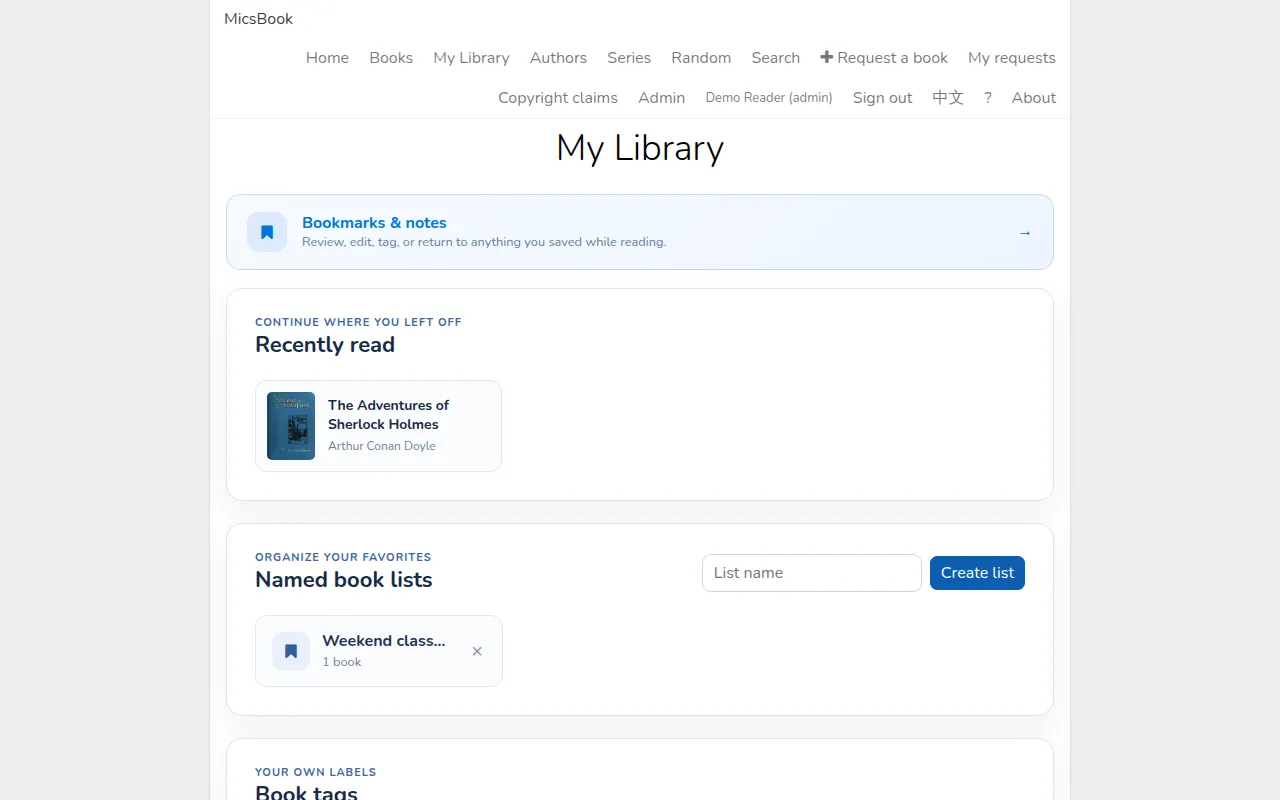
**My Library** combines three kinds of personal catalog organization:
1. **Recently read** fills when you choose Read on a book. Select a card to reopen its details.
2. Under **Named book lists**, enter **New list name** and choose **Create list**.
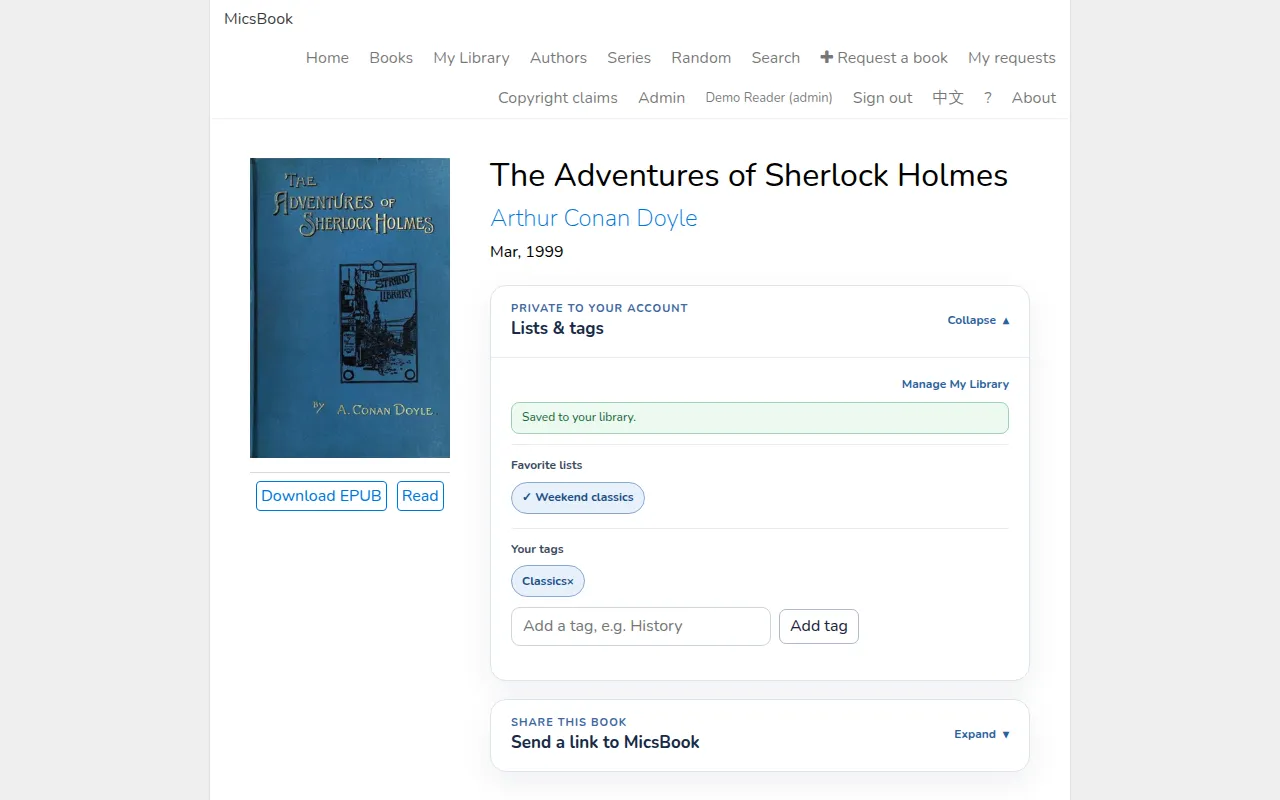
3. On a book page, expand **Lists & tags** and select a list under **Favorite lists**. Its selected checkmark indicates membership; select it again to remove the book.
4. Under **Your tags**, enter a label and choose **Add tag**. Select a tag's remove control to detach it.
5. Return to My Library and select a list/tag to browse matching books.
The book's Lists & tags controls with a demo list and private Classics tag. Select the image to enlarge it.My Library after a public-domain title has been read and organized. Select the image to enlarge it.
List names accept up to 80 characters and individual book tags up to 40. A collection's remove action takes the book out of that list; **Delete list** removes the list while preserving the shared catalog. These private tags differ from a book's embedded author, series or subject metadata.
## Request a missing book and follow its outcome
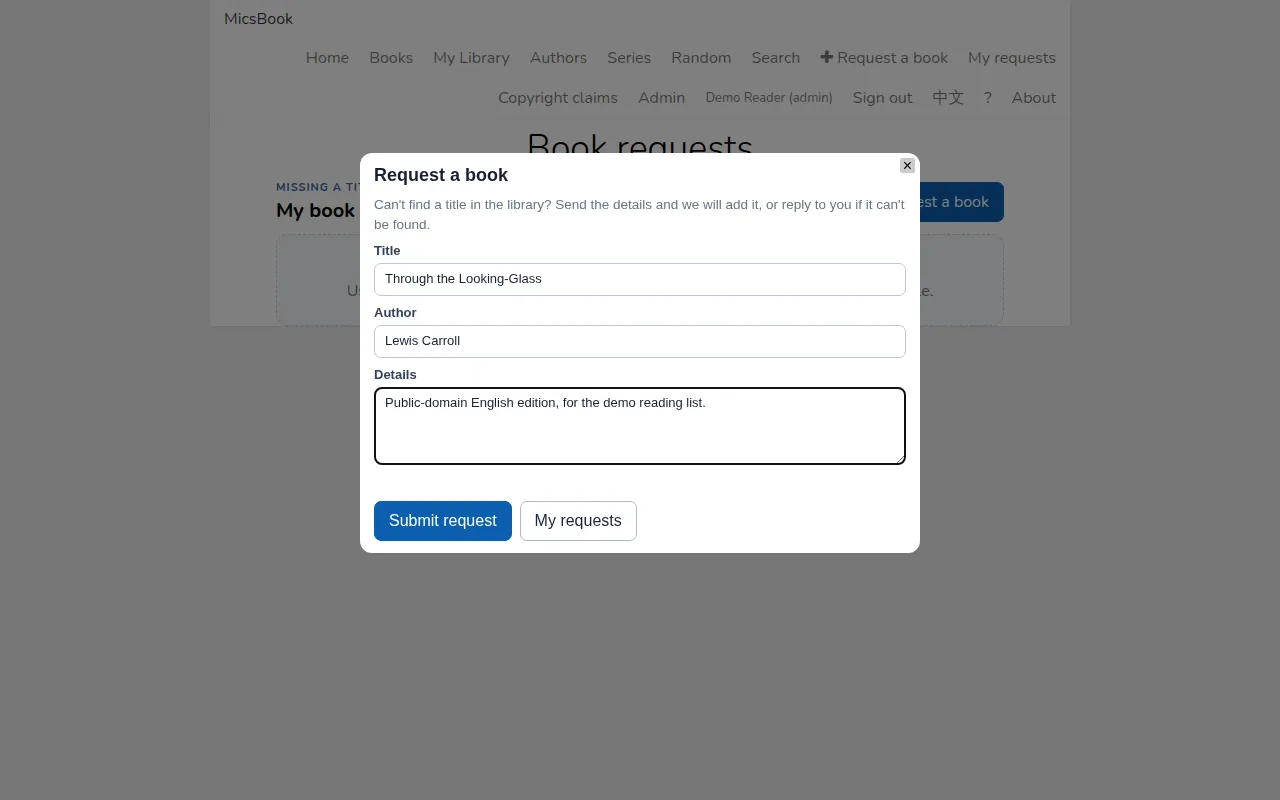
1. Choose **Request a book** in the navigation or request page.
2. Enter **Title**; optionally add **Author** and **Details** such as language, edition or ISBN.
3. Choose **Submit request** and wait for its confirmation.
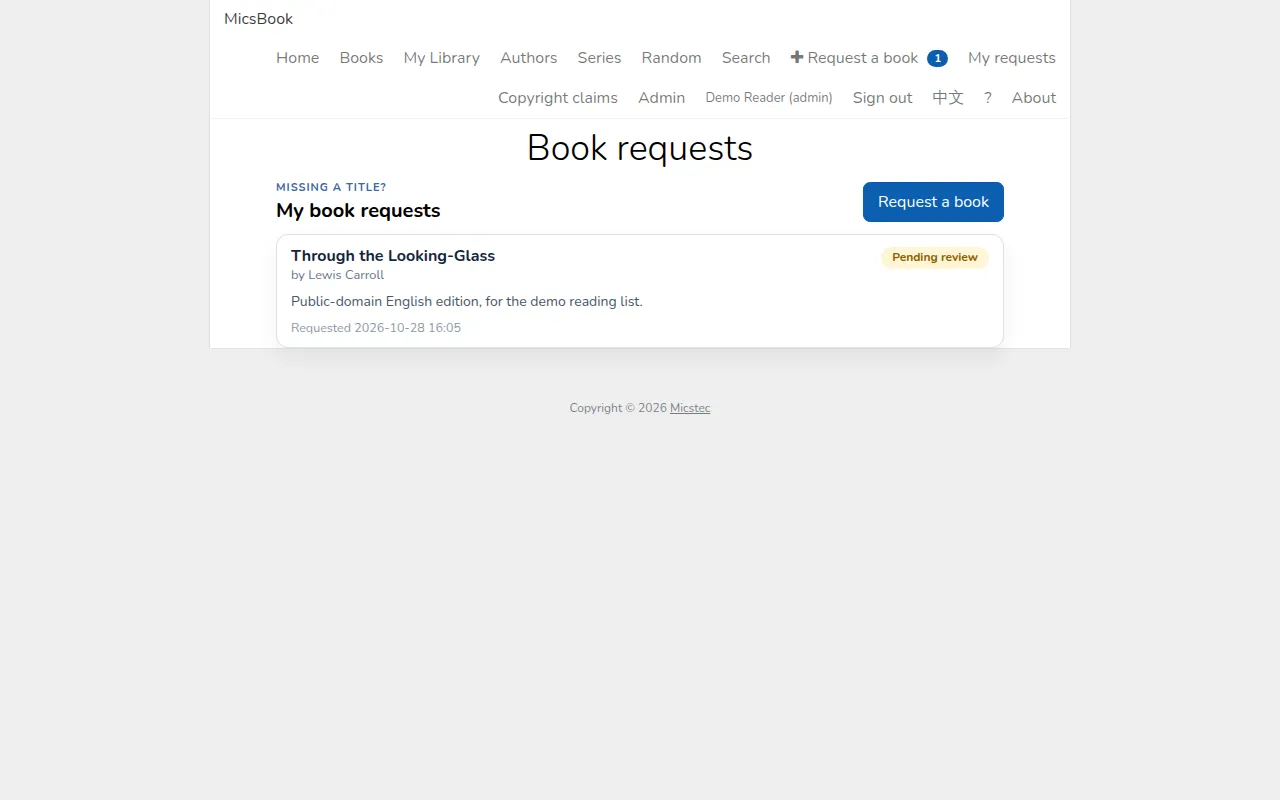
4. Open **My requests** to follow the response.
A demo request for the public-domain Through the Looking-Glass. Select the image to enlarge it.
The badge counts pending requests. Status starts **Pending**. When a manager links a newly available book, it becomes **Added** with a link and optional response; when the manager cannot supply it, the requester sees the **Not found** outcome and explanation. A request is a message to the library staff, not an automatic guarantee that the book will be acquired.
The fictional account's pending request and its details. Select the image to enlarge it.
## Share links, retain files and manage your profile
When your account allows sharing, expand **Share this book**. Use the native **Share…** action where supported, **WhatsApp**, **Telegram**, **Facebook**, **X**, or **Copy link**. These share the book's address rather than copying its file to a social network. Anonymous access depends on the administrator's **Allow anonymous direct-book links** setting.
**Download EPUB / Download PDF** saves the original downloadable book file. MOBI uploaded through the supported converter is represented by its converted EPUB. A local download can be read outside MicsBook and is separate from the browser's offline cache.
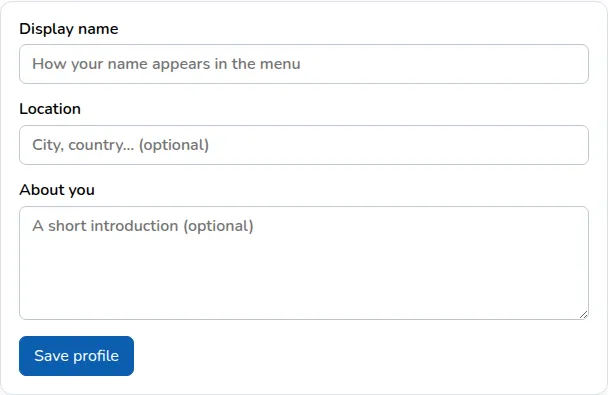
Open your name/**Profile** to edit **Display name**, **Location** and **About you**, then **Save profile**. The page also shows role, sign-in method and activity information. This is not a password-change or role-escalation screen.
The Profile page with the fictional reader account. Select the image to enlarge it.
## Understand Reader, Manager and Admin roles
| Role | Main powers |
| --- | --- |
| **Reader** | Browse, read, download, listen, maintain private items and send book requests |
| **Manager** | Reader powers plus shared library operations and request handling |
| **Admin** | Manager powers plus users, global settings, copyright claims and system alerts |
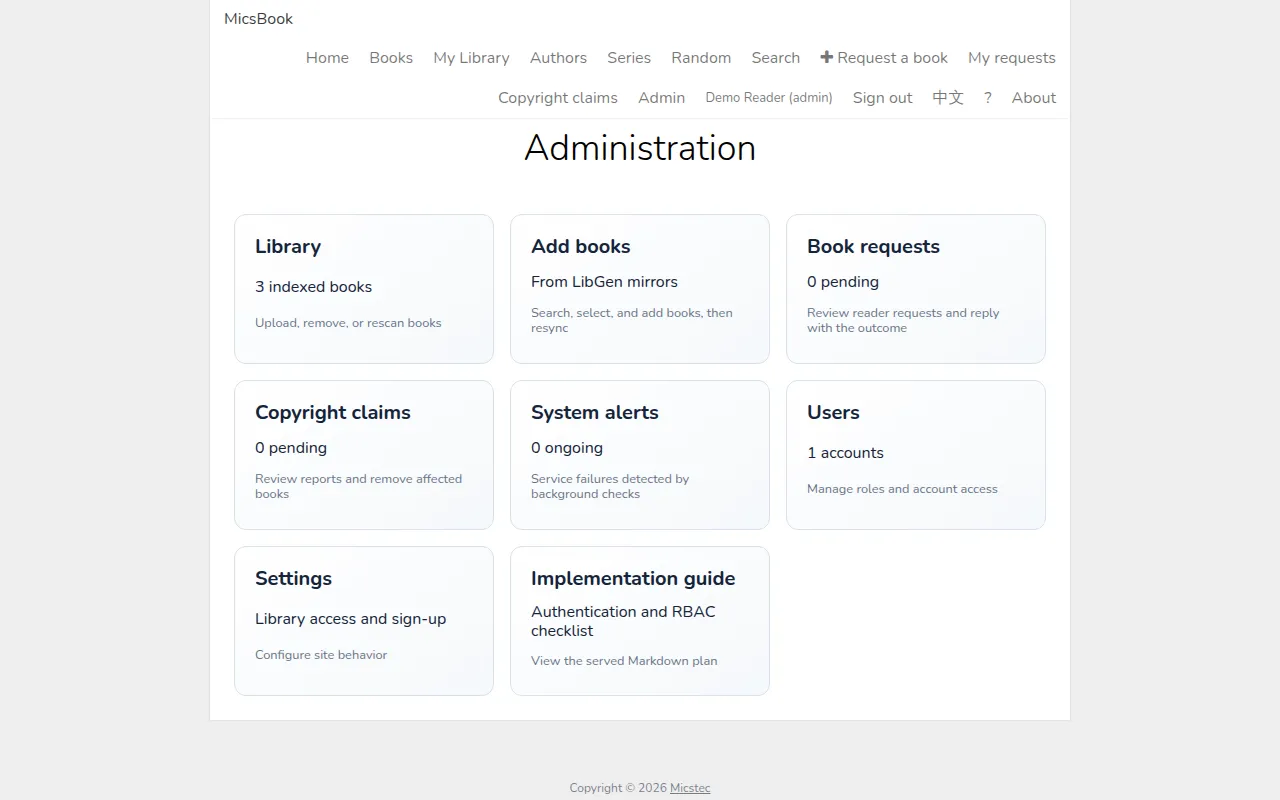
The **Admin** link appears for library managers and administrators. The overview links to areas their role permits. A missing Users/Settings tab is usually a permissions difference rather than a broken page.
The administrator overview in the isolated library. Select the image to enlarge it.
## Maintain the shared library
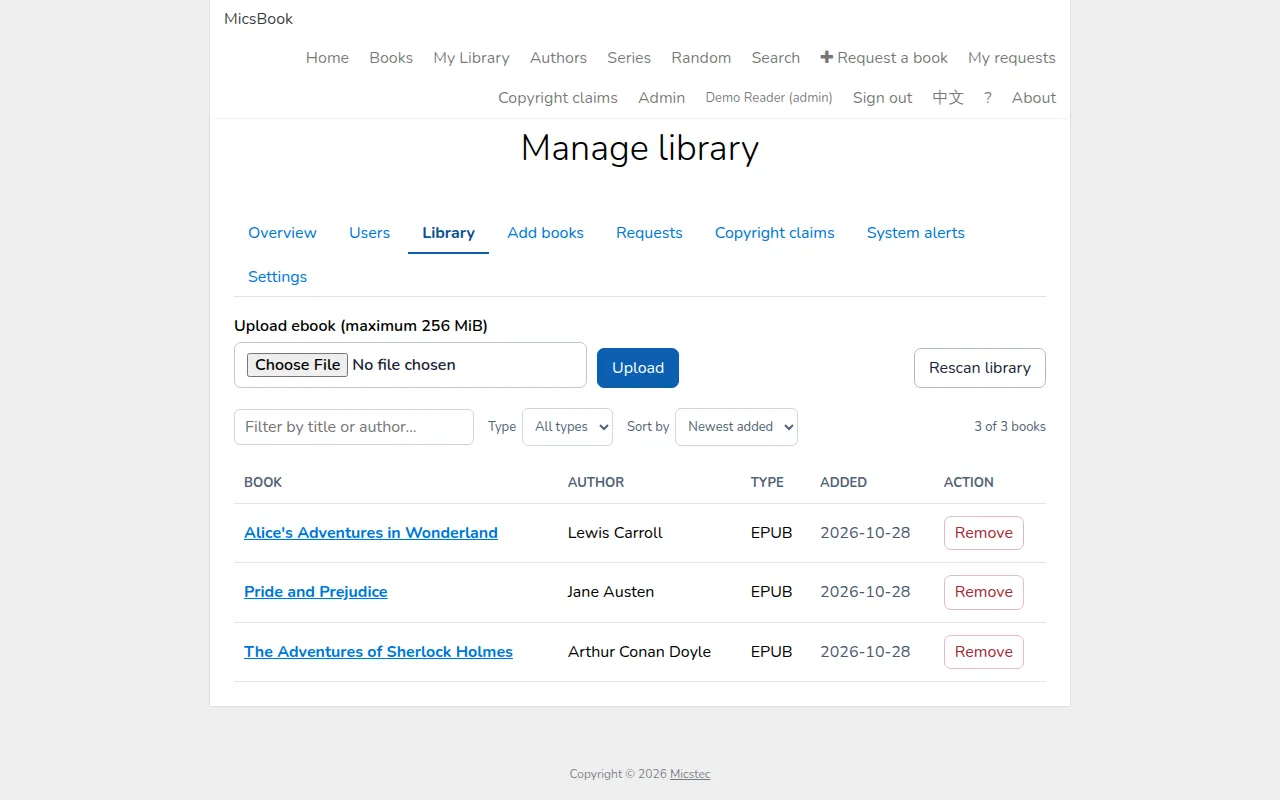
In **Admin → Library**:
1. Choose an EPUB, PDF or MOBI under **Upload ebook**, observing the maximum shown on the form, then **Upload**.
2. Use **Rescan library** after adding files outside the web upload flow.
3. Filter by title/author, choose **Type**, or select **Sort by** to review the list.
4. Use **Remove** on a book only when it should leave the shared catalog.
Library upload, rescan, filter, type and sort controls with public-domain titles. Select the image to enlarge it.
Removal is recoverable at the filesystem level: the server moves the book to its trash directory. There is no ordinary reader-facing restore button. An operator can restore the retained file and rescan. MOBI conversion requires the server's Calibre converter; a missing converter or invalid file must be resolved by the administrator.
**Add books** provides an external catalog/mirror search with title, author or ISBN, selectable results and **Add selected books to library**. Downloads and **Downloads in progress** depend on external mirror availability and server configuration. This source-reviewed feature was not used for the demo; its contents are public-domain files obtained directly from Project Gutenberg. Operators should add only books they are entitled to distribute.
## Resolve reader requests
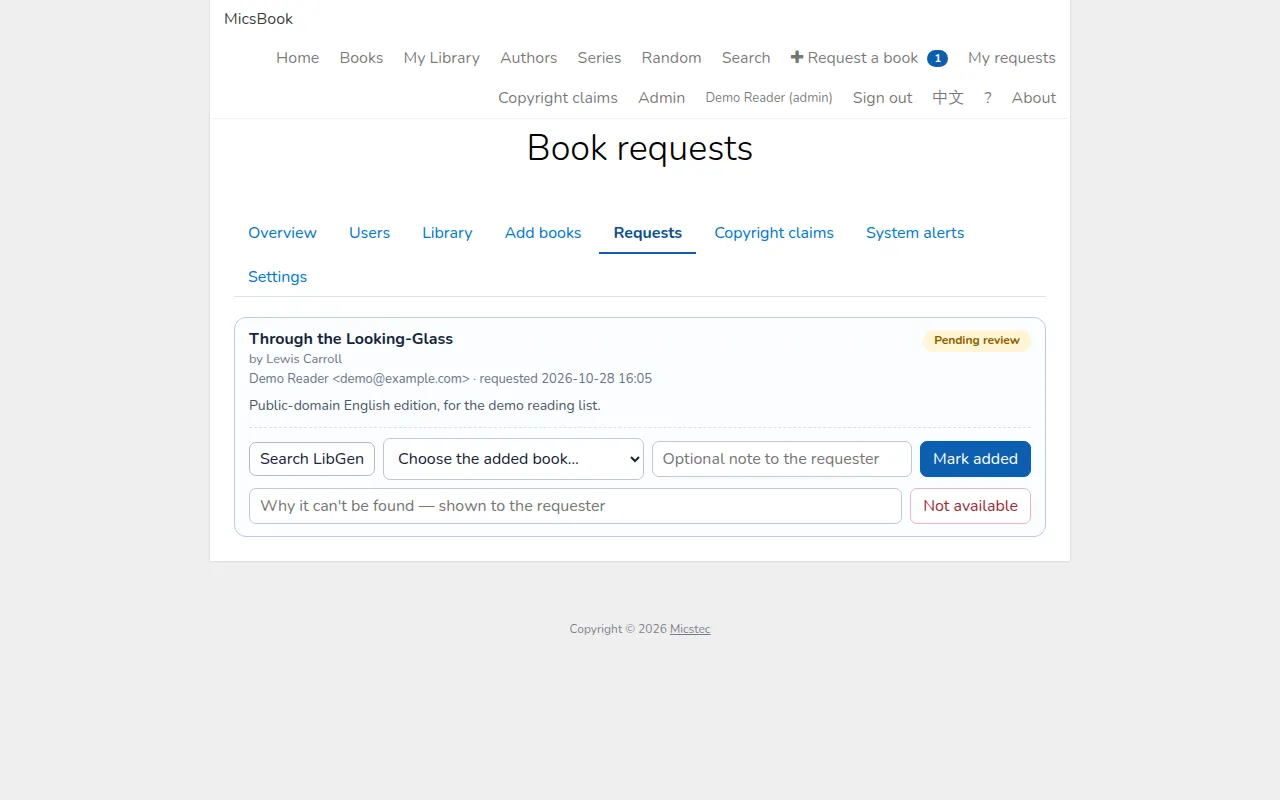
In **Admin → Requests**, review the requested title, author, requester and notes.
1. Locate or upload an authorized copy.
2. Choose the matching book in **Choose the added book…**, add an optional response and **Mark added**.
3. If unavailable, enter the reason and choose **Not available**.
4. The reader can see that outcome under My requests.
The administration Requests page with the fictional public-domain request. Select the image to enlarge it.
The page also offers **Search LibGen** as an external-search shortcut. It does not automatically satisfy a request or verify distribution rights. Matching the right edition and language still requires a review.
## Manage users, global settings and alerts
### Users
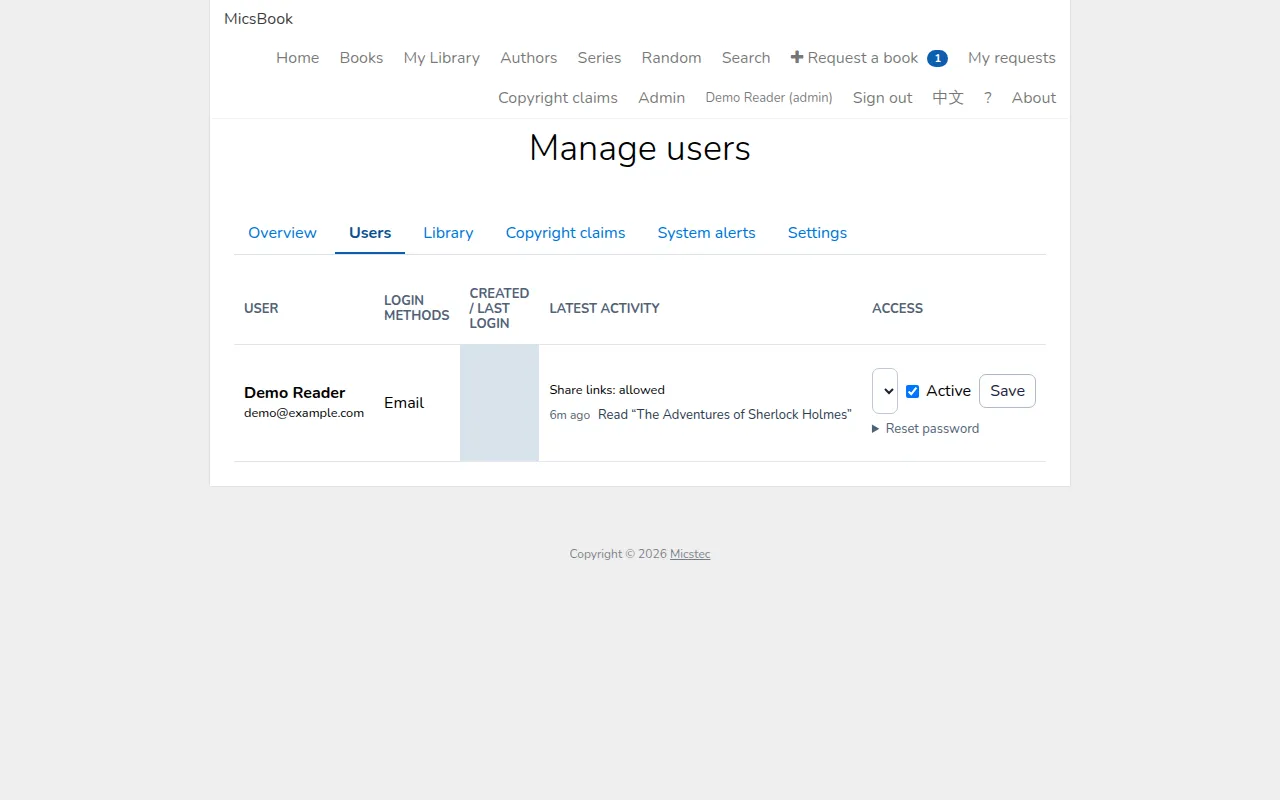
Under **Admin → Users**, review account information, login/activity data and reading activity. Set **Reader**, **Manager** or **Admin**, toggle **Active**, then **Save**. Inactive accounts cannot continue using normal authenticated features. The last active administrator is protected against demotion/disablement.
Use the password reset controls to enter **New password** and **Confirm password**, then **Set password**. Reset revokes the user's browser sessions and API tokens; it is not an emailed recovery link.
User role and password controls for the fictional account; network activity details are masked. Select the image to enlarge it.
### Settings
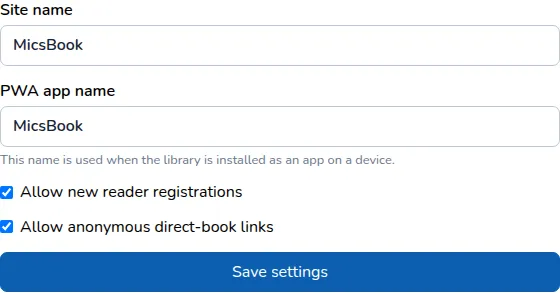
**Admin → Settings** includes **Site name**, **PWA app name**, **Allow new reader registrations** and **Allow anonymous direct-book links**. Choose **Save settings**. The anonymous-links setting changes what a non-member can open from a direct URL; the account's sharing permission controls the availability of its sharing UI.
Global site/app names and registration/direct-link settings in the test library. Select the image to enlarge it.
### Copyright claims and system alerts
**About → Report a copyright concern** opens a form for claimant name/organization, contact email, book reference and a detailed claim, with an authorization confirmation. **Send report** submits it for administrator review. The reader menu offers the same reporting route. Submitting a report does not automatically remove a book.
Administrators review **Copyright claims**, update the outcome, and remove content when appropriate. **System alerts** records operational problems such as unavailable services; use **Mark as read** or **Mark all as read** after review. Acknowledging an alert is different from fixing the underlying problem. These reporting/alert flows were reviewed in source; no production claims or notifications were submitted.
## Use bookbrowser-cli
**BookBrowser** is the server; **bookbrowser-cli** is the separate remote client. Ask the administrator for the current executable. The source lists Linux/macOS installers and a Windows binary, but the listed release host failed certificate hostname validation during this review, so a working download route needs operator confirmation. It uses the server's versioned API and the signed-in user's role.
```sh
bookbrowser-cli login --url https://ebook.micstec.com
bookbrowser-cli whoami
bookbrowser-cli books list
bookbrowser-cli books search "Alice"
bookbrowser-cli books show BOOK_ID
bookbrowser-cli books download BOOK_ID --output ./downloads/
```
For Google-enabled libraries, `login --method google-link` prints a short-lived browser approval link; `google-browser` also opens it. Google authentication happens in the browser, not by giving the CLI a Google password.
| Command group | Capabilities |
| --- | --- |
| `profiles`, `use`, `--profile` | Save/select multiple servers and accounts |
| `books list/search/show/download` | Read catalog metadata and download files |
| `library status/upload/rescan/remove` | Manager operations; recursive directory uploads and recoverable removals |
| `users list/show/...` | Administrator user and role/password operations |
| `settings show/set` | Administrator settings |
| `tokens list/revoke`, `logout` | Manage/revoke current-user tokens |
| `--json`, `help` | Machine-readable output and per-command reference |
Downloads avoid overwriting existing files unless **--force** is supplied. Account role checks still apply to CLI operations. **logout** normally revokes the saved token before removing the profile. A failed revocation preserves the profile; **--local-only** explicitly removes local state alone. Credentials can come from flags, environment, an explicitly selected env file or a profile; this CLI does not automatically search parent directories for `.env`.
The CLI options were reviewed against the current source; the screenshot session exercised the web interface rather than a complete client acceptance test. No account token is published in this guide.
## Install, work offline and get help
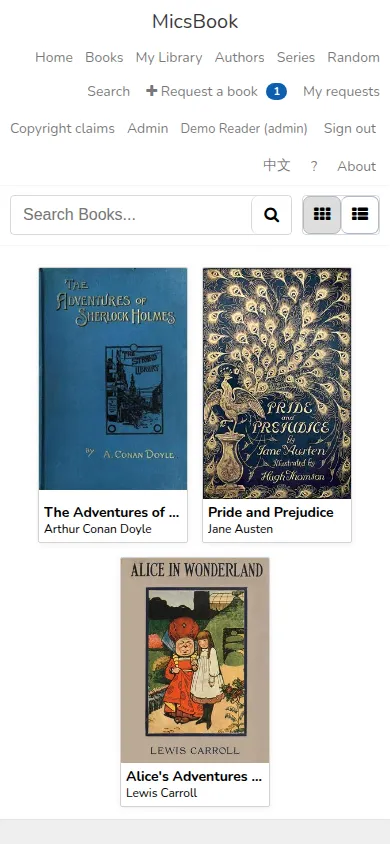
Install through Chrome's install/Add to Home Screen action or Safari's **Share → Add to Home Screen**. The installed app uses **PWA app name** and opens without normal browser chrome.
Previously opened resources can remain in the offline cache, but this is not a guarantee that every book, chapter, voice or account operation is available offline. Open the needed book while connected and check it before a trip; use **Download** for a deliberate file copy. New searches, requests and account synchronization need the server.
The public-domain test library on an emulated phone screen. Select the image to enlarge it.
Use the **?** user guide, **About** build information, or [download this full manual](full-manual.md). No rendered promo video or native app-store listing was found in the reviewed repository.
## Troubleshooting
| Problem | Check or action |
| --- | --- |
| Registration closed / sign-in rejected | Ask the administrator about account access or a password reset |
| **Not found (or still indexing)** | Wait for indexing; a manager can check/rescan the catalog |
| Search misses text in a chapter | Catalog search matches metadata; use **Search book...** inside the EPUB |
| Book fails to open | Download it and try another reader, then report the title/format to the administrator |
| Position differs on another device | EPUB location is local; use an account bookmark to move between devices |
| Save menu missing | Sign in and reopen the book; anonymous reading does not provide account tools |
| PDF cannot search/select text | It may be an image-only scan |
| Speech silent/unavailable | Tap playback, check volume and the configured speech service/browser support |
| Speech stops at a set time | Check **Stop after play time** |
| Speech stops when locked | Review power/background settings or keep the screen on |
| Translation/dictionary fails | Check internet access and try a shorter selection or an English headword |
| Lists/tags missing on another device | Confirm the same account; reader appearance/location remain device-specific |
| Shared link asks for login | Anonymous direct links may be disabled |
| No Admin/Users/Settings control | The signed-in role does not grant it |
| MOBI upload rejected | Ask the operator to verify the converter and the source file |
| Removed book needs recovery | An operator must restore the retained file and rescan |
| Request still Pending | Library staff have not yet recorded its outcome |
Include the About build, book title/format, device/browser and exact message in a support request. Share private account reading items only with the intended support recipient.